Tourist payments
Tourist Payments (staff)
report:read. Insights → Tourist Payments.
Every pass purchase, successful or not.
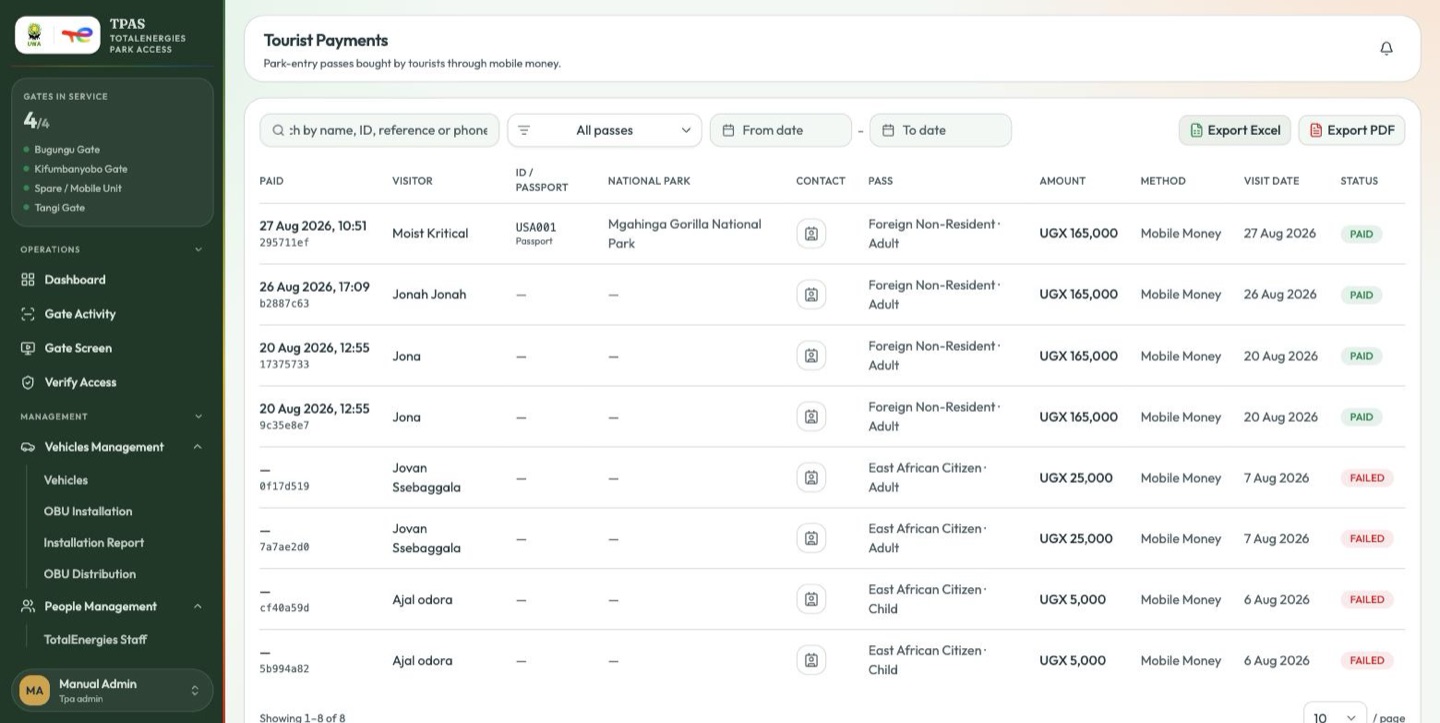
| Column | What it is |
|---|---|
| Paid | When payment completed, above the payment reference. — where it never completed. |
| Visitor | The name given at purchase, if any. |
| ID / Passport | The document number given at purchase, with the document type beneath it. |
| National park | Which park the pass was bought for. |
| Contact | A button opening the visitor's contact details — see below. |
| Pass | The entry category bought. |
| Amount | In UGX. |
| Method | Mobile money, Visa or Mastercard. |
| Visit date | The date the visitor gave. |
| Status | PAID, FAILED, or pending. |
Search by reference, phone or pass tier; filter by pass type and date range. The list is paginated.
Contacting a visitor
The Contact button opens a small panel carrying the visitor's email and phone. Each value is shown as plain text with two actions beside it: copy it to the clipboard, or act on it — email for the address, call for the number.
The details are deliberately not raw links sitting in the table row; you open the panel, read what is there, and choose. Use it for the follow-up that email address was collected for: a paid visitor who never arrived.
Exporting
Export Excel and Export PDF take every payment matching your current filters, not just the page on screen, and are branded like the rest of the portal's exports (Exporting).
When a payment goes wrong
A payment that does not complete leaves a FAILED row in Tourist Payments and no pass. The visitor has not been admitted and, in the ordinary case, has not been charged.
If a visitor arrives with two references for one visit, treat it as a duplicate attempt rather than two purchases: open both in Tourist Payments and read their status before telling them anything about a charge. A pair of rows with the same visitor, number, date and amount is one purchase that was retried.
If a visitor was charged but has no pass, take the reference and the mobile money or card details from the Contact panel and refer it to the wildlife authority's finance desk. Nothing on this screen reverses a charge.
Related
- Tourist revenue in Reports totals pass sales and revenue over a period.
- The UWA Dashboard shows gate throughput alongside tourist park-pass revenue for reconciliation. See Role reference.
- The gate-side check lives with the other counter tools in Verify Access.