Device stock
A badge or an on-board unit is a physical object. Somebody is holding it right now. This chapter is about knowing who.
Before this module, TPAS could tell you a card had expired but not whether it was in a drawer at the store or in a driver's pocket a hundred kilometres away. Those need different actions, and the difference is what device stock records.
has signed for it. A card that has been issued, or is in transit, or is on its way back, does not work — however healthy it looks on the badge list.
Where the module lives
device-stock:read.
There is one entry in the sidebar, and it is the way in to everything here. Where it sits depends on who you are:
| You are | Path |
|---|---|
| TotalEnergies (anyone with their own dashboard) | Management → Stock Overview |
| A contractor | Registry → Stock Overview |
It is the same page. TotalEnergies opens it and chooses a contractor; a contractor opens it and goes straight to their own.
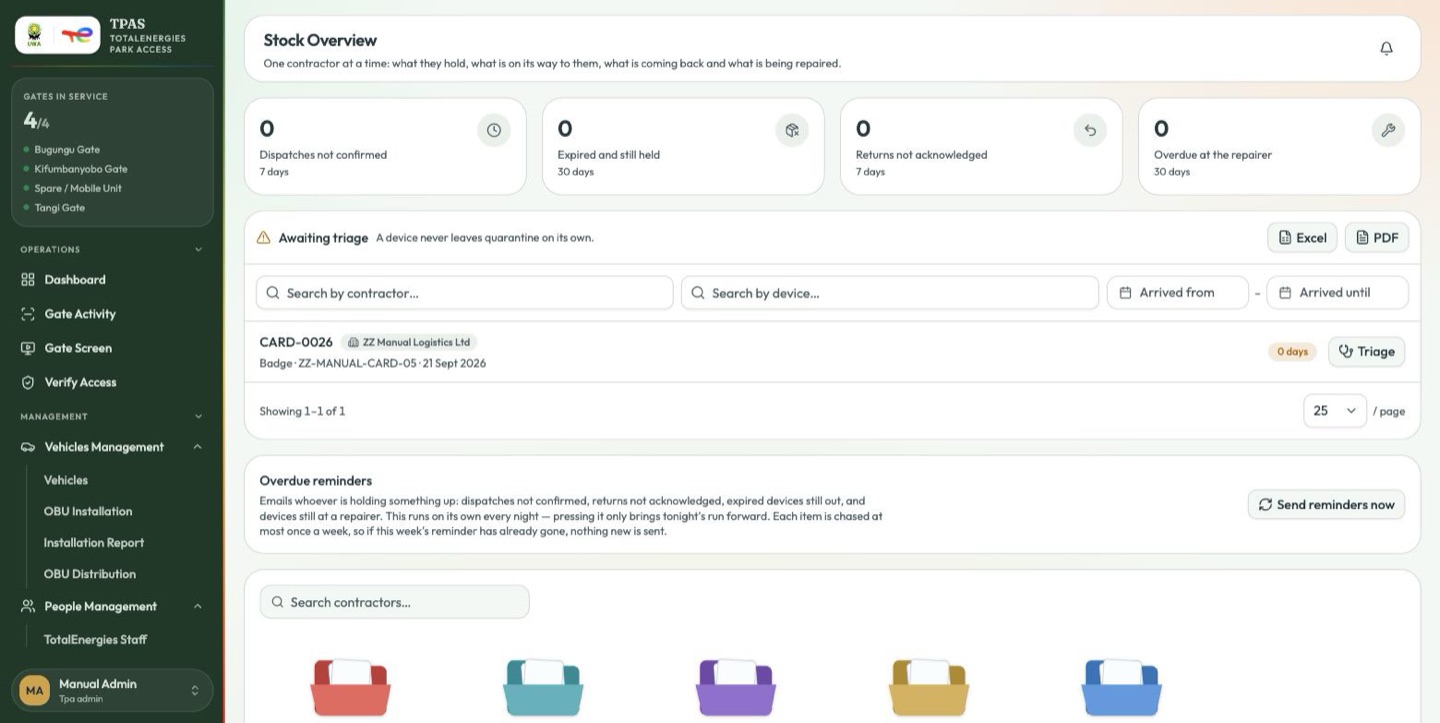
The landing page carries, in order: the four exception tiles (What needs attention), the Awaiting triage queue (Quarantine, triage and repair), the Extension requests queue when there are any (Expiry, renewal and extensions), Access expiring soon, the Overdue reminders panel, and then one folder per contractor.
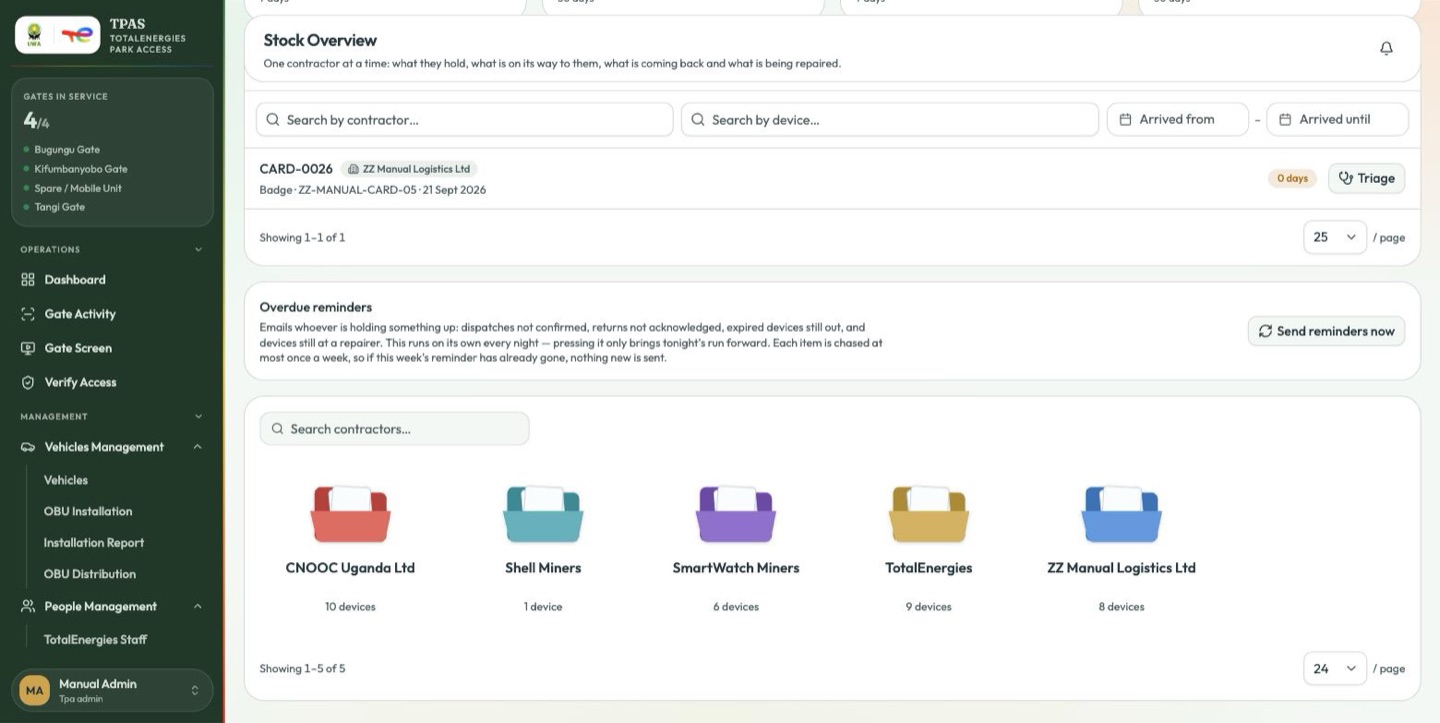
Open a contractor and you get their own page — the same four tiles cut to them, and four tabs:
| Tab | What it holds |
|---|---|
| Devices | Every device they are accountable for, wherever it is (Everything one contractor has) |
| Dispatches | Notes of devices sent to them (Dispatch) |
| Returns | Notes of devices sent back (Starting a return) |
| Repairs | The triage queue and open repairs (Quarantine, triage and repair) |
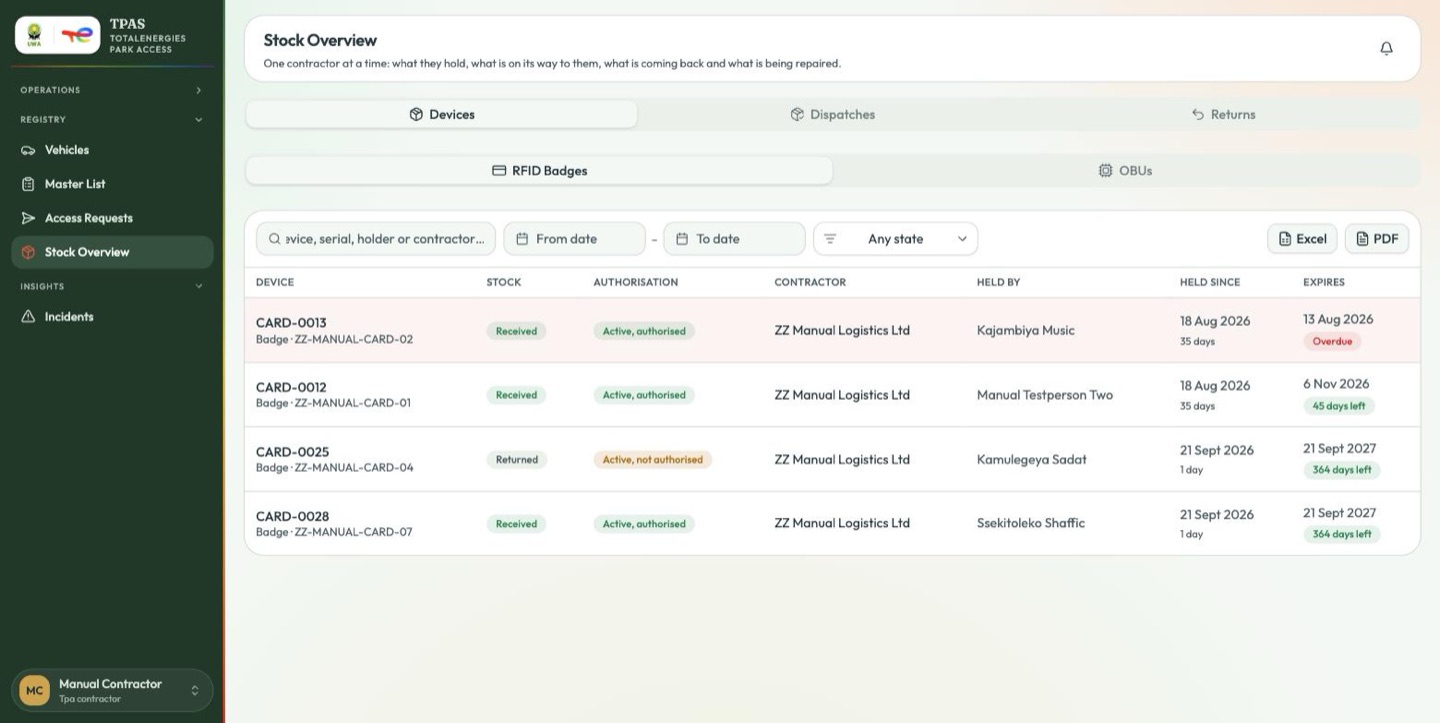
The Repairs tab is hidden from anyone without
device-stock:repair, which is why a contractor sees three tabs and
TotalEnergies sees four. Nothing else about the page differs by role; the
backend decides which rows you are allowed to see.
Note — /stock/dispatches, /stock/returns, /stock/repairs and
/stock/custody still work if you follow an old link or a bookmark. They show
the same information as the tabs. Nothing in the sidebar points at them any
more, and new notifications always open the tab.
The three things a device carries
Every card and OBU carries three separate facts, and reading them together is the whole skill. The Devices table shows all three side by side.
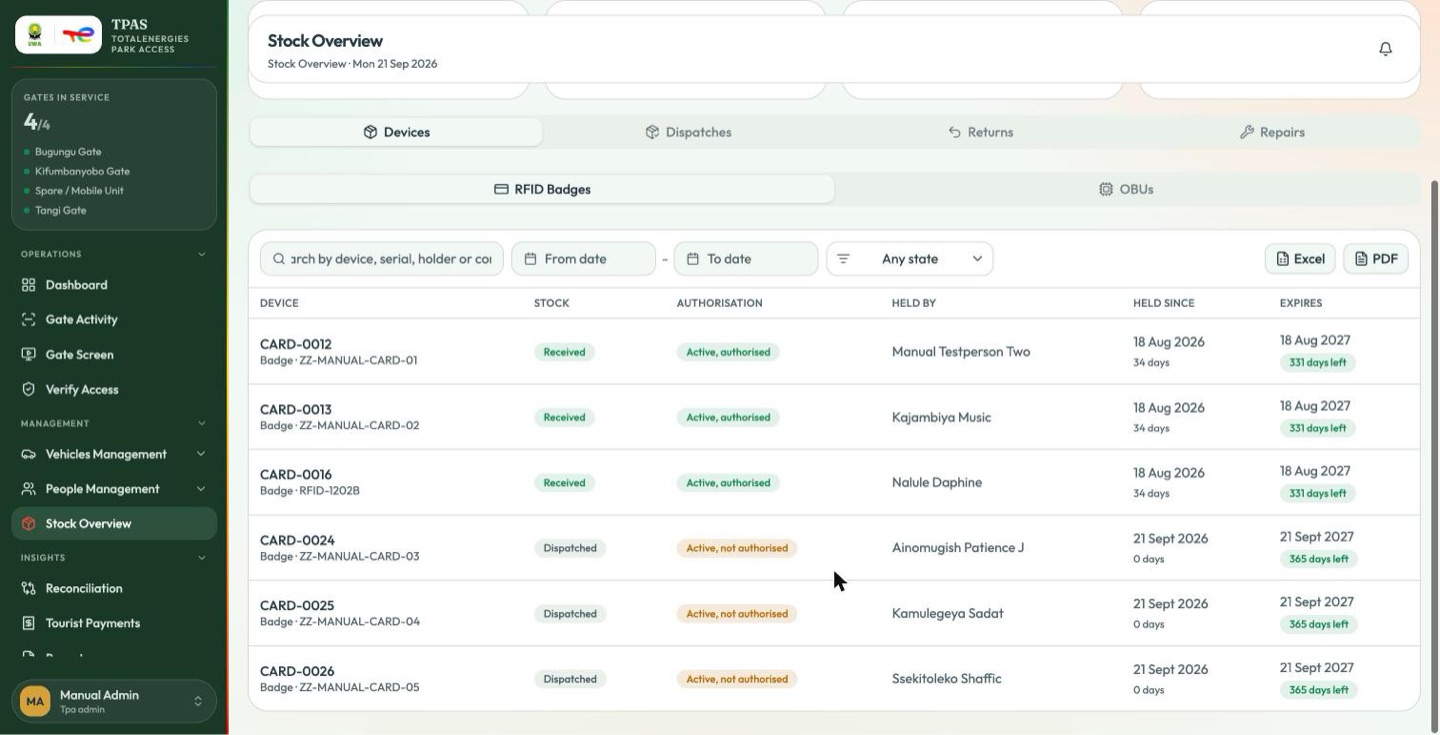
| Axis | What it answers | Values |
|---|---|---|
| State (custody) | Where is it, physically? | In stock · Issued, not yet sent · Sent, not yet confirmed · With contractor · On its way back · Quarantined · Under repair · Lost · Decommissioned |
| Stock | Where is it in the stock cycle? | Available · Dispatched · Received · Returned · Repair · Decommissioned |
| Authorisation | Would it open a gate? | Inactive · Active, not authorised · Active, authorised · Under repair · Decommissioned |
All three are derived from custody — you never set them by hand. Signing for a device is what authorises it; starting a return is what stops it.
Received · Active, authorised. Everything else is a device that exists, is accounted for, and does not work.
Expiry is not part of custody. A device whose validity has run out is still With contractor — physically, nothing has changed — which is why expired and still held is its own exception. It needs chasing, and returning it is not the only answer (Expiry, renewal and extensions).
On the Devices table and on Access expiring soon, an expired badge still reads Active, authorised beside an Expired chip and a red expiry date. The pill is derived from custody alone. Read the Expires column, not the pill, when you want to know whether a device is in date. The Device registry takes validity into account and shows the same device as Active, not authorised, so the two screens will disagree about an expired device. The gate is not fooled either way — an expired card is refused at the barrier.
The Stock filter is coarser than the State filter
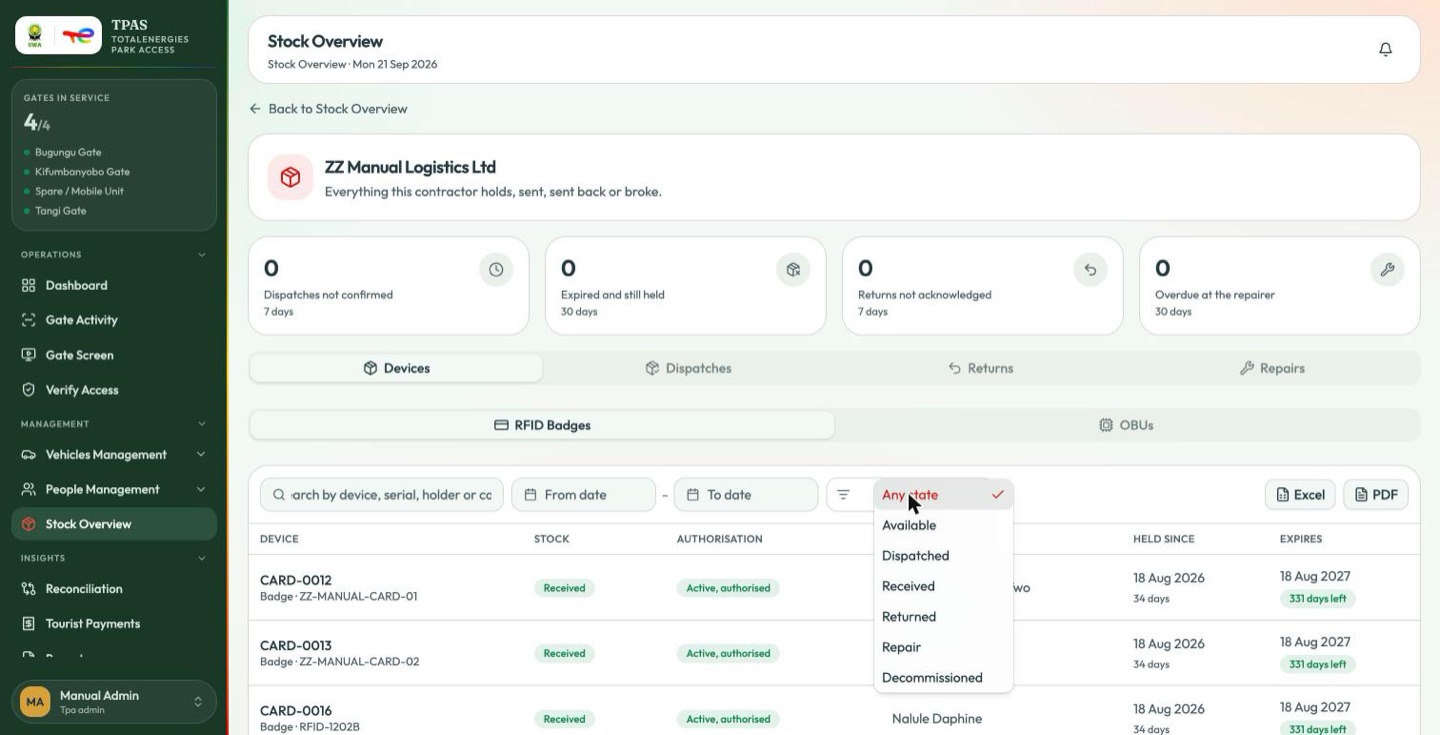
Two values on the Stock filter cover more than their name suggests:
| Stock value | Also includes |
|---|---|
| Available | Both In stock and Issued, not yet sent — a device assigned to somebody but still on the TotalEnergies shelf counts as available stock. |
| Decommissioned | Both Decommissioned and Lost — a written-off device and a missing one are equally out of service. |
When you want one exact situation, filter by state, not by stock. Any state → Issued, not yet sent answers "what have we assigned but never sent?"; Decommissioned alone excludes losses.
The round trip
The whole chapter, in the order things happen. Each step names who does it.
| # | Step | Who | Custody after |
|---|---|---|---|
| 1 | Register the device | TotalEnergies | In stock |
| 2 | Issue it to a person or vehicle | TotalEnergies | Issued, not yet sent |
| 3 | Dispatch a batch on one note | TotalEnergies | Sent, not yet confirmed |
| 4 | Confirm receipt, line by line | Contractor | With contractor |
| 5 | Renew, or request an extension | Either | unchanged |
| 6 | Start a return | Contractor | On its way back |
| 7 | Acknowledge what arrived | TotalEnergies | In stock or Quarantined |
| 8 | Take a badge back across the desk | TotalEnergies | In stock or Quarantined |
| 9 | Triage what is in quarantine | TotalEnergies | Under repair, In stock or Decommissioned |
| 10 | Close the repair | TotalEnergies | In stock or Decommissioned |
| 11 | Declare it lost | TotalEnergies | Lost |
Steps 1 and 2 are covered in Administration and Registry; everything from step 3 on is below.
Steps 2 and 3 are deliberately separate. Issuing is paperwork; dispatch is a physical handover. Keeping them apart is what lets TPAS answer "we sent twenty, they received eighteen".