Device registry
access-device:read / access-device:create.
Administration → Devices → Device Registry.
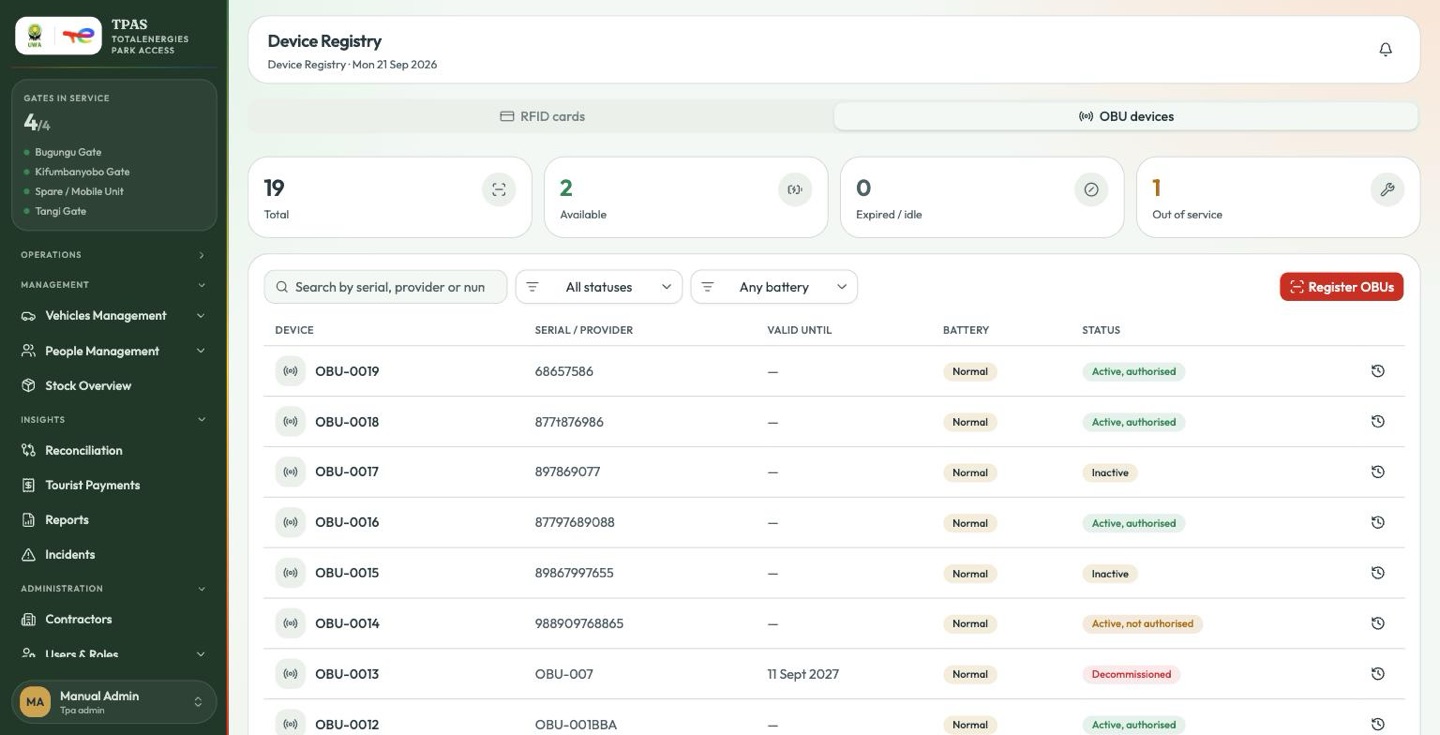
The device registry is the pool of credentials: RFID cards that will become personnel badges, and OBUs that will be fitted to vehicles. Two tabs, one for each.
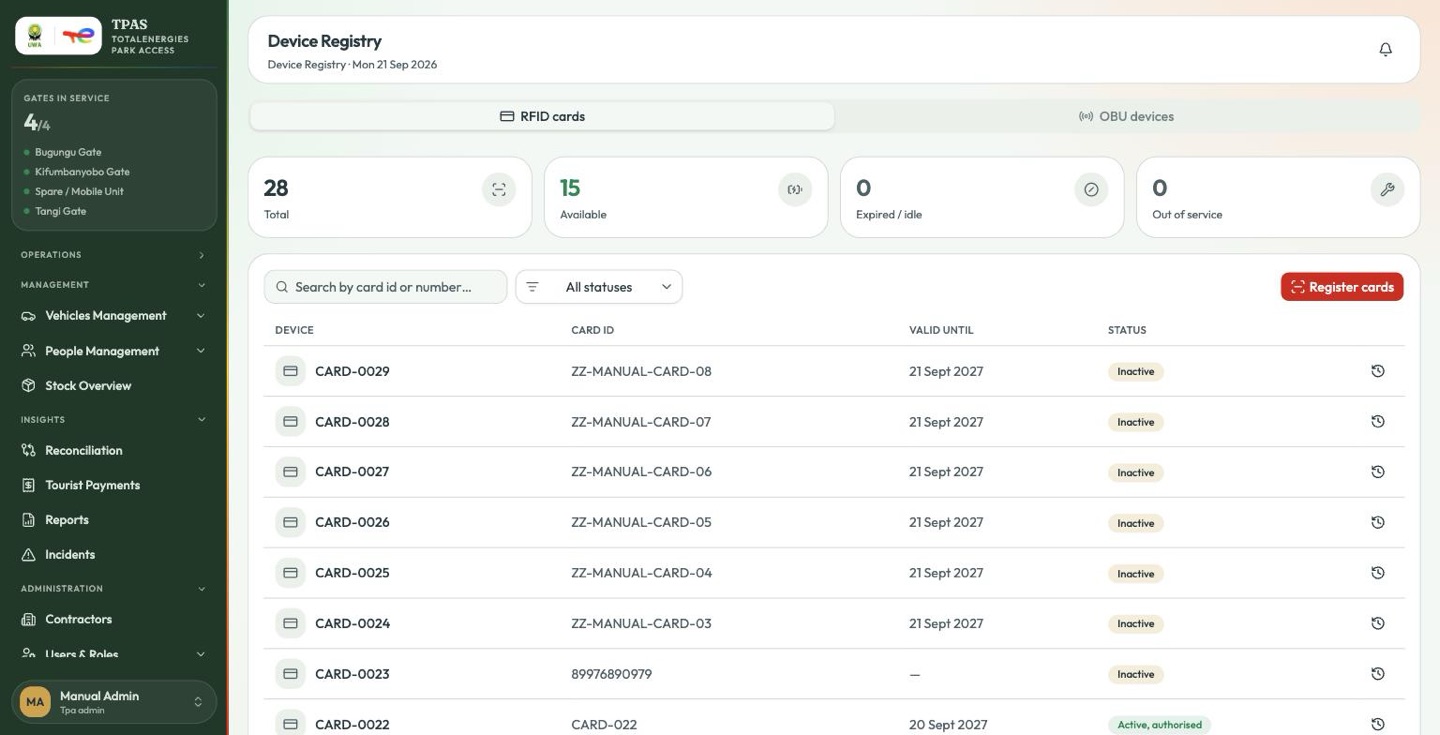
Four counts tell you what you have to work with:
| Count | Meaning |
|---|---|
| Total | Every card ever registered. |
| Available | Registered and unassigned — the pool you can issue badges from. |
| Expired / idle | Past its validity date, or assigned to nobody and stale. |
| Out of service | Under repair, written off or lost. |
Available reaching zero is the thing to watch. Nobody can be issued a badge and no OBU can be assigned until you register more. The OBU tab works the same way.
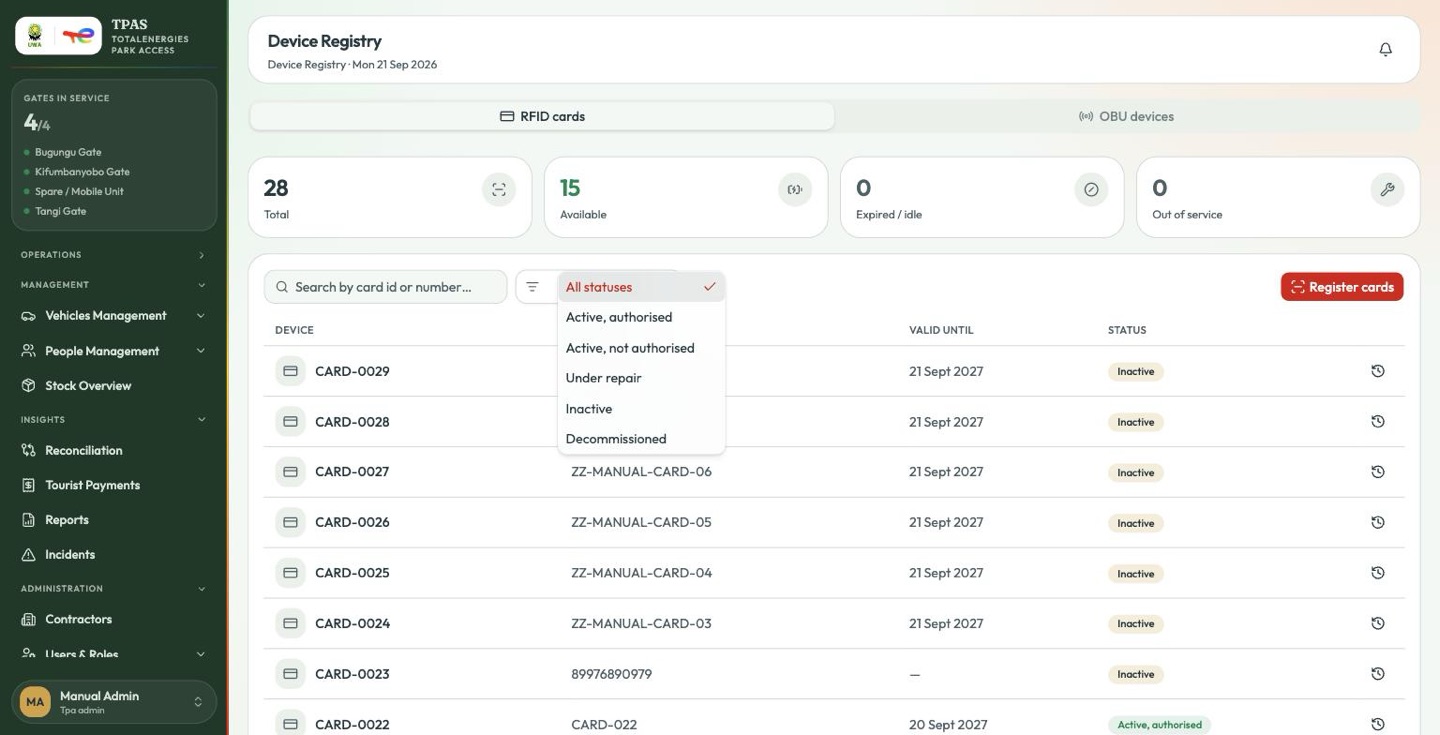
Each row carries the printed device number (CARD-0029), the card ID —
the serial written on the card itself — the validity date and a status pill.
Filter the list with All statuses.
CARD-0029 is what TPAS prints and what people quote; ZZ-MANUAL-CARD-08 is
the serial encoded on the card. Verify Access accepts either
(Verify Access); the device-stock dialogs name
devices by their serial.
Note — the status here takes validity into account This page marks a card past its validity as Active, not authorised. The device-stock tables do not — they read custody alone. Where the two disagree about an expired device, this page is the one describing whether it would open a gate (The three things a device carries).
Where a device has been
The clock icon at the end of a row opens the device's full history.
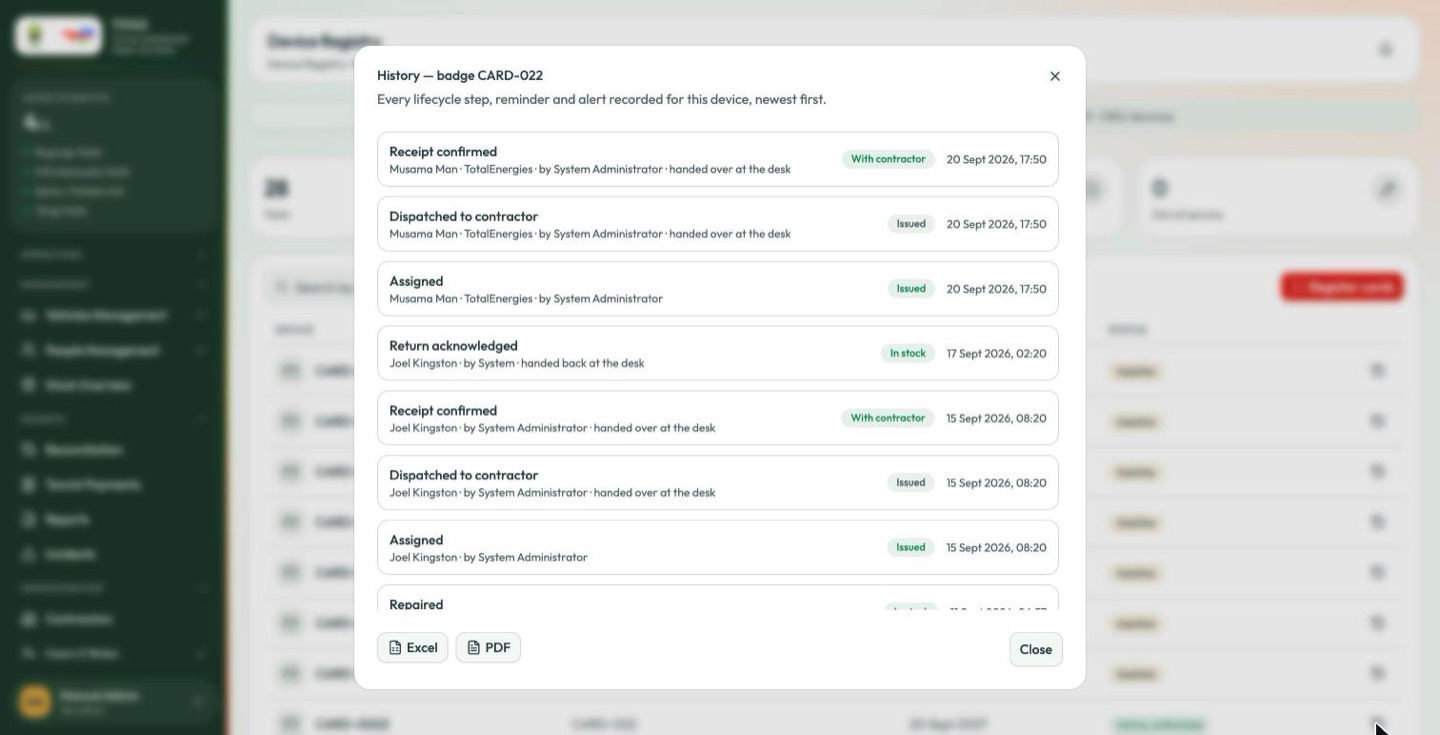
Every lifecycle step, reminder and alert recorded for this device, newest first.
Each entry names the step (Assigned, Dispatched to contractor, Receipt confirmed, Return acknowledged, Repaired), who it was for, who did it, the resulting custody state and the timestamp — and where it happened across a desk rather than on a note, it says so (handed over at the desk). Excel and PDF export the trail.
This is the same history reached from a badge or OBU row in Registry, and it is the answer to Device stock's central question: where is this device, who has it, and how did it get there?
Registering cards
Select Register cards.
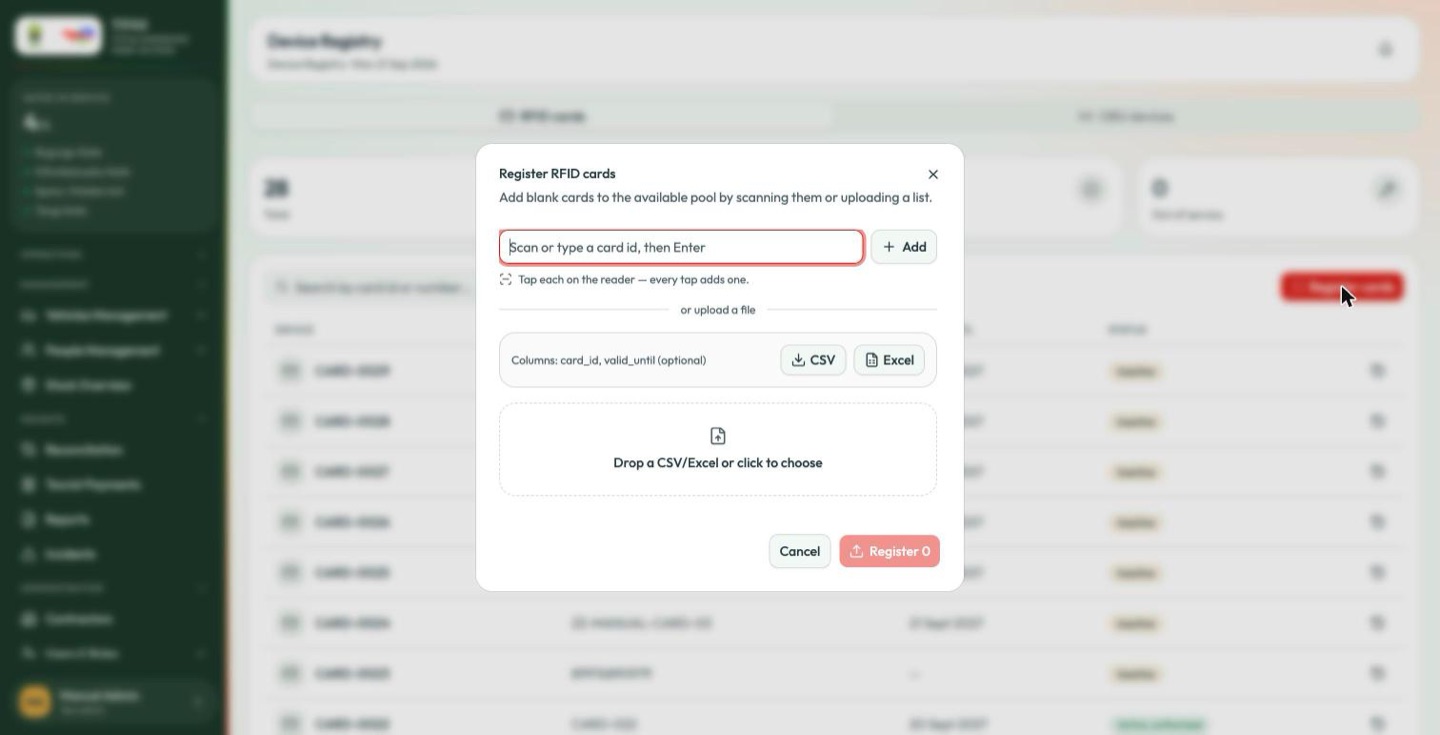
There are two ways in, and they suit different jobs:
Scanning, for a handful. Put the cursor in the field and tap each card on the reader — every tap adds one and clears the field for the next. You can also type an id and press Enter. Each accepted card becomes a chip; the × removes one you added by mistake.
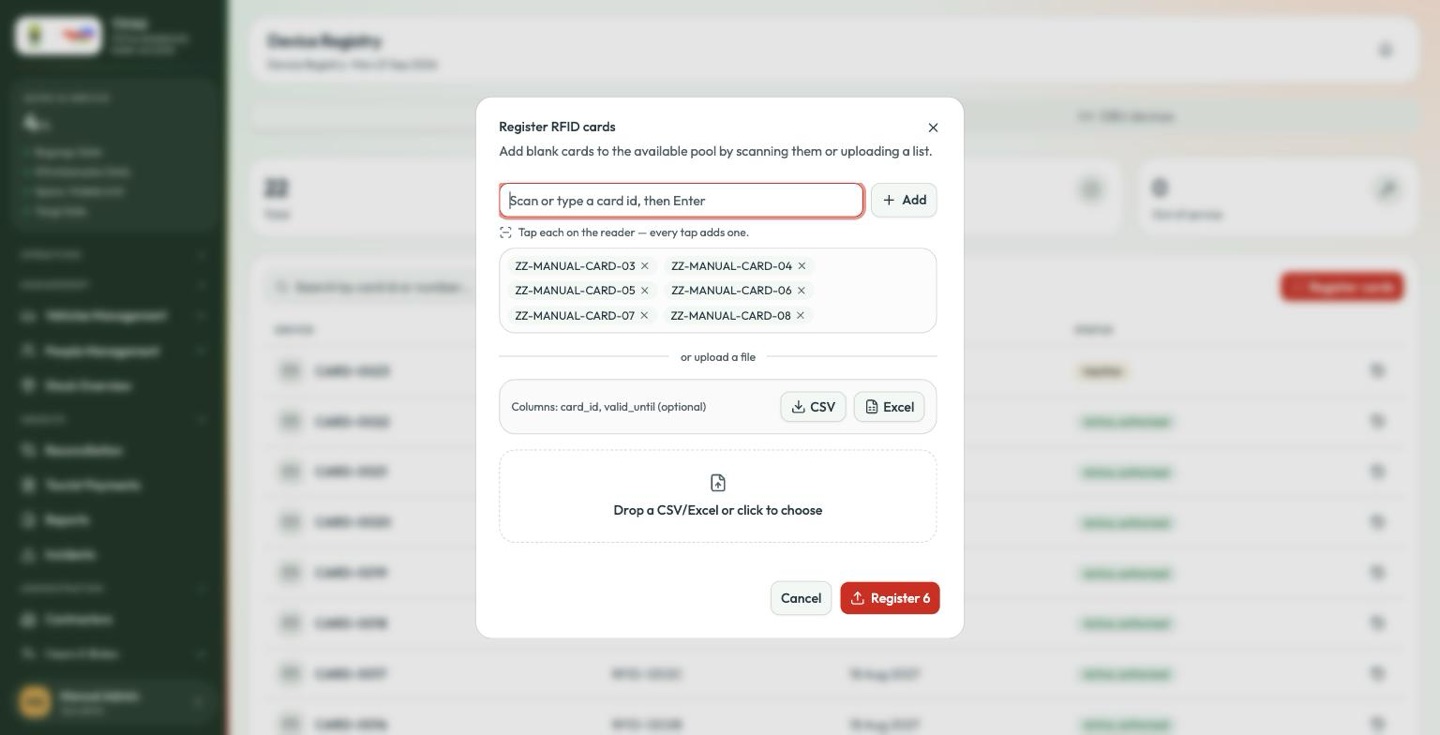
A file, for a delivery. Drop a CSV or Excel file, or select one. The columns
are card_id and, optionally, valid_until. Template files are offered
in both formats — take one and fill it in rather than composing a file from
scratch.
The button counts what you are about to commit (Register 2). Select it, and the cards join the available pool.
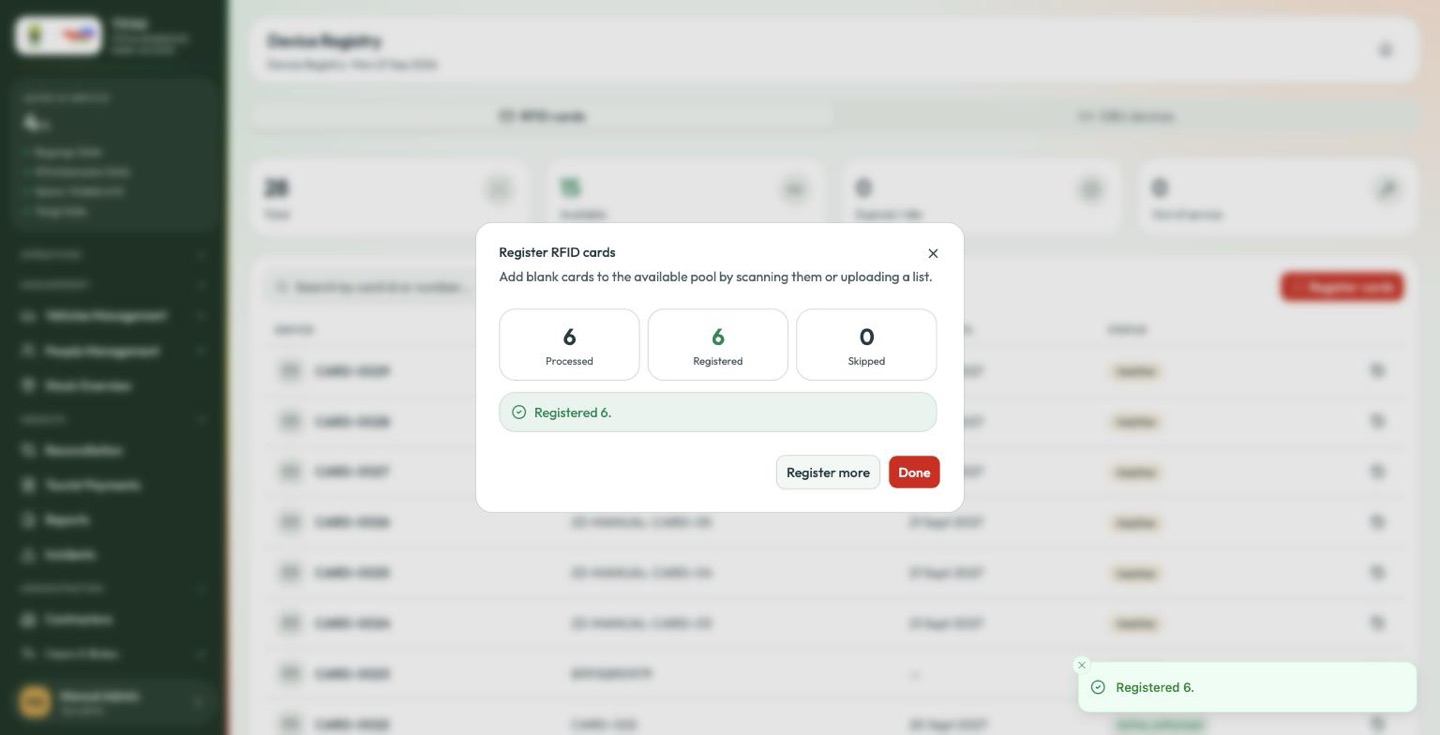
Registering a card only makes it available. Putting it in someone's hand is a separate step — see Issuing a badge in the next chapter, and Device stock for getting it to them.