Badges
personnel:read, plus personnel:create to add people
and access-device:assign to issue badges.
Management → People Management → Personnel & Badges.
The Badges tab
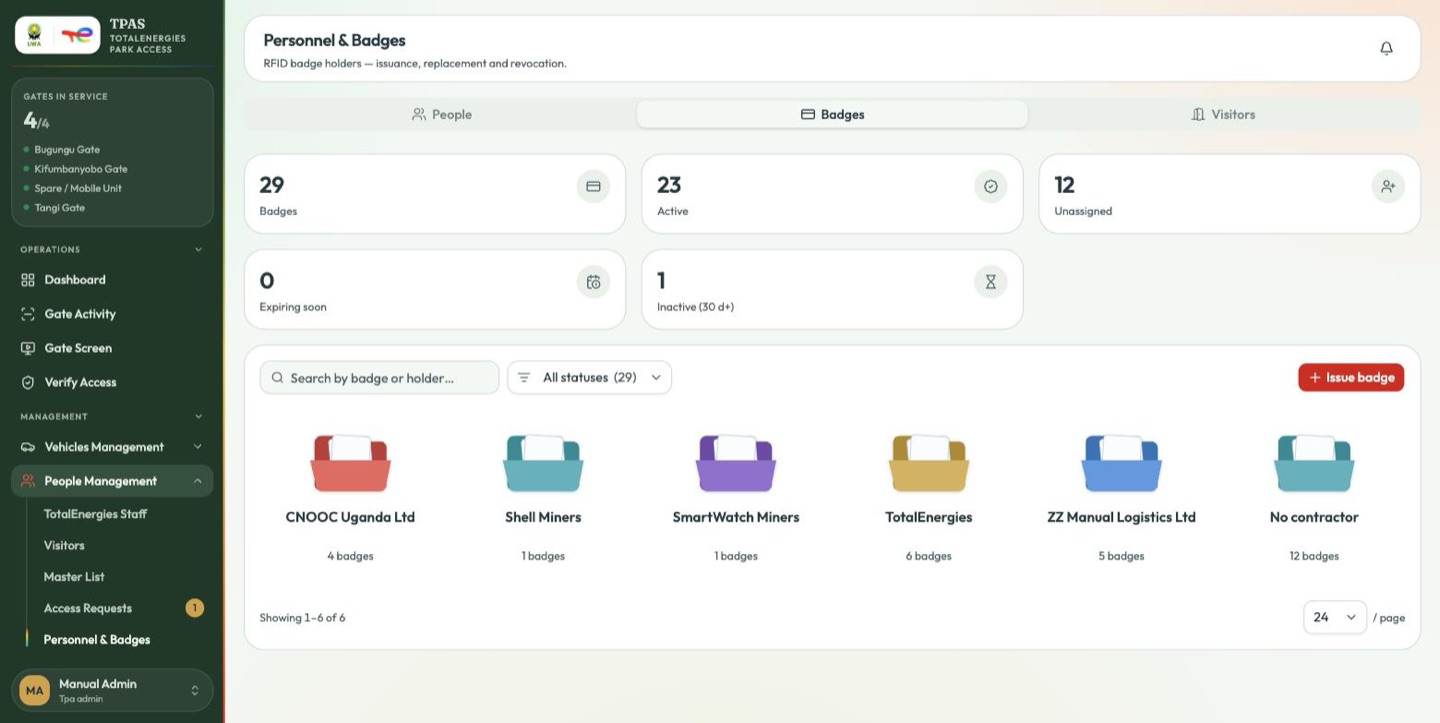
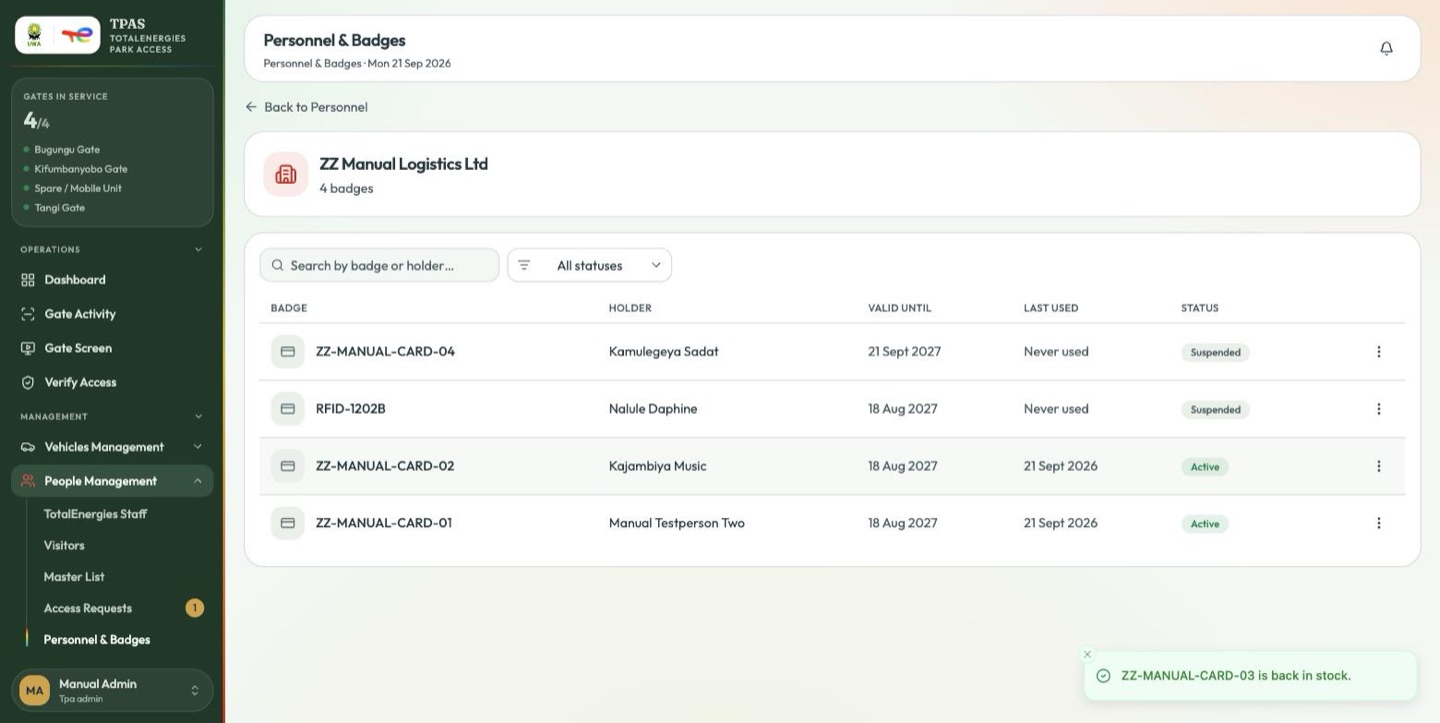
Five counts head the tab — Badges, Active, Unassigned, Expiring soon, Inactive (30 d+) — then one folder per contractor.
The status filter carries a count against every value, which makes it a quick census of the estate:
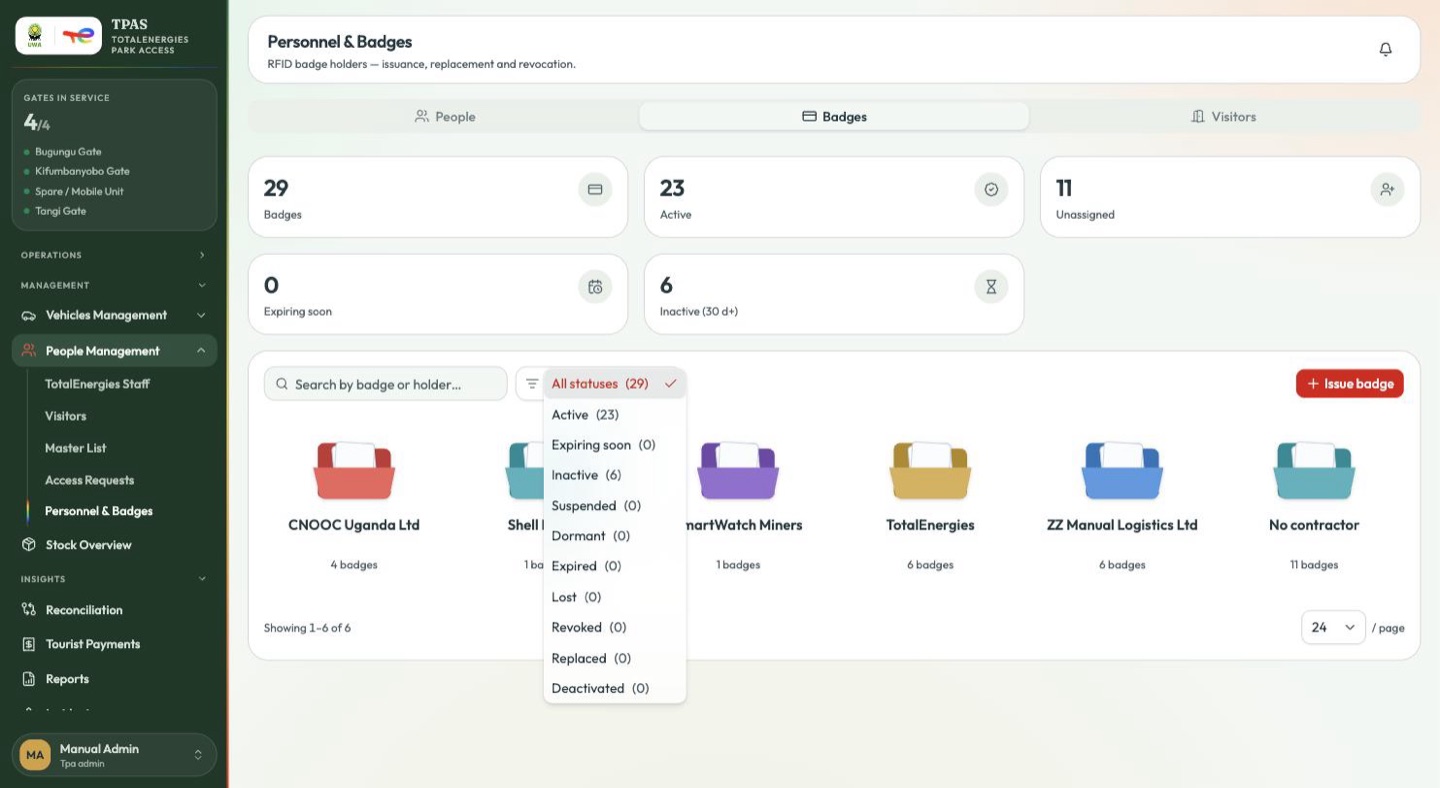
Active · Expiring soon · Inactive · Suspended · Dormant · Expired · Lost · Revoked · Replaced · Deactivated.
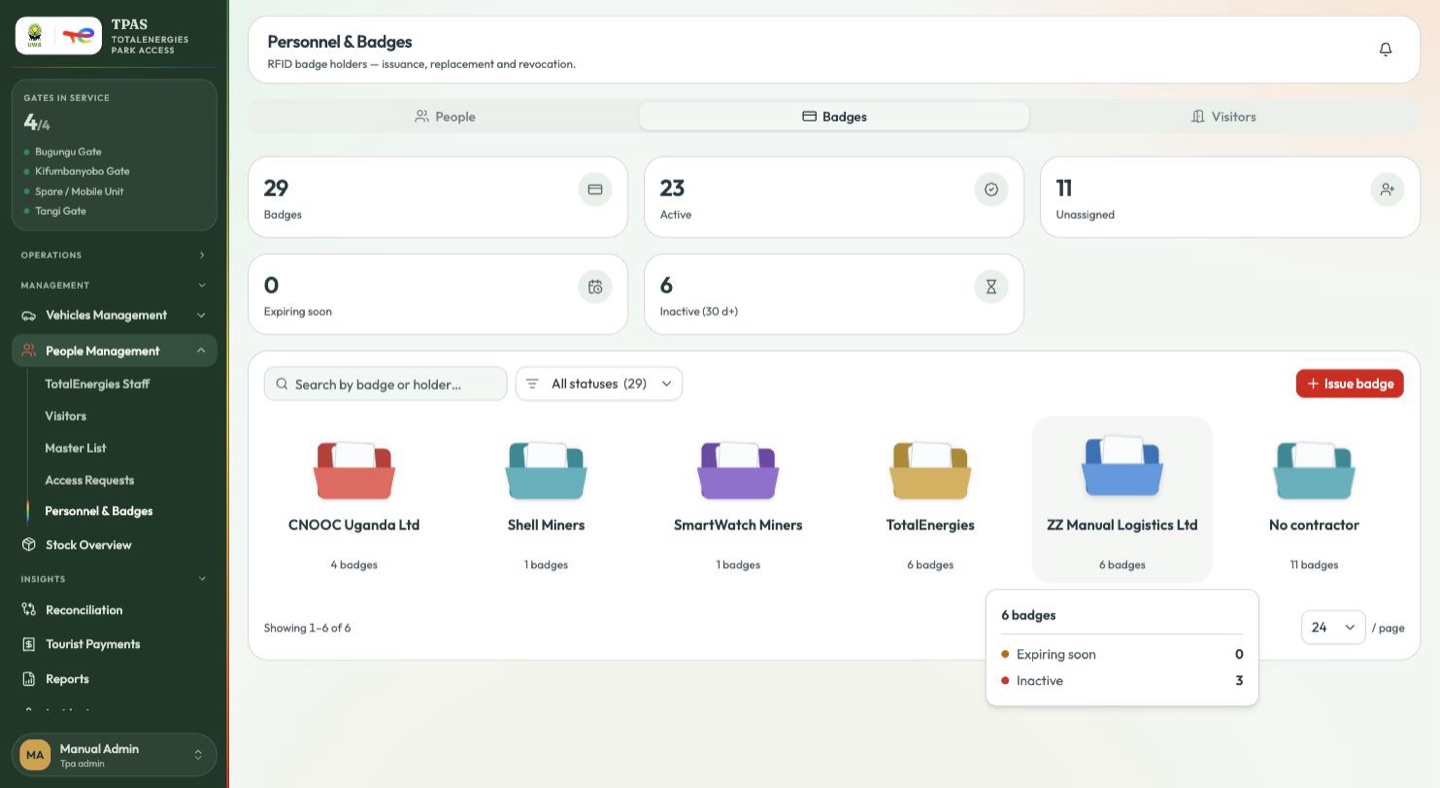
Hover a folder for that contractor's breakdown without opening it.
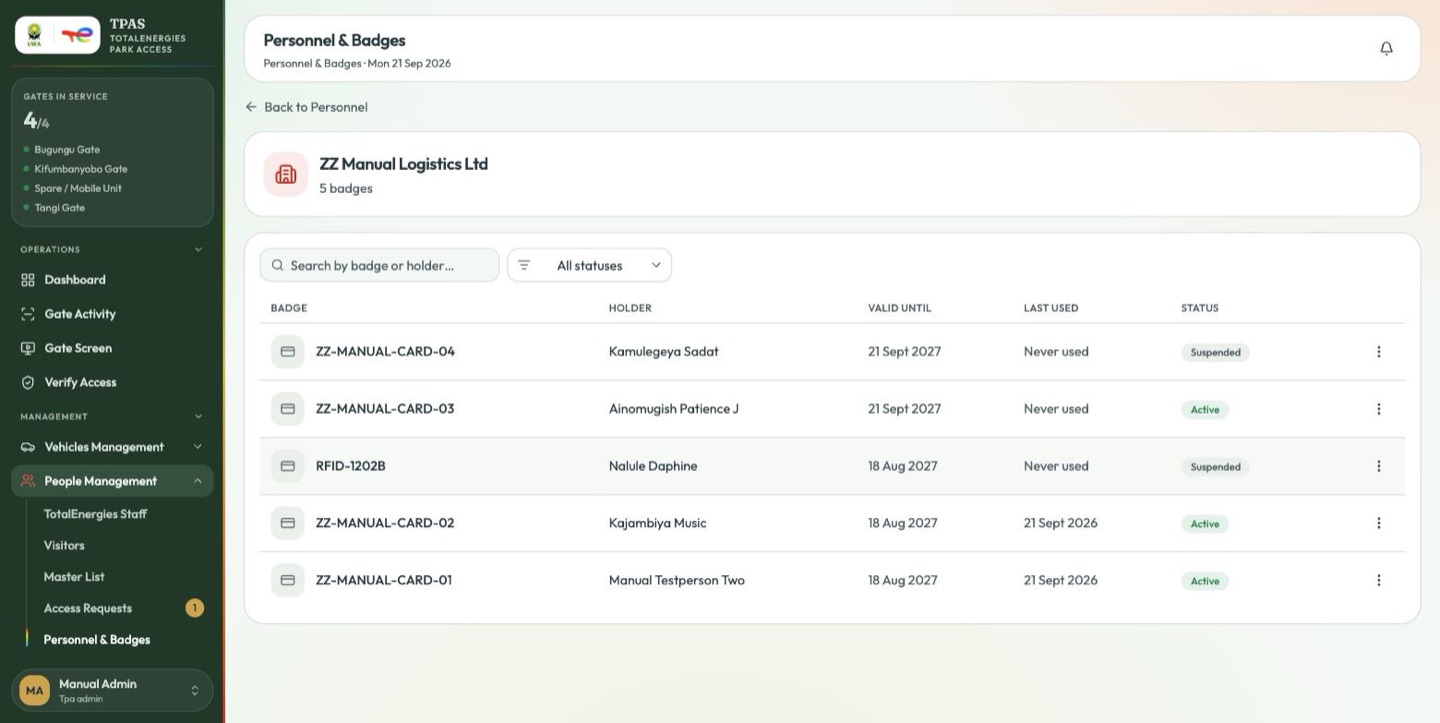
Open one and each row gives the badge, its holder, its validity, when it was last used and its status. An expired badge says how long ago (Expired 40 days ago); one never presented at a gate says Never used, with an Idle chip once that has gone on too long.
Issuing a badge
A badge is one available RFID card put in one approved person's hand. If the pool is empty, register more cards first (Device registry).
-
On the Badges tab, select Issue badge.
-
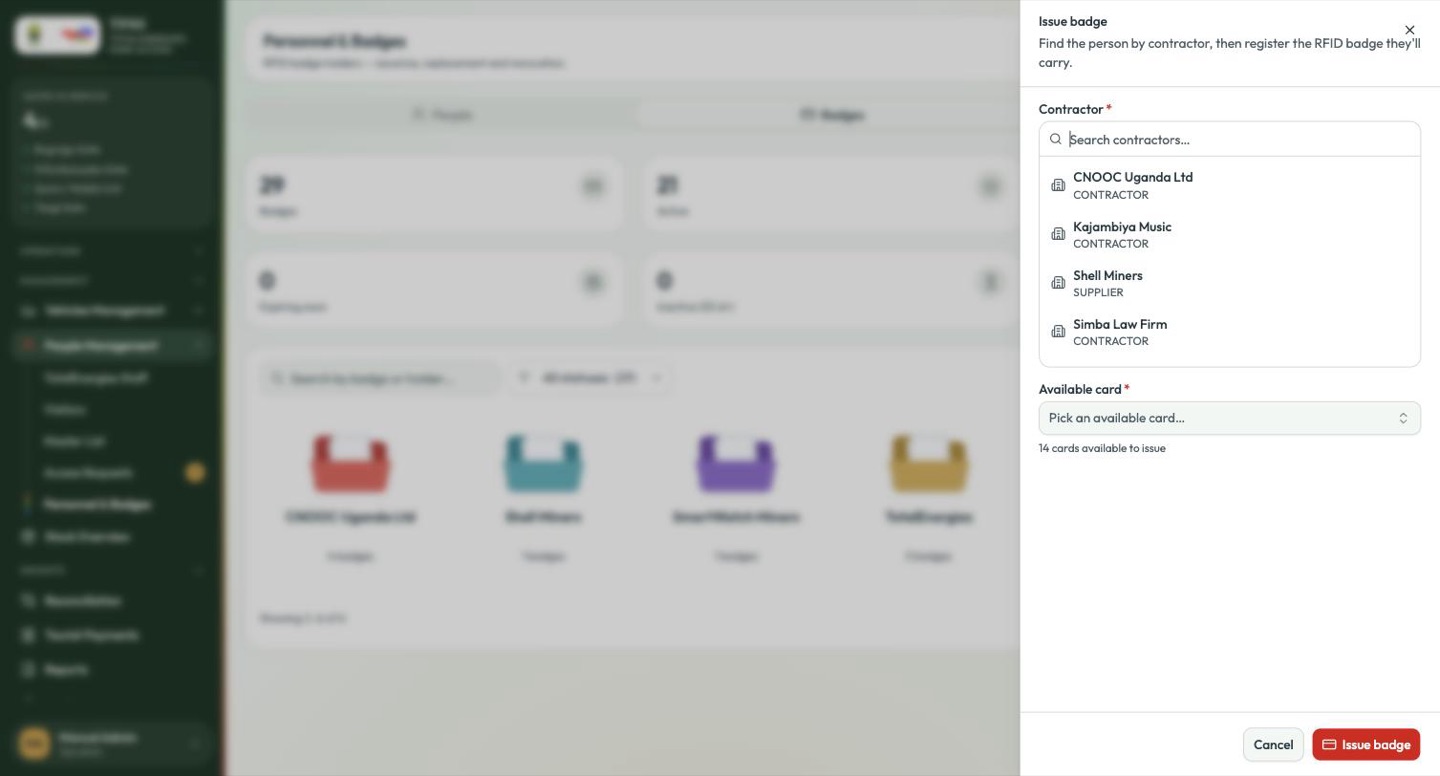
Find the contractor.
-
Find the person — by name or ID number.
The drawer checks as you pick, and says so when the person already has a card on the way:
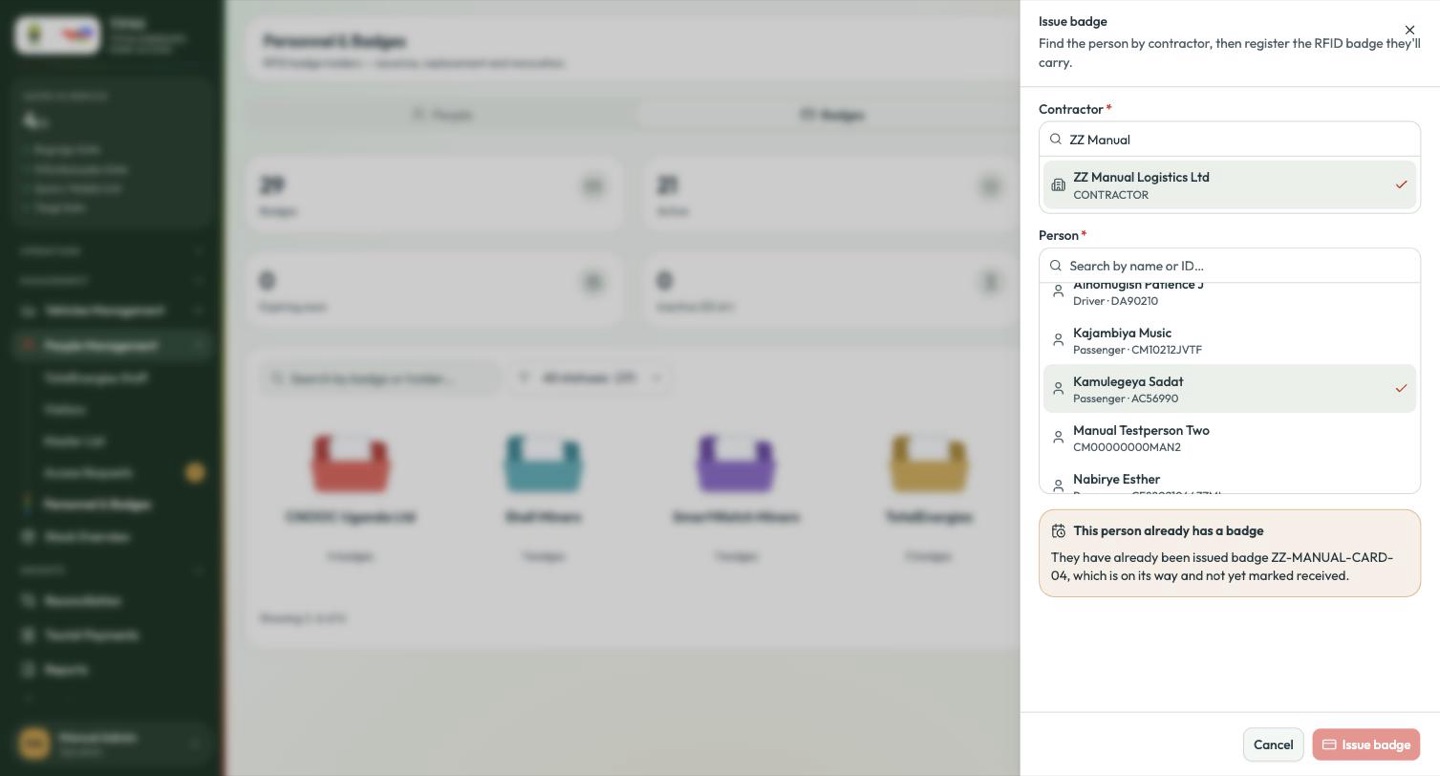
This person already has a badge They have already been issued badge ZZ-MANUAL-CARD-04, which is on its way and not yet marked received.
That is the case the People tab hides (Personnel & badges). Issue a second card only if the first is genuinely lost.
-
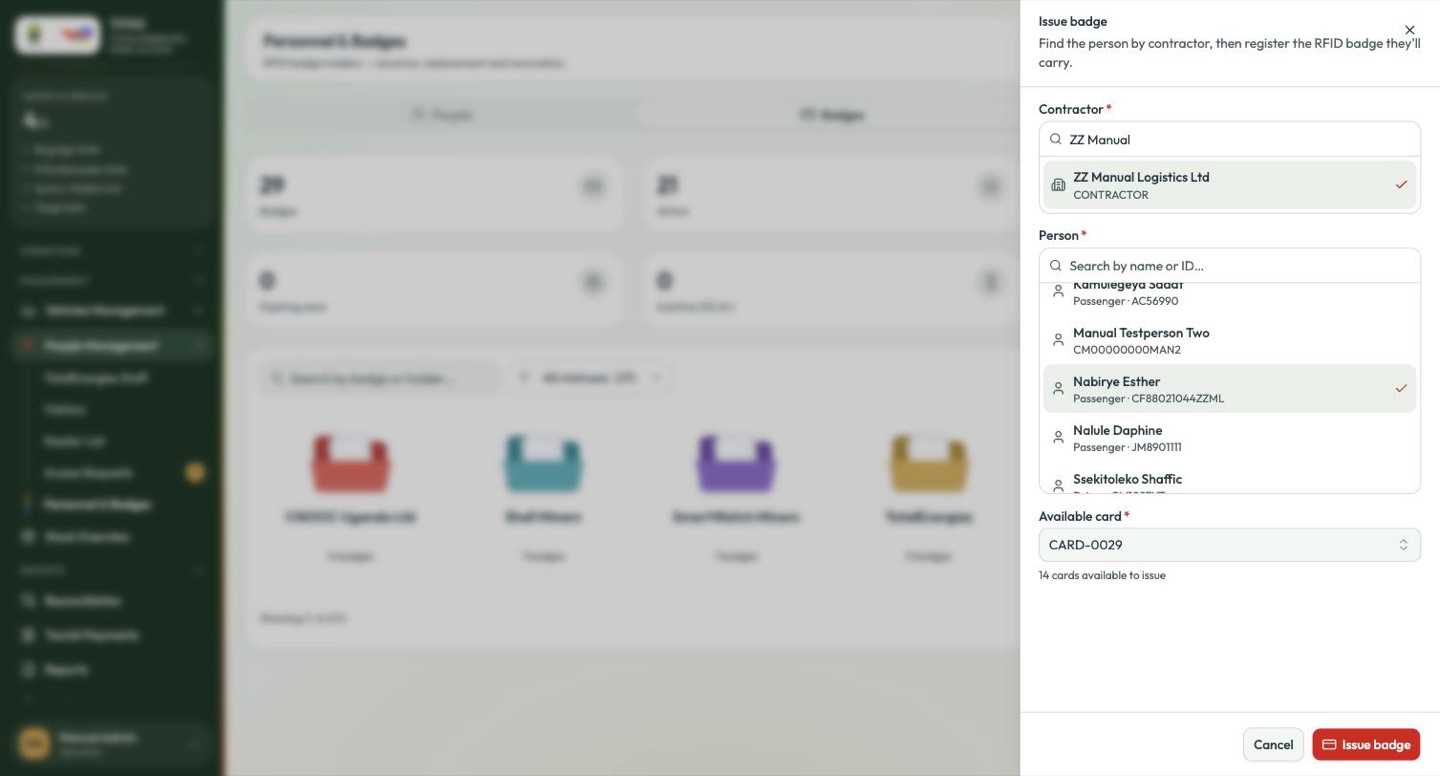
Pick an available card. The count beneath tells you how many are left in the pool.
-
Issue badge.
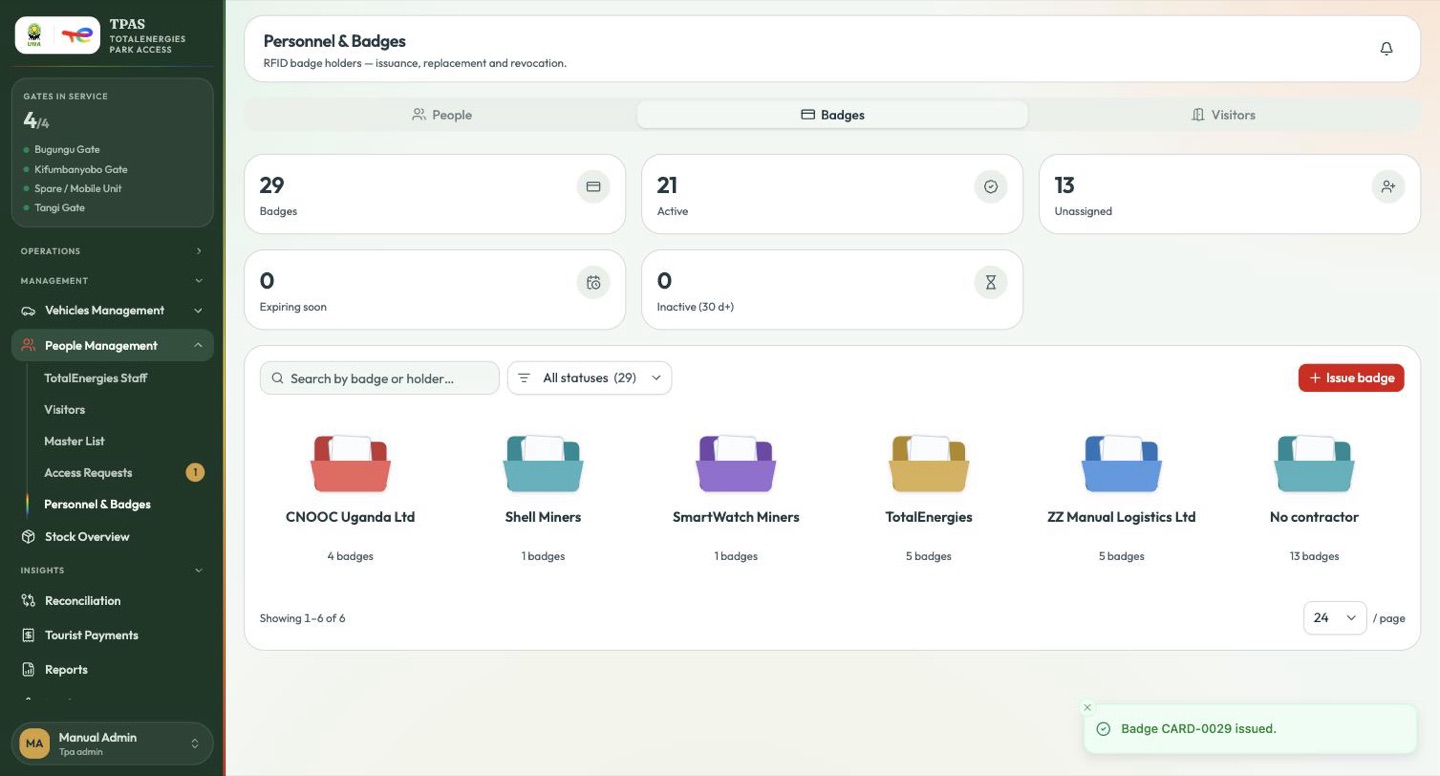
The card moves out of the available pool and the person moves from Awaiting badge to Badged — but the badge does not open a gate yet. Issuing names the holder; the card is activated when it is dispatched and the contractor confirms receipt (Device stock). A badge handed across the desk is the exception — see Take back at desk below.
Managing a badge
The ⋮ menu on a badge row carries its whole life. Which actions appear depends on where the badge physically is, not on its status.
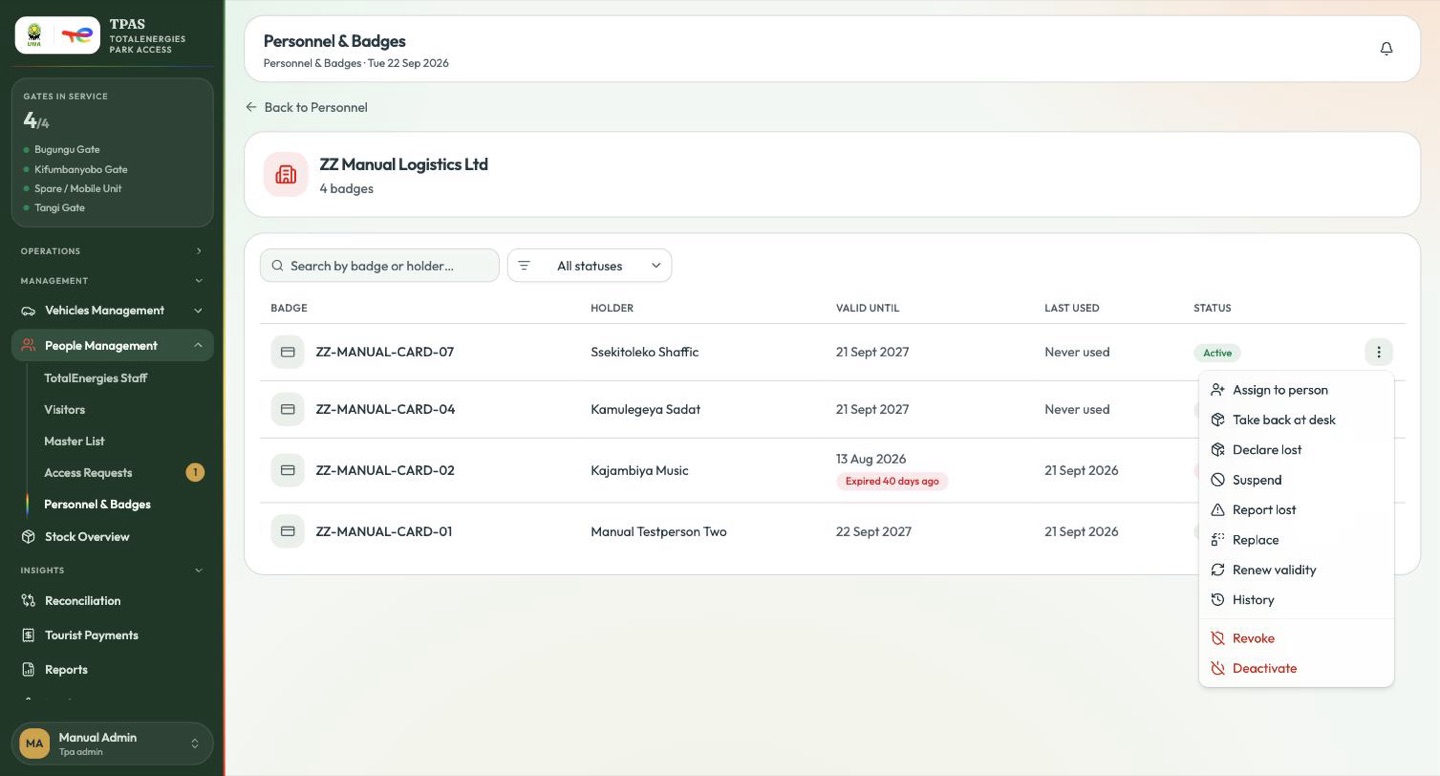
| Action | Use it when |
|---|---|
| Assign to person | The card is registered but not yet in anyone's hand. |
| Take back at desk | The holder is handing it back to you now, across the counter. |
| Declare lost | The card cannot be found. A custody write-off — see below. |
| Suspend | Access is paused — a suspension, an investigation — and will resume. Reversible. |
| Report lost | The card is gone. Stops it working immediately so nobody else can use it. |
| Replace | Issue a fresh card to the same person, retiring the old one. The usual follow-up to Report lost. |
| Renew validity | Extend the card another twelve months in place — no return, no downtime. |
| History | Every lifecycle step recorded against this card. |
| Revoke | Permanently withdraw this person's access. |
| Deactivate | Take the card itself out of service — damaged, expired, end of contract. |
A badge that is in transit — Awaiting activation — offers almost none of these, because nobody is holding it yet:
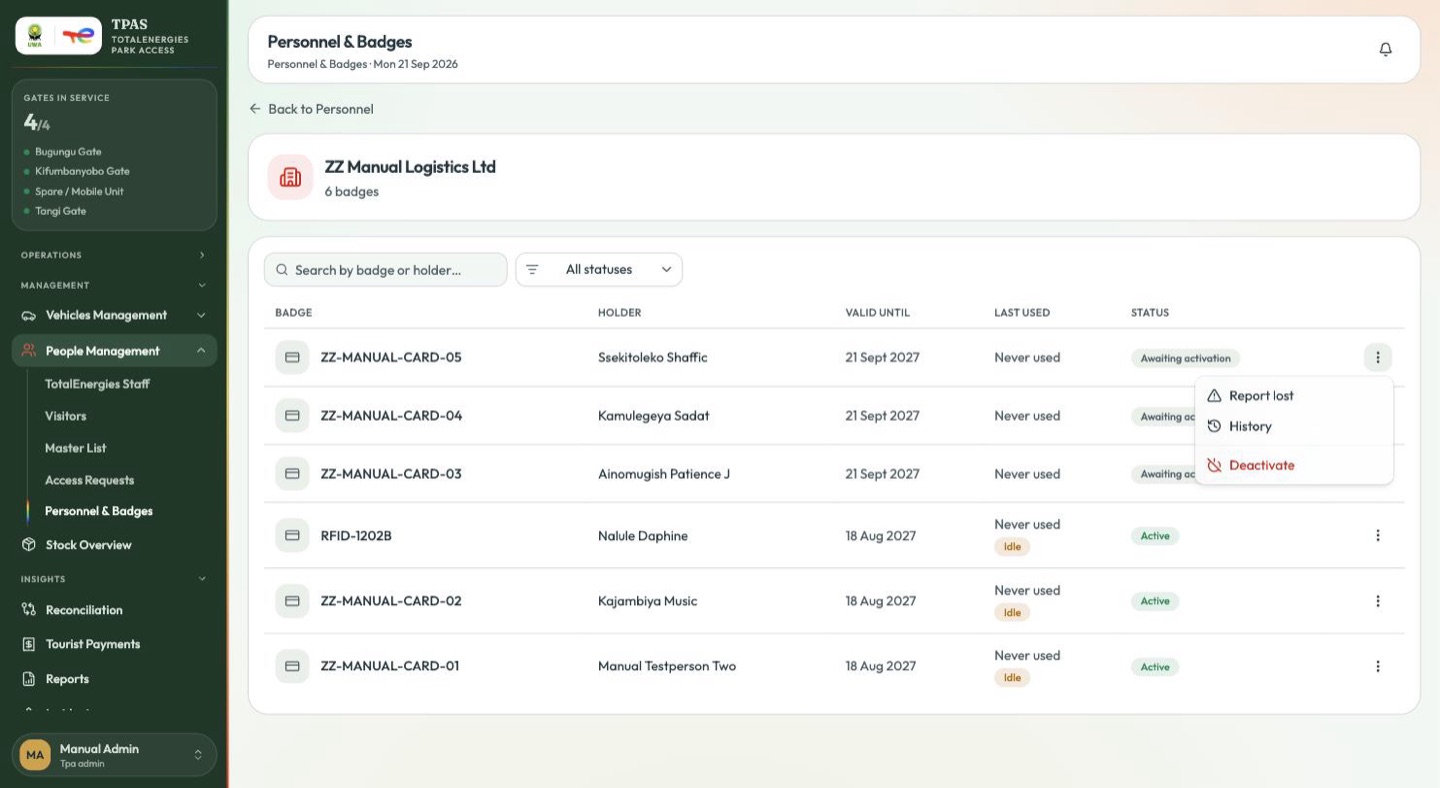
Only Report lost, History and Deactivate.
card that still works is a person who is not who the gate thinks they are.
Important — Report lost and Declare lost are different actions Report lost is about the card's status: it stops opening gates, and it can be reversed if the card turns up. Declare lost is about custody: the device is written off, removed from the estate, and the loss stays attributed to whoever last had it. It cannot be undone (Declaring a device lost).
Taking a badge back across the desk
When somebody hands a card back in person, there is no return note to raise and nothing for anyone to acknowledge later. Take back at desk judges it on the spot.
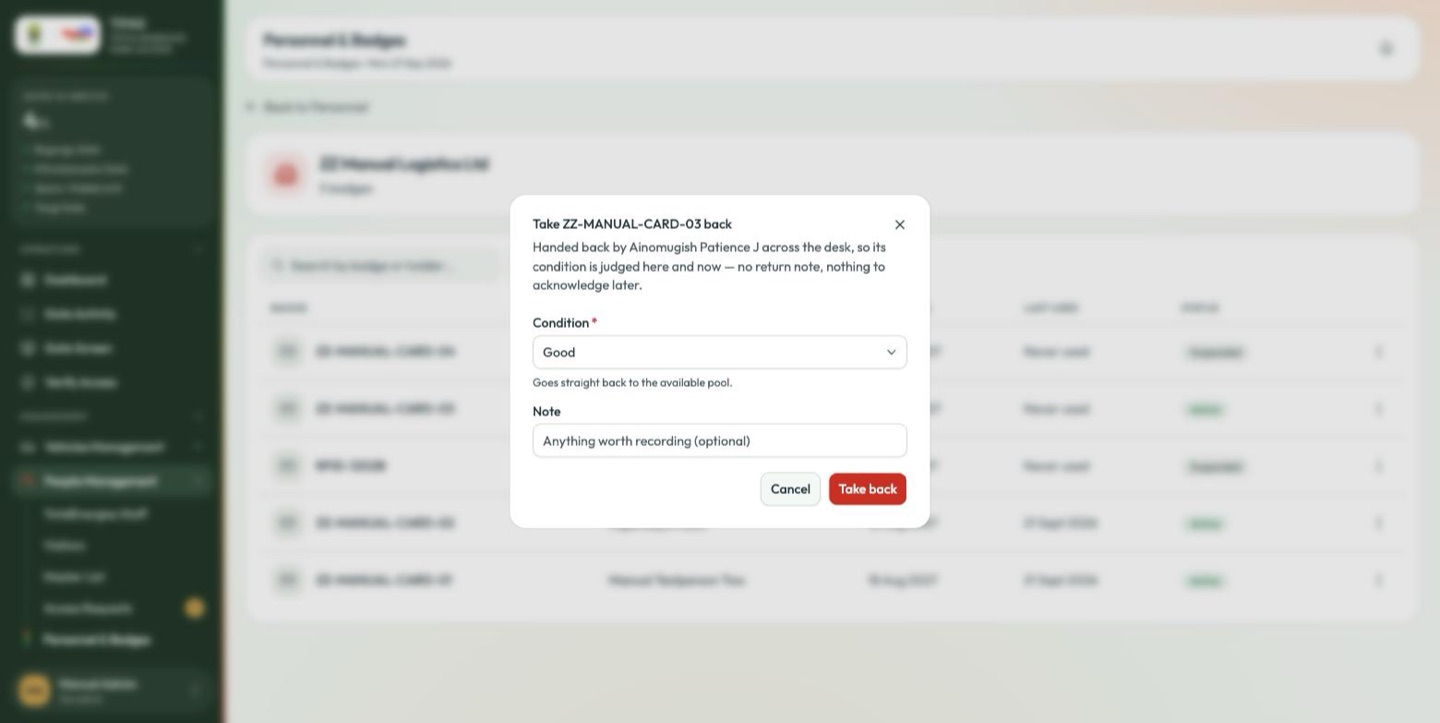
Handed back by {holder} across the desk, so its condition is judged here and now — no return note, nothing to acknowledge later.
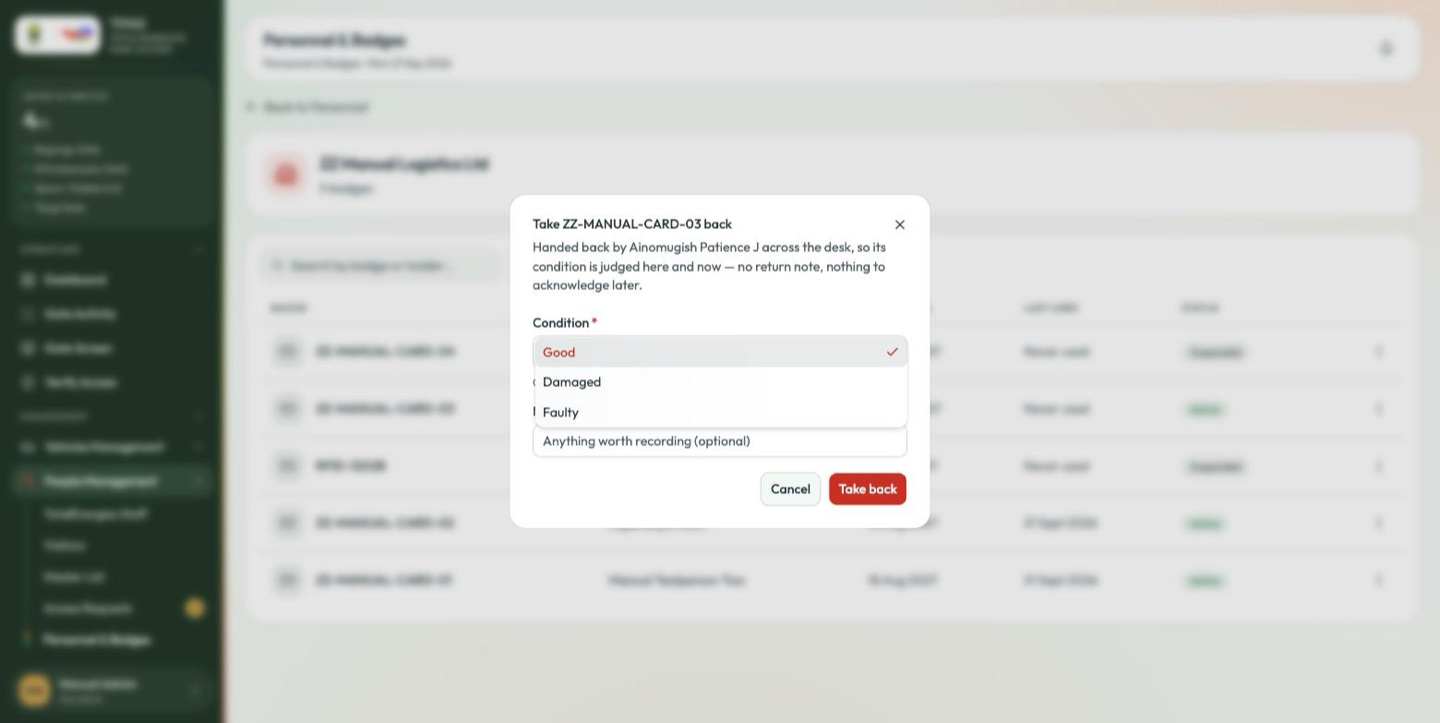
| Condition | Where the card goes |
|---|---|
| Good | Straight back to the available pool. |
| Damaged or Faulty | Quarantine, for triage. It will not be reissued until somebody decides (Quarantine, triage and repair). |
A Note is optional.
Where a badge has been
History opens the card's whole life, newest first.
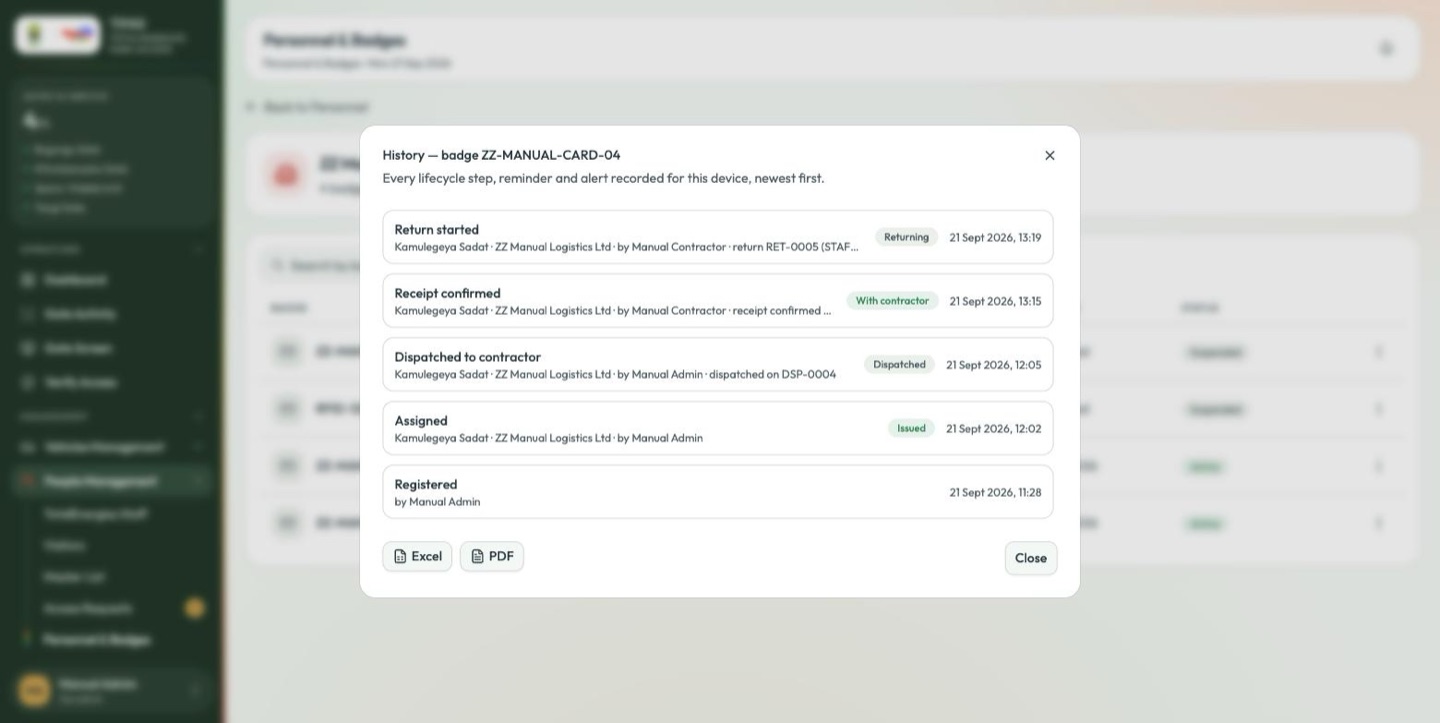
Every lifecycle step, reminder and alert recorded for this device, newest first.
Registered · Assigned · Dispatched to contractor · Receipt confirmed · Return started … — each with who it was for, who did it, the note number where there was one, the resulting custody state and the timestamp. Excel and PDF export the trail.