Vehicles
vehicle:read, vehicle:create.
Management → Vehicles Management → Vehicles, or Registry → Vehicles.
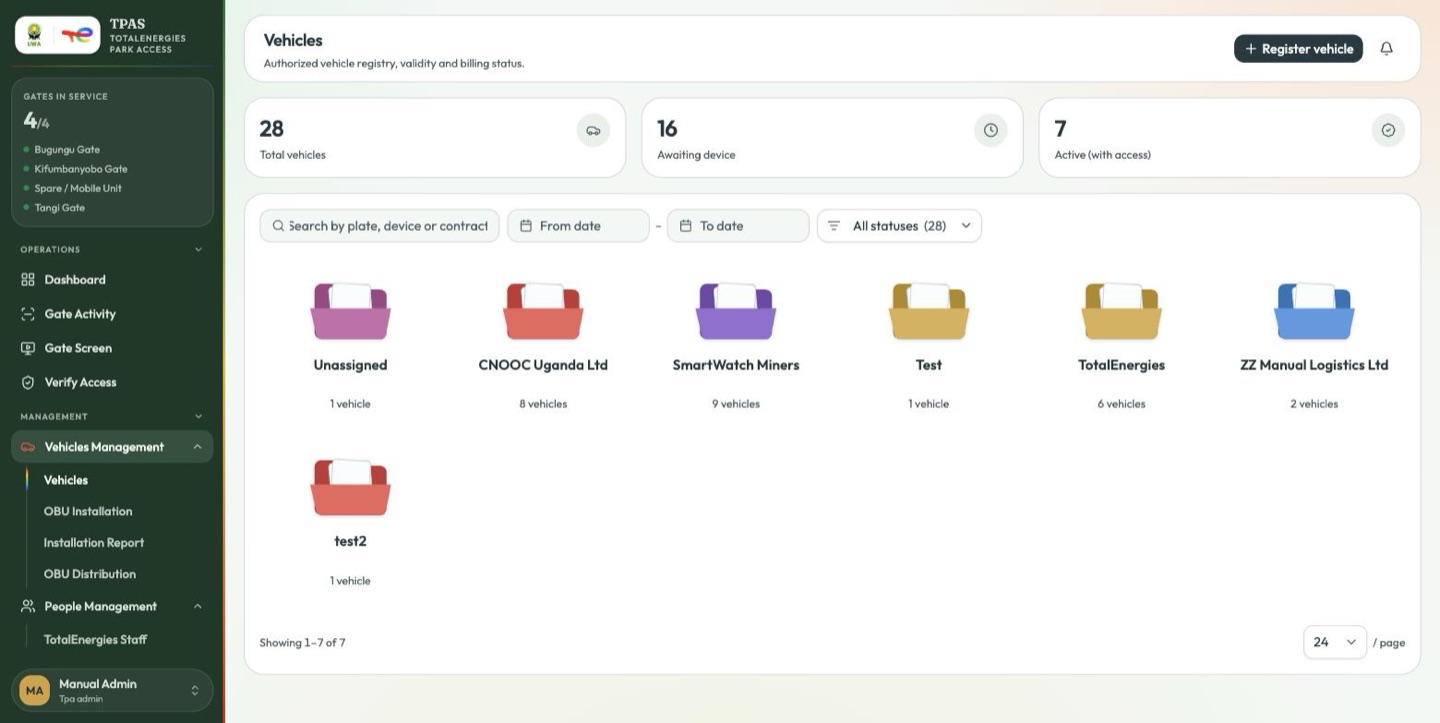
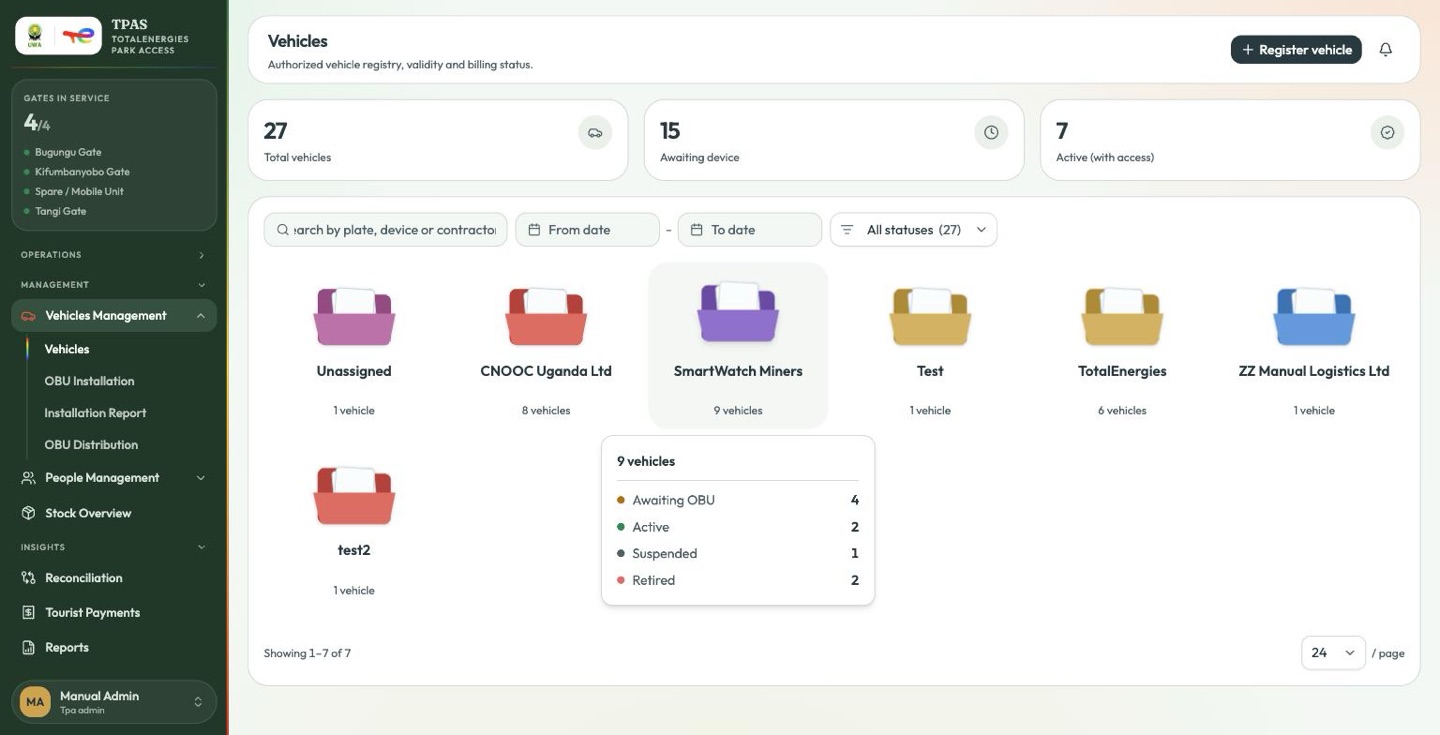
Every vehicle authorised for park access, grouped by contractor, with a status filter, a date range and a search across plate, device and contractor. Hover a folder for its breakdown.
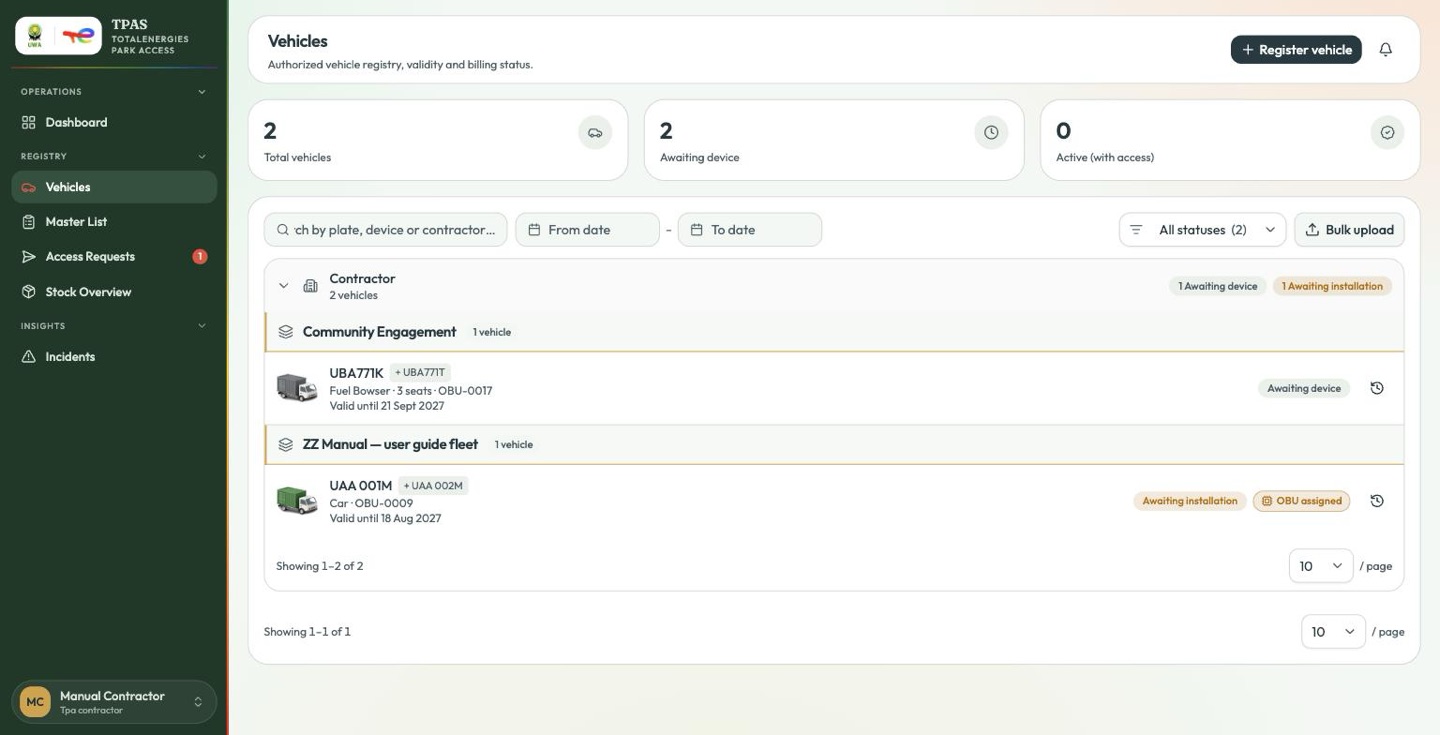
Each row is headed by the vehicle artwork — a truck for heavy plant, a sedan for everything else, painted green once an OBU has been assigned to it, grey while it has none (or while it is suspended or retired), and red once it has waited 14 days for one.
Beside the status pill, at most one OBU flag tells you where the device stands:
| Flag | Meaning |
|---|---|
| OBU installed (green) | The unit is fitted and active on this vehicle. |
| OBU assigned (amber) | A unit is reserved for this vehicle but not yet fitted — see Fitting the OBU. |
| OBU dormant (red) | The fitted unit was auto-disabled after six months with no gate activity. An administrator reactivates it from OBU Distribution. |
| OBU retained (gold) | The vehicle is suspended or retired but still holds its unit. |
| No OBU · nd (red) | Registered n days ago, still nothing assigned, past the 14-day limit. |
Registering a vehicle
-
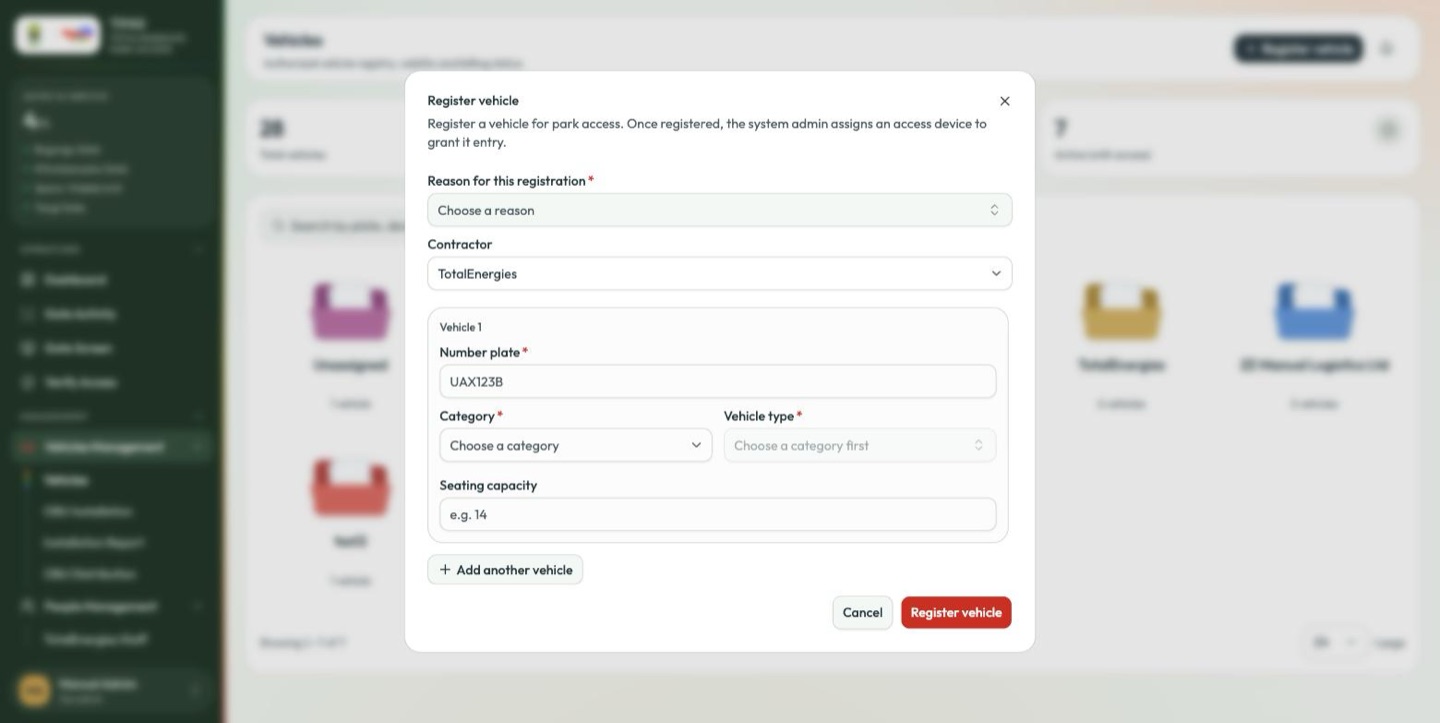
Select Register vehicle.
-
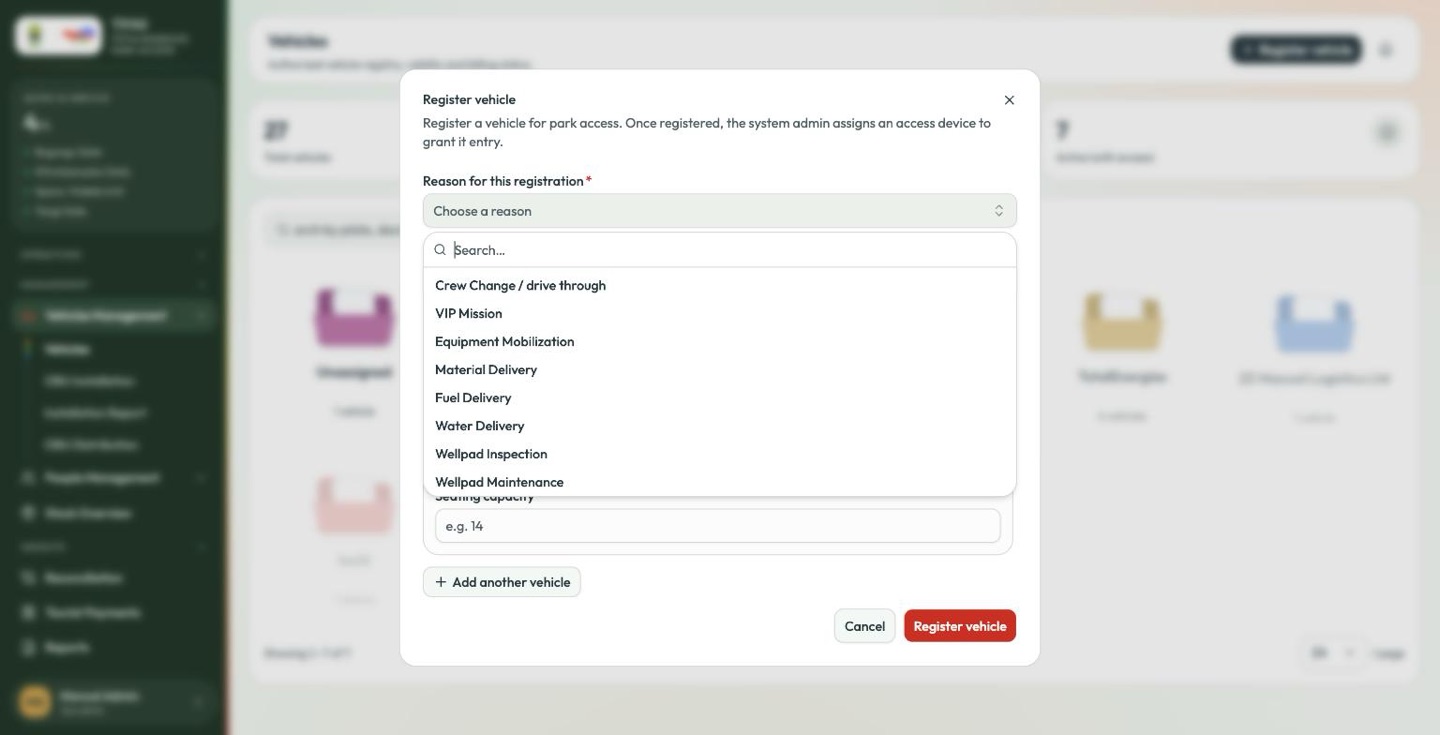
Choose a reason for this registration from the list — Crew Change / drive through, VIP Mission, Equipment Mobilization, Material Delivery, Fuel Delivery, Water Delivery, Wellpad Inspection, Wellpad Maintenance and others. It is required, and it becomes the batch header on the list afterwards.
-
Choose the contractor that owns the vehicle.
-
Fill in Vehicle 1:
Field Notes Number plate * Exactly as it reads on the vehicle. Typed in upper case whatever you enter. This is what the gate camera and the installer's photo are checked against. Category * Heavy or Light. Choose this first. Vehicle type * Filtered by the category — until one is chosen the field reads Choose a category first. Seating capacity Used for passenger counts and billing. 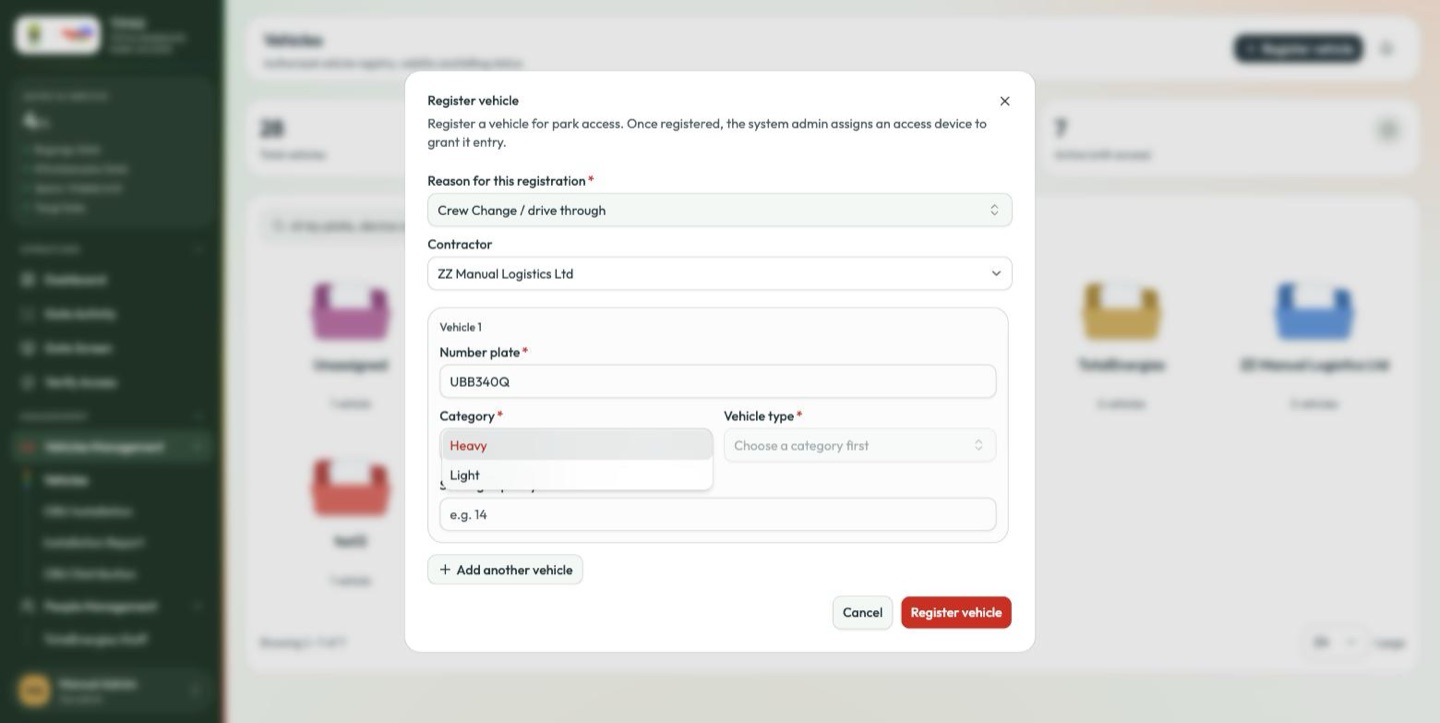
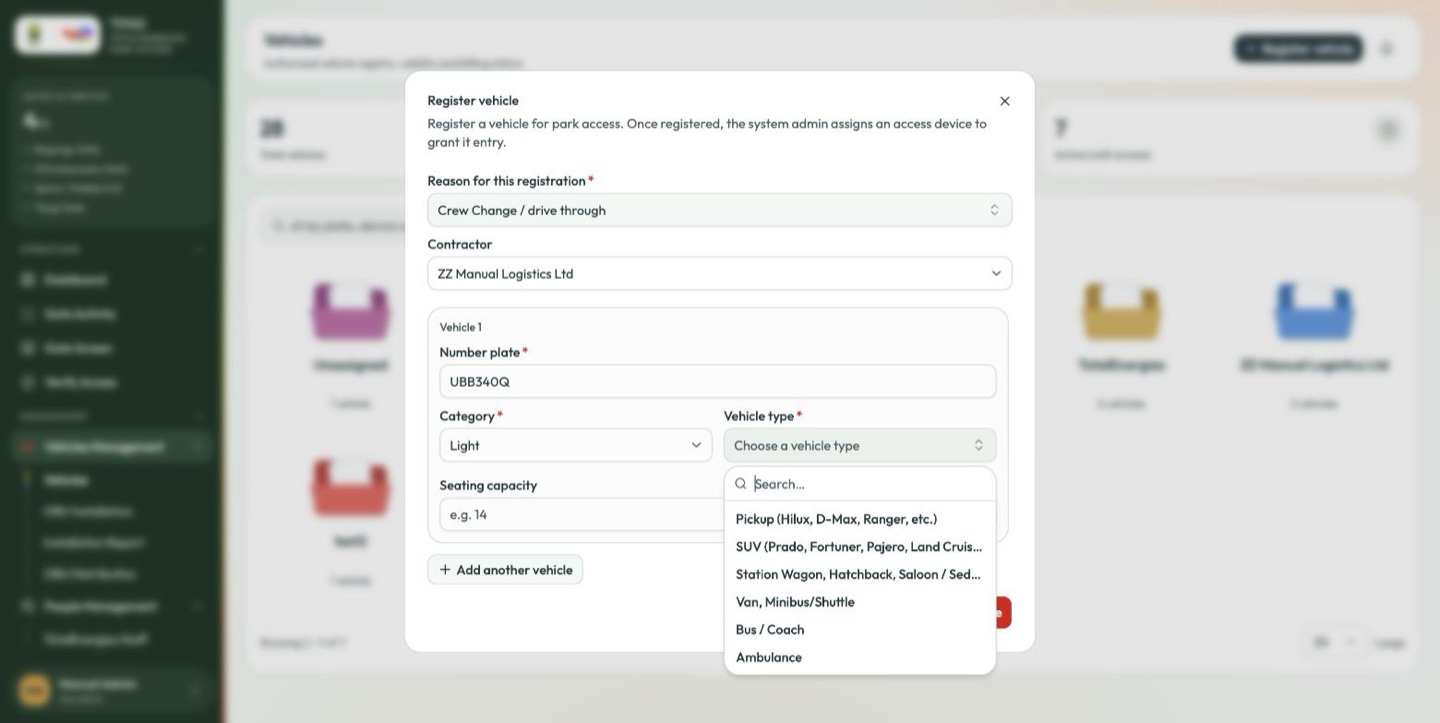
Under Light the types are Pickup (Hilux, D-Max, Ranger, etc.), SUV (Prado, Fortuner, Pajero, Land Cruiser…), Station Wagon, Hatchback, Saloon / Sedan, Van, Minibus/Shuttle, Bus / Coach, Ambulance and others; Heavy offers the trucks and plant.
Note — the category also decides the artwork. A vehicle registered Heavy, or typed as a truck or bus, is drawn as a box truck on every list (Registry). Typing a lorry as Light will draw it as a car.
-
Add another vehicle repeats the block. Register vehicle commits.
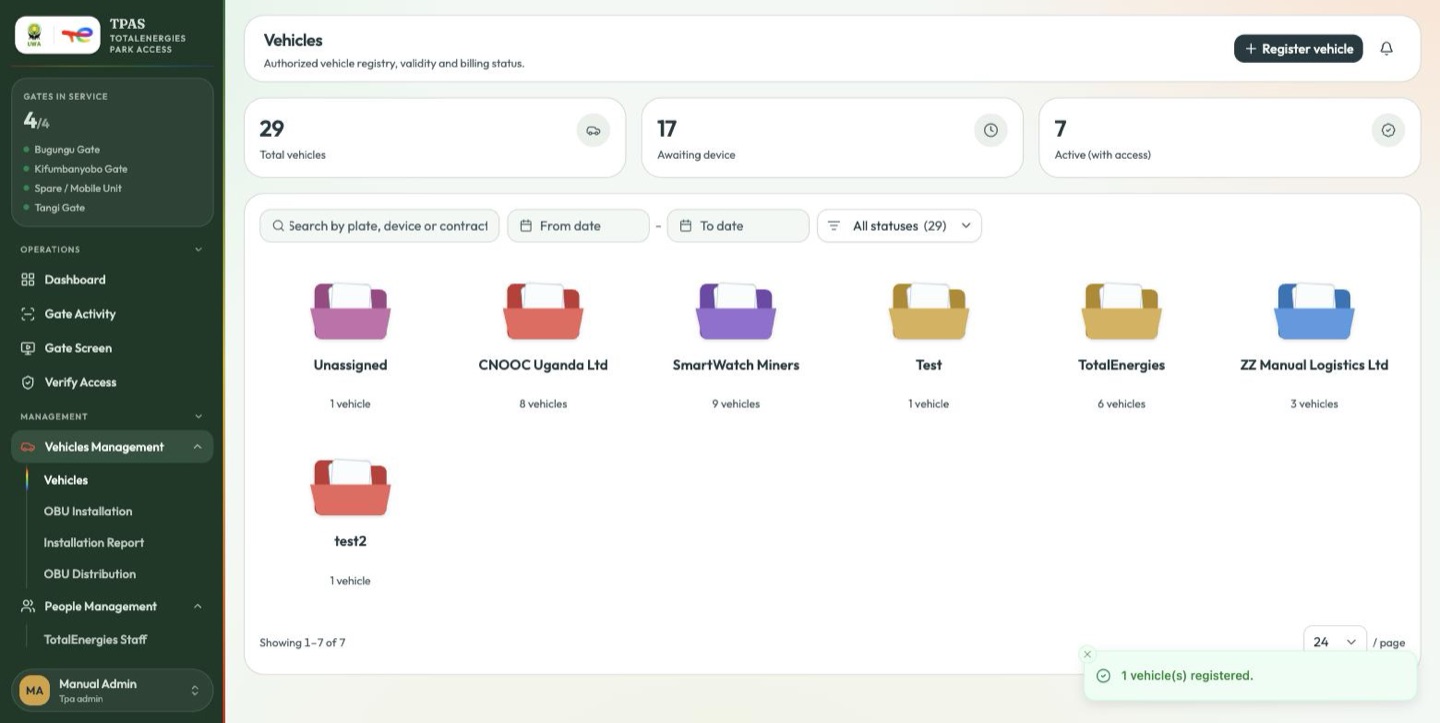
The vehicle appears as Awaiting device — registered, but with nothing at the gate able to recognise it. Its artwork is grey, and stays grey until either an OBU is assigned (green) or fourteen days pass (red).
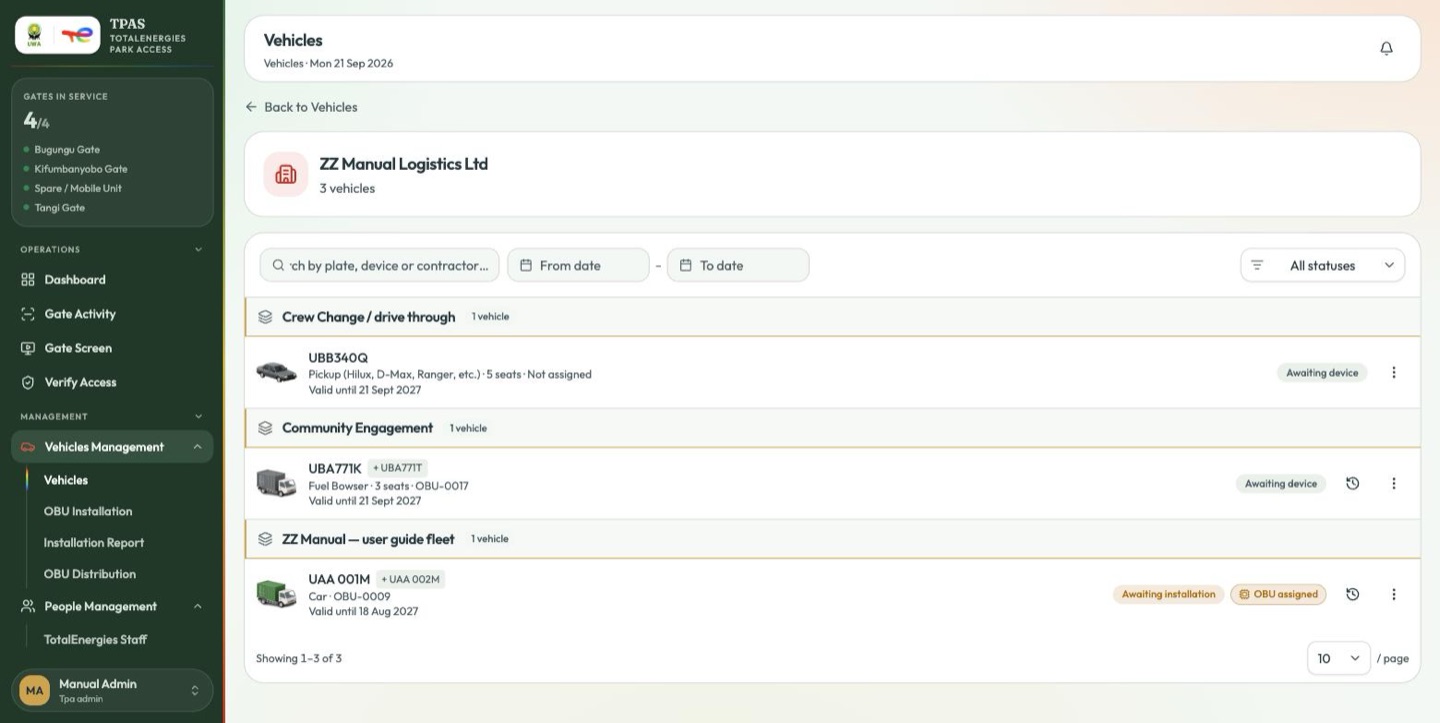
Registration batches
Vehicles registered together stay together. The reason given at registration becomes a batch header above its rows — Equipment Mobilization · 2 vehicles — so a fleet registered as one job reads as one job months later.
Bulk upload
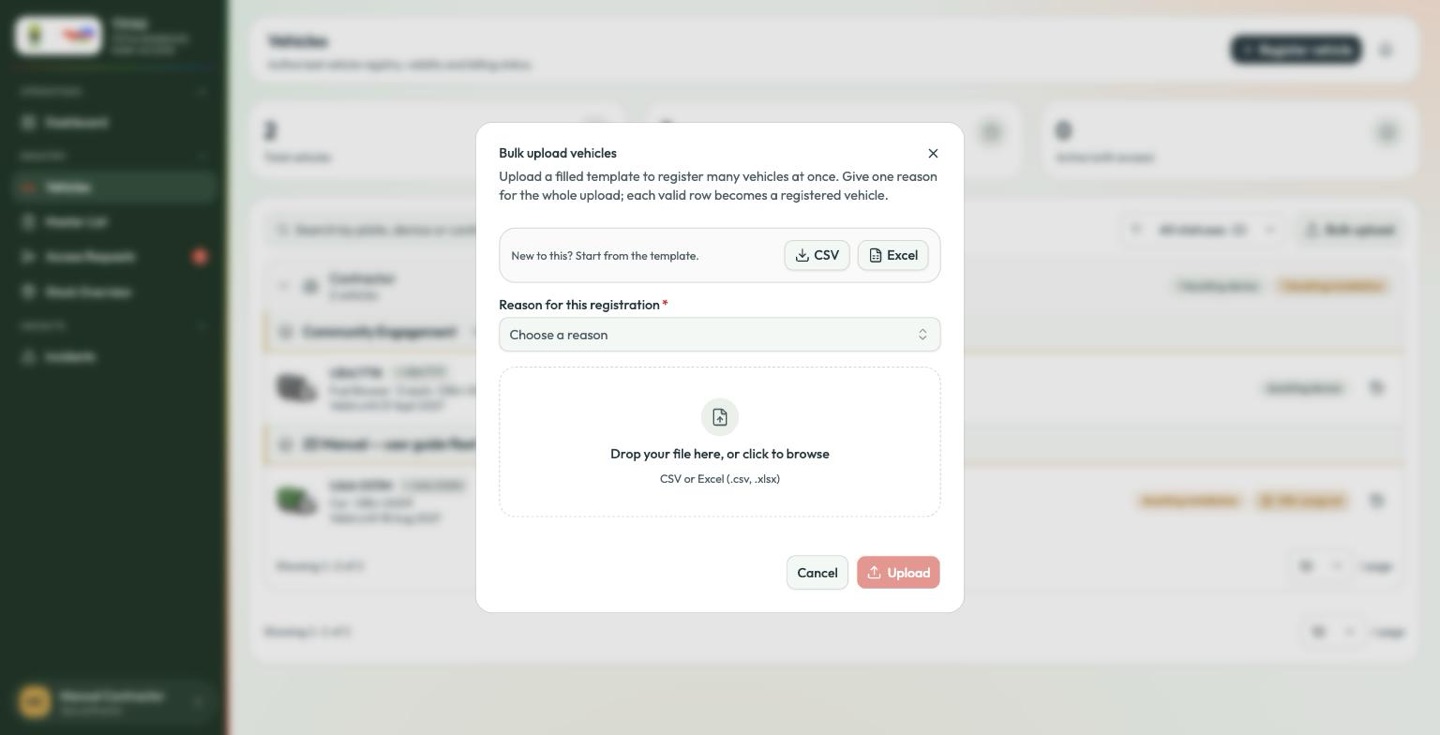
Bulk upload takes a spreadsheet of vehicles. Templates are offered in CSV and Excel; take one rather than composing a file from scratch.
Assigning an OBU
An OBU (On-Board Unit) is the transponder the gate's P30 reader sees. A vehicle without one cannot be recognised automatically.
The ⋮ menu on a vehicle row offers Assign device and Retire.
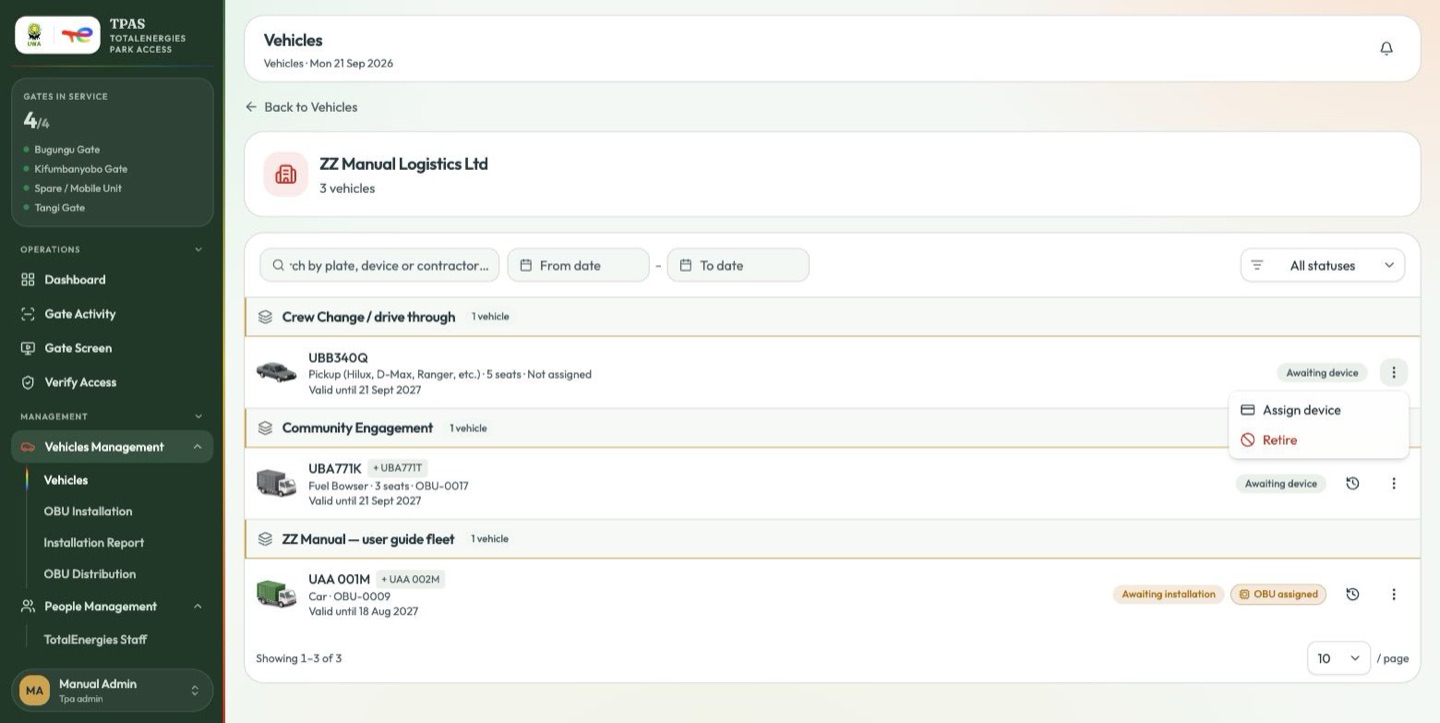
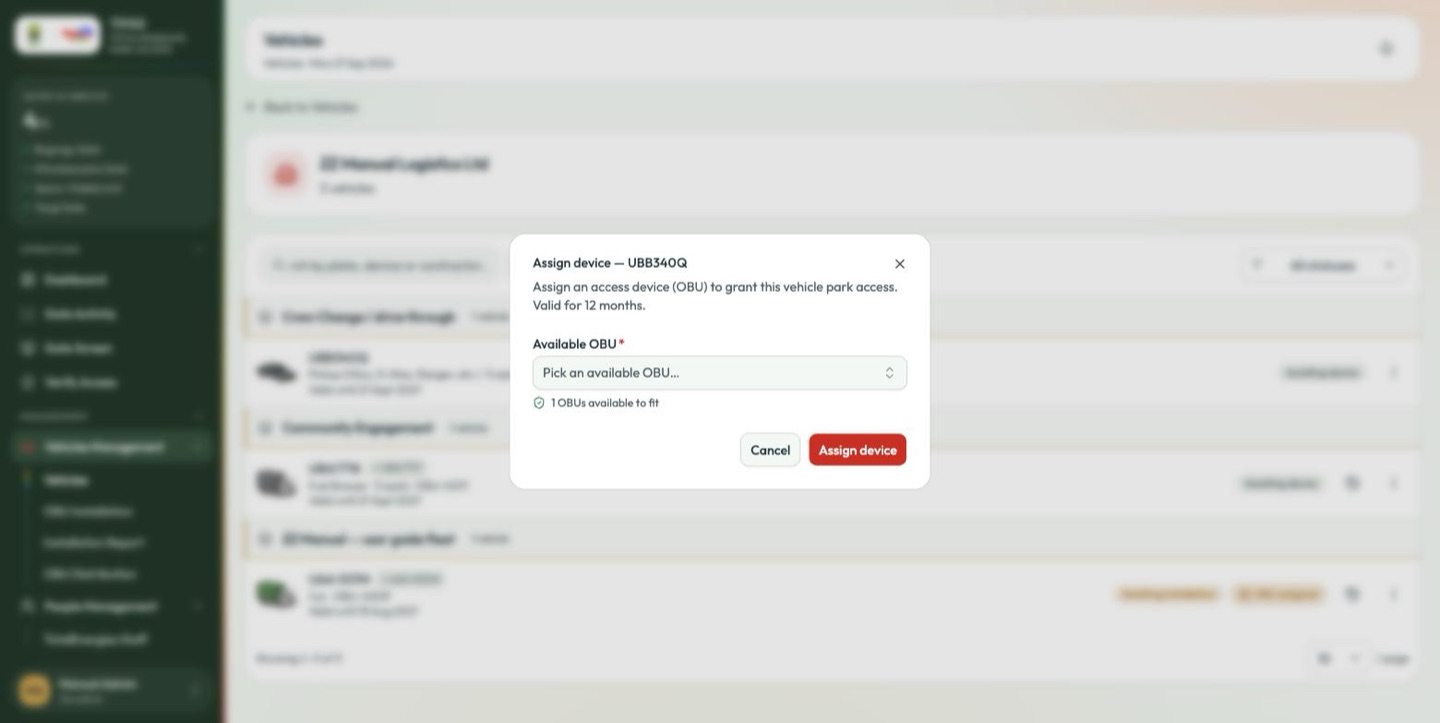
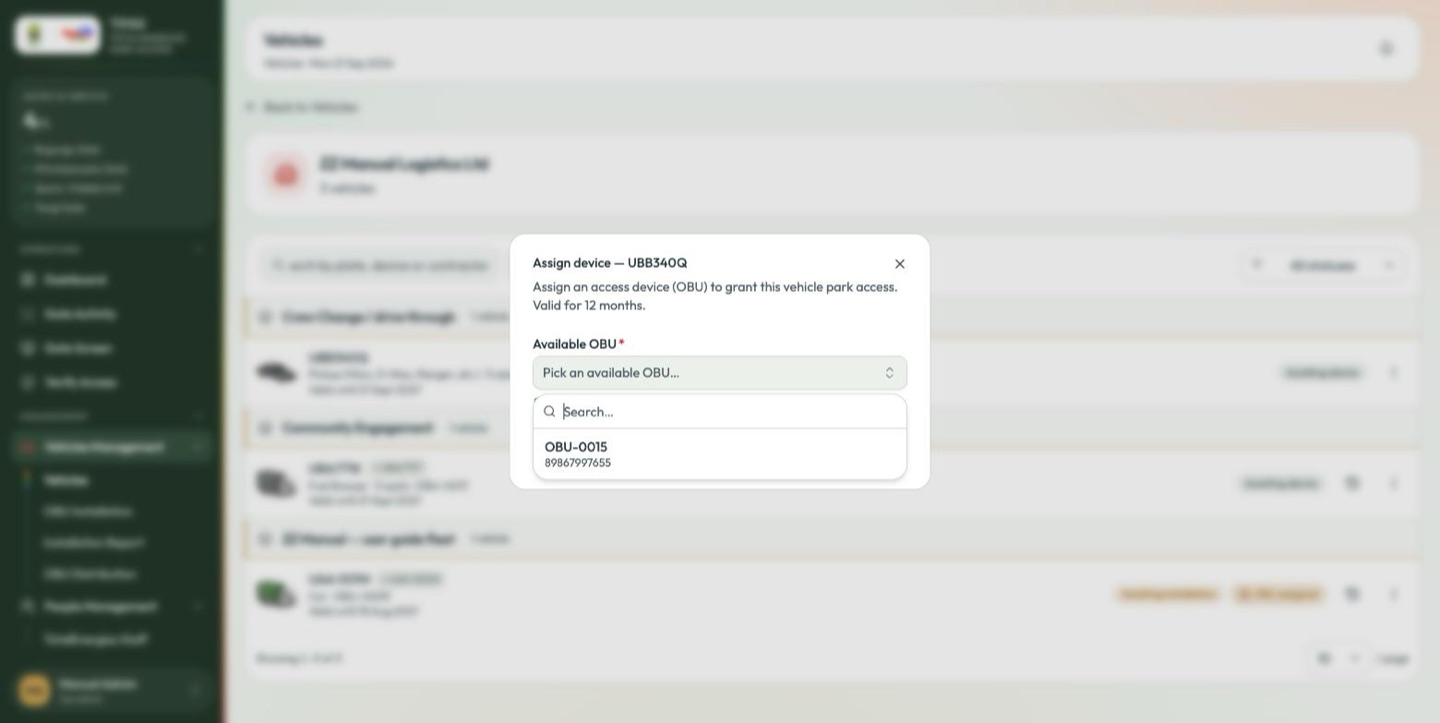
Pick from the available OBU pool — the count tells you how many are left — and select Assign device. The assignment is valid for 12 months.
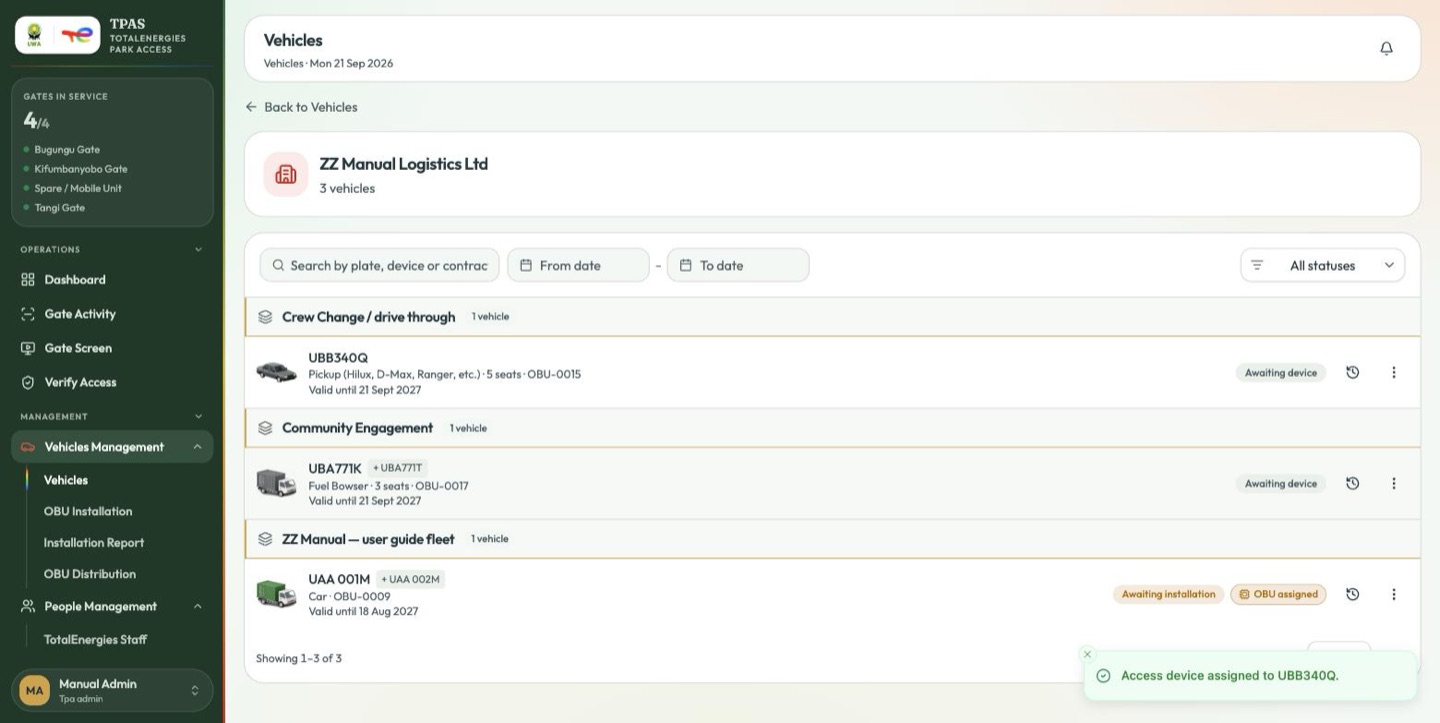
Assigning reserves the device for the vehicle on paper. It is not yet fitted.
Assigning a device does not always create the installation job the installer works from: a vehicle can be assigned an OBU and still not appear on OBU Installation, while its row keeps the Awaiting device pill. If an assignment does not show up for the installer within a few minutes, assign it again from the OBU Installation page rather than waiting.
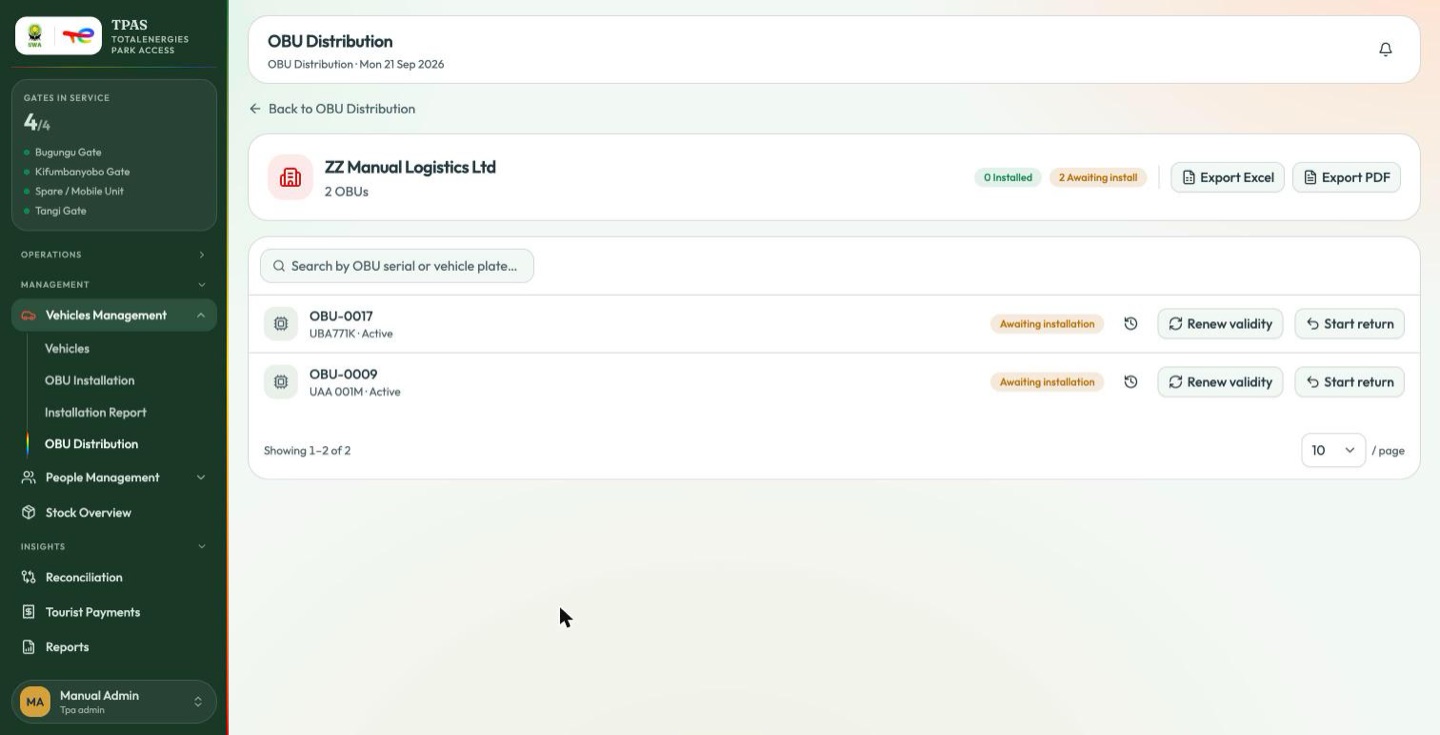
OBU Distribution is the same estate seen device-first rather than vehicle-first: which units are assigned, fitted, spare or dormant, per contractor.