Access requests
registration:read to see them, registration:create
to submit, registration:approve to decide.
Management → People Management → Access Requests, or Registry → Access
Requests.
An access request is a contractor asking TotalEnergies to let named people into the park. Requests are submitted in batches — a crew, a rotation, a delivery team — and reviewed person by person inside the batch.
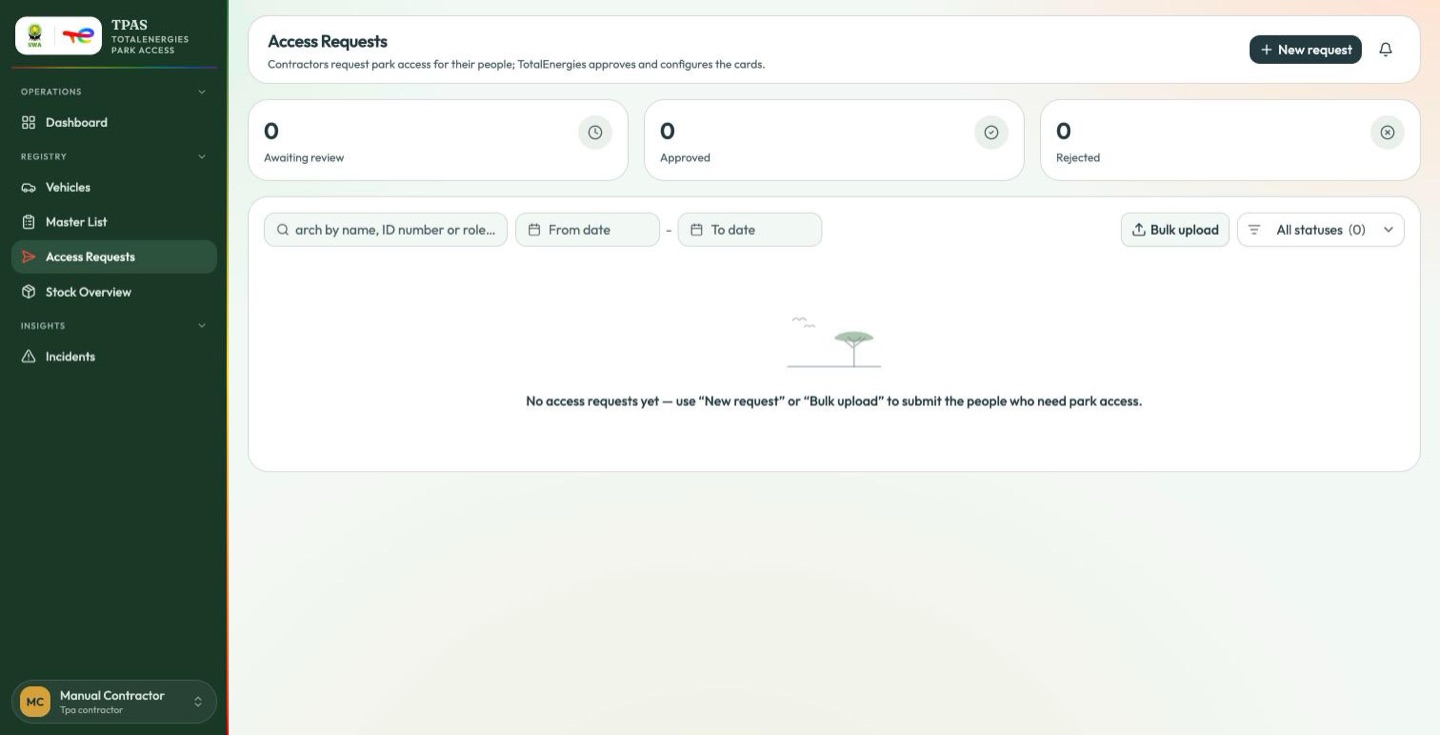
The three counts across the top — awaiting review, approved, rejected — are the whole queue. The badge on the sidebar's Access Requests entry is the first of those: work waiting for you.
Below, one folder per contractor, with a search box, a date range and a status filter. Each request row is headed by the person artwork, which here tracks the decision: green once approved, red once rejected or once a submitted request has sat unanswered for 14 days, grey while it is a draft or still reasonably in review. A screen of red rows is a review queue nobody has worked.
Submitting a request (contractor)
-
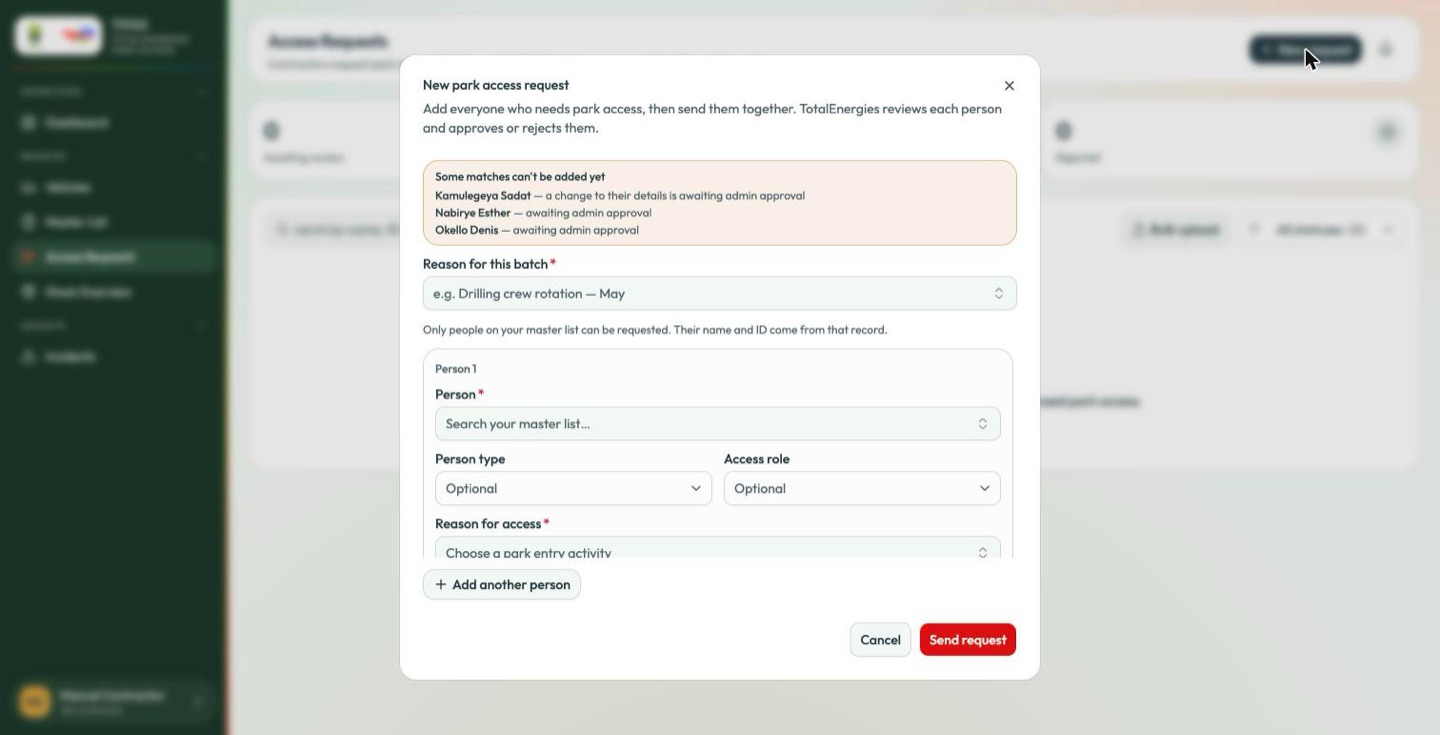
Select New request.
-
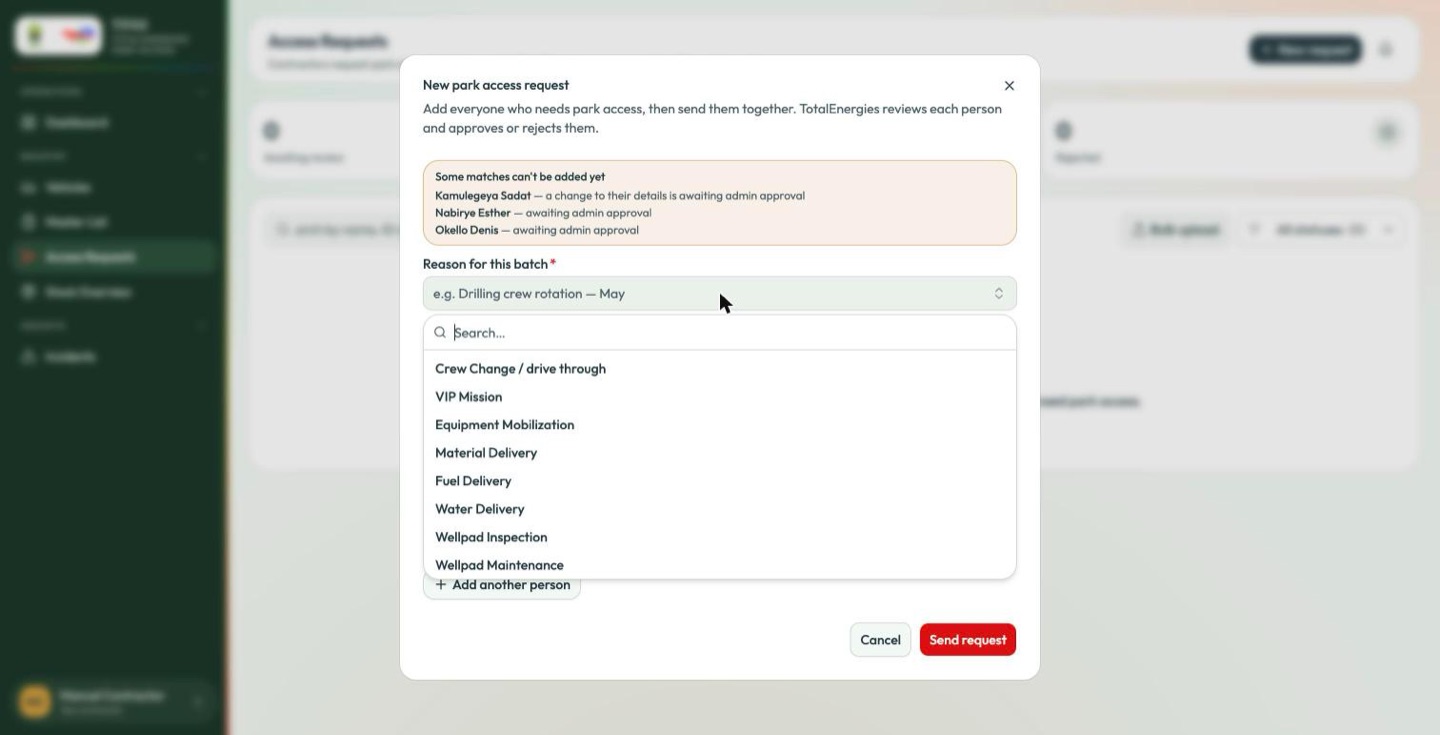
Choose a reason for this batch from the list. It is required, and it is what the reviewer sees first.
-
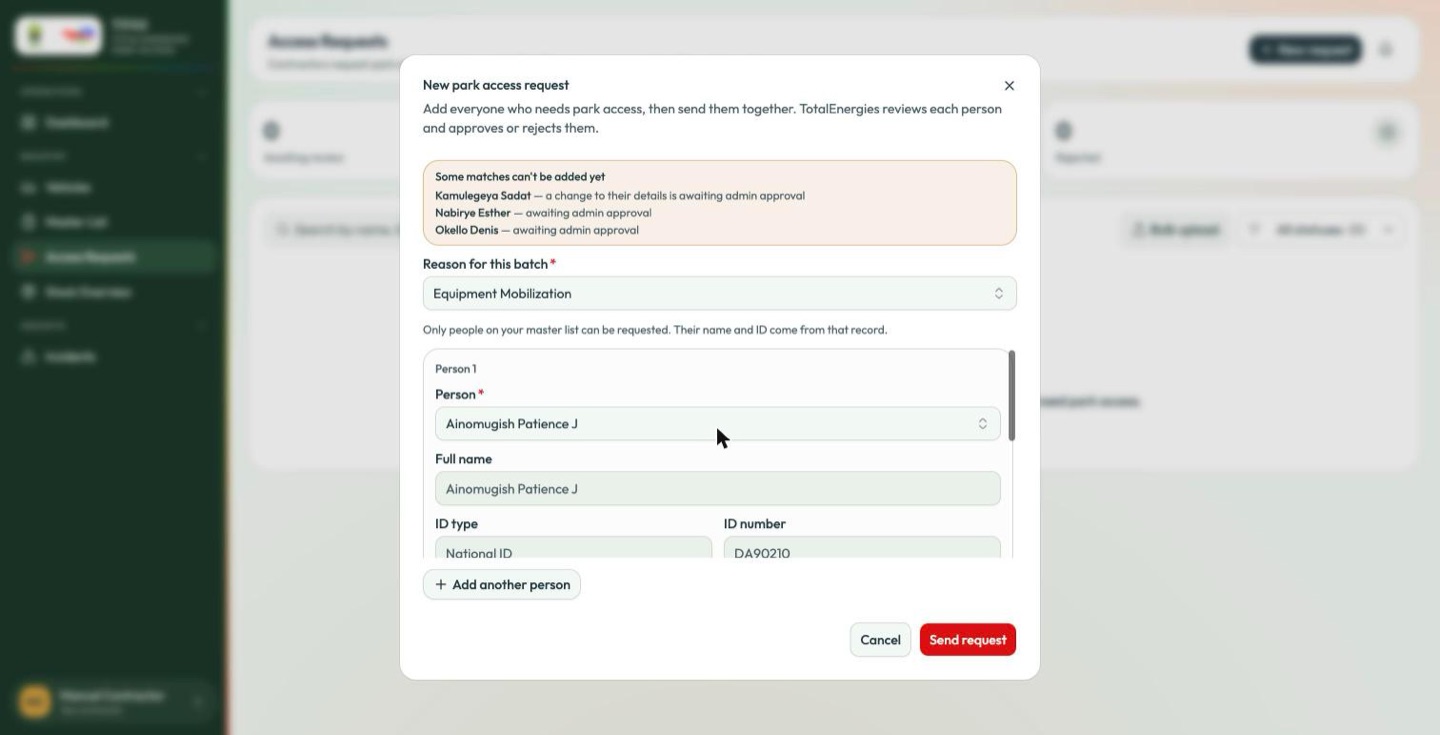
Choose the person. This is the part that changed:
Only people on your master list can be requested. Their name and ID come from that record.
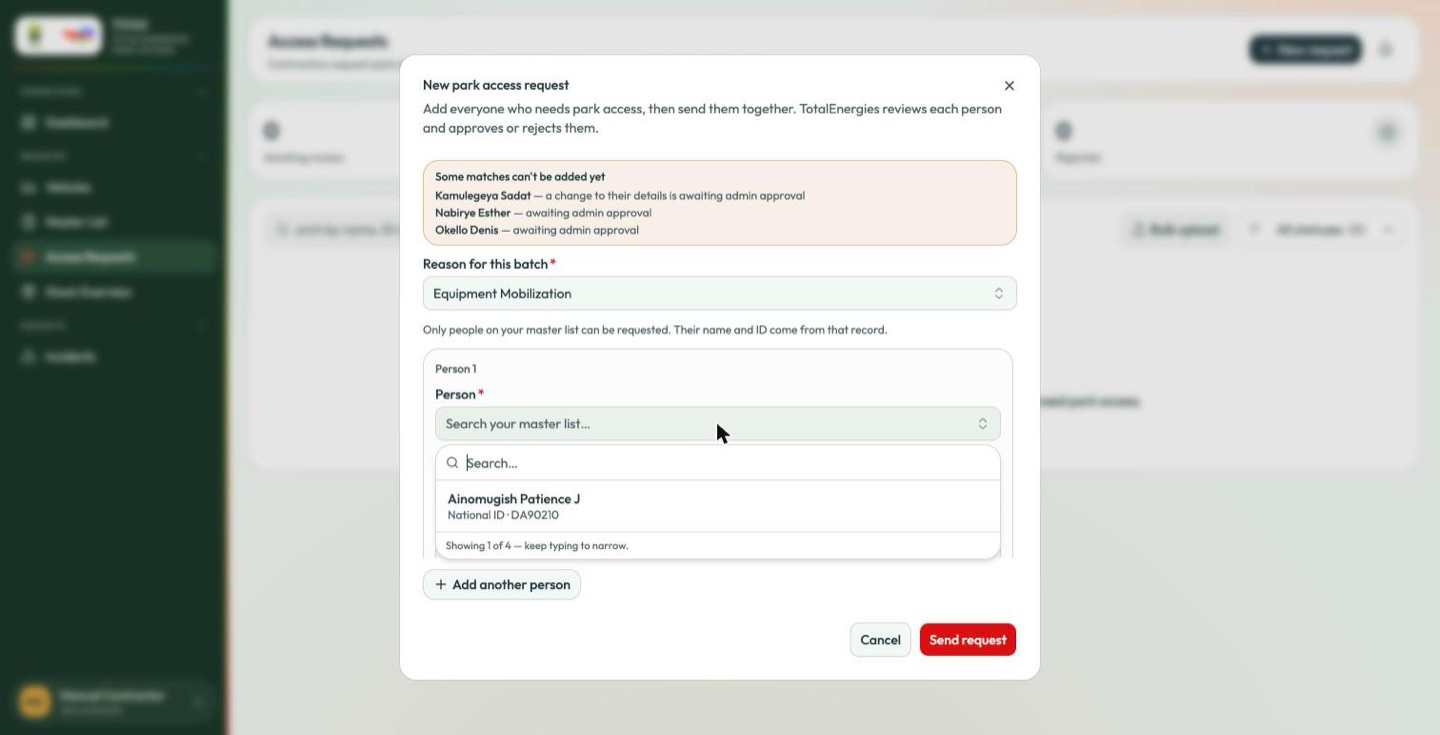
The picker searches your own master list. Pick somebody and their Full name, ID type and ID number fill in and lock — they are the approved record, not something you retype.
-
Anyone who cannot be requested yet is named at the top of the form, with the reason:
Some matches can't be added yet Kamulegeya Sadat — a change to their details is awaiting admin approval Nabirye Esther — awaiting admin approval
That banner is the answer to "why can't I find them?" — they are on your list, but their entry or an edit to it has not been approved (Master list).
-
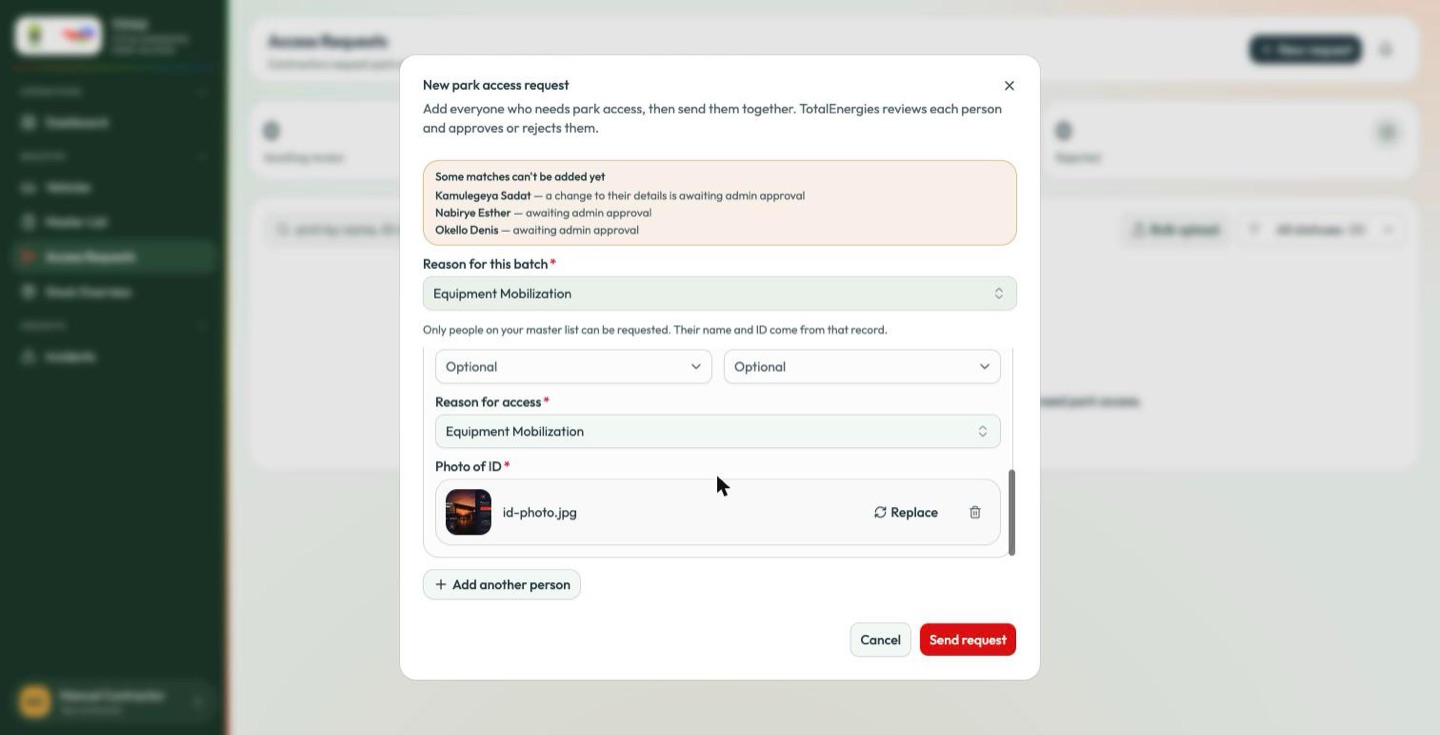
Attach the photo of ID. Take it square-on, filling the frame, in good light — a reviewer who cannot read the number will send it back.
-
Add another person repeats the block for everyone else in the batch.
-
Send request.
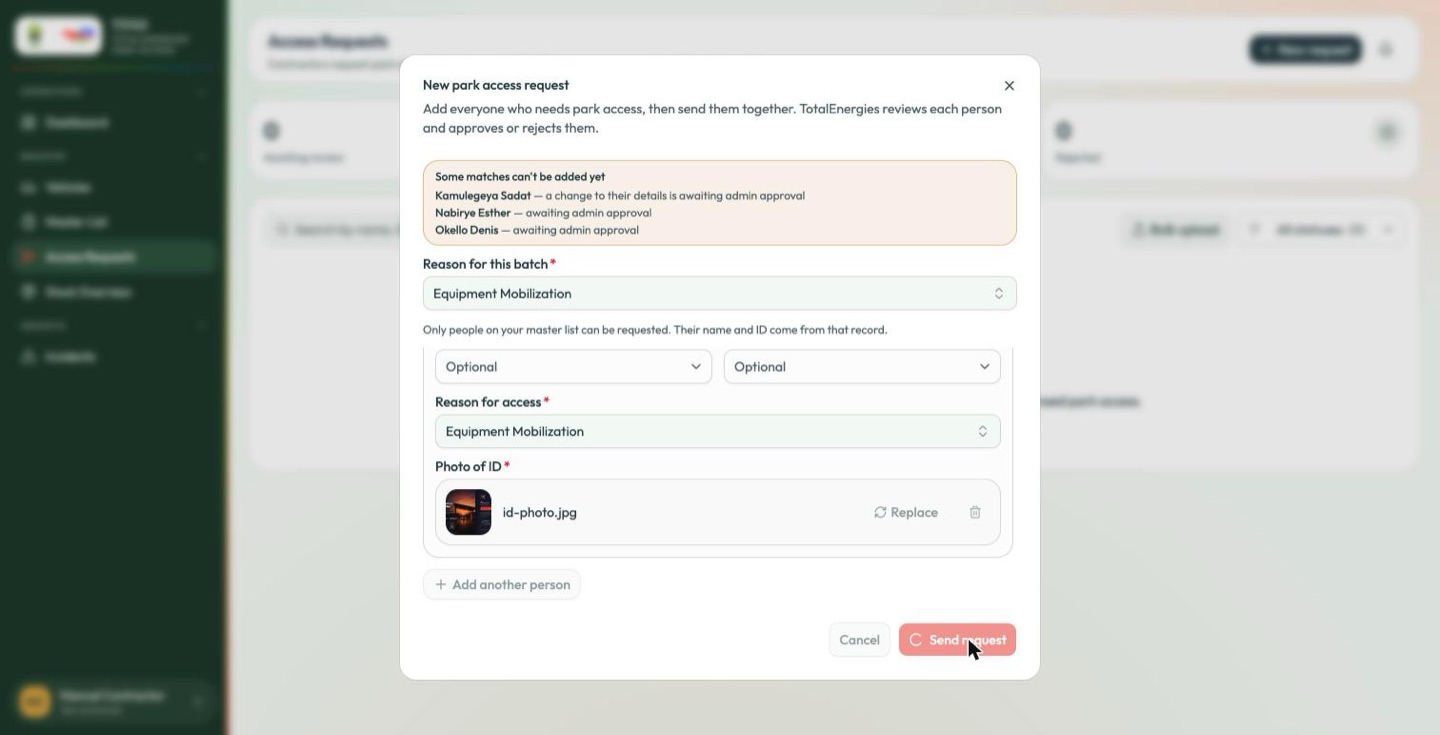
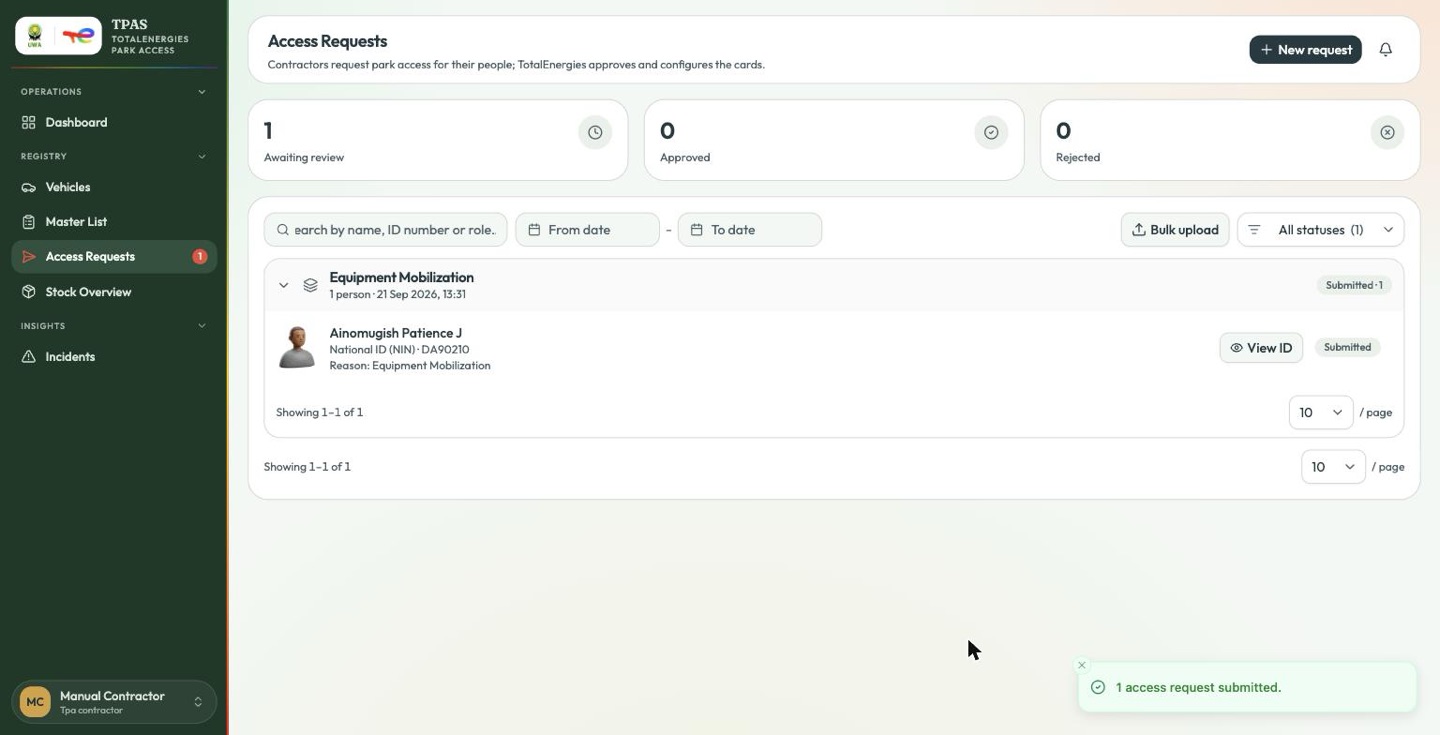
A typo in an ID number used to be discovered at review, or worse at the gate. Taking the identity from the approved master-list record means the request and the roster cannot disagree, and the reviewer's cross-check below has something to check against.
Reviewing a request (TotalEnergies)
Open the contractor's folder. Batches are listed newest first, each showing its
reason, how many people it covers, when it was submitted, and a status summary —
Submitted · 1, or Approved · 2 Rejected · 1 for one already decided.
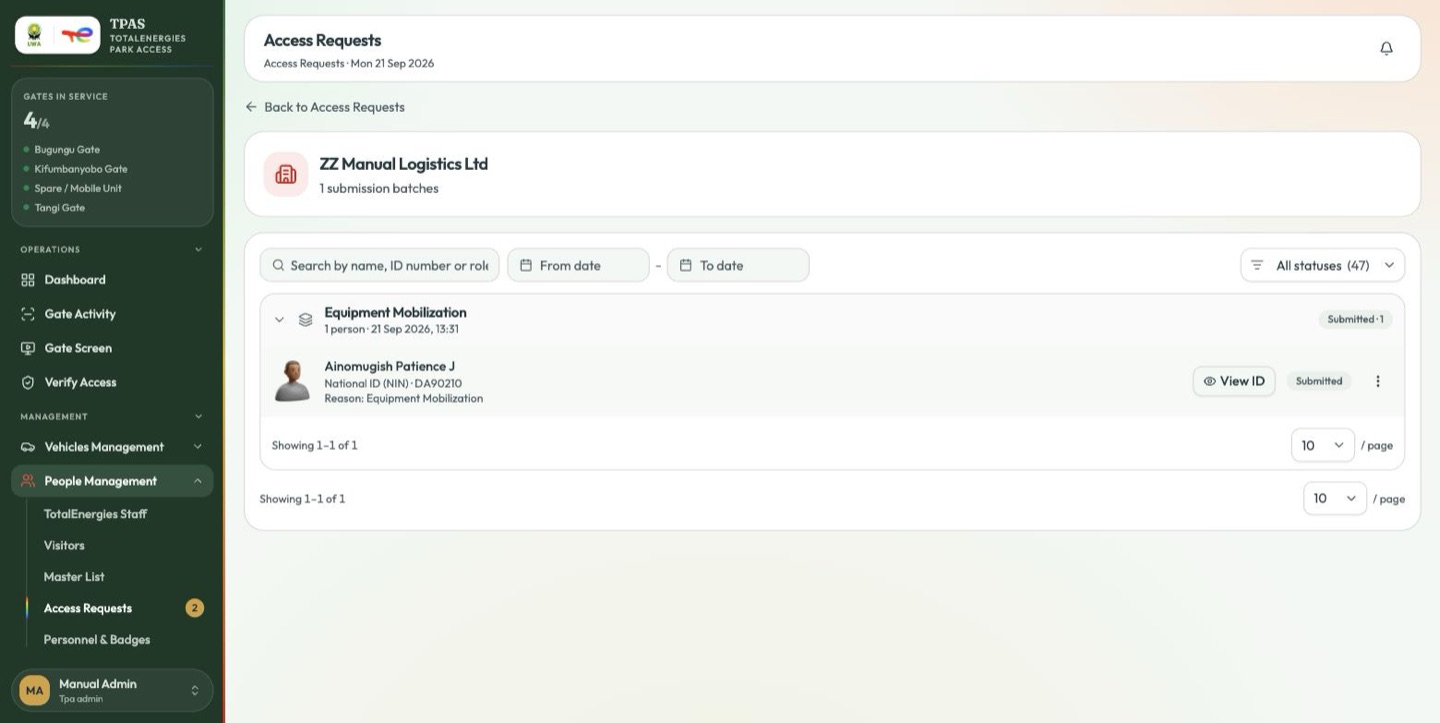
Expand a batch to see the people in it. View ID opens the person's record with the attached identity document.
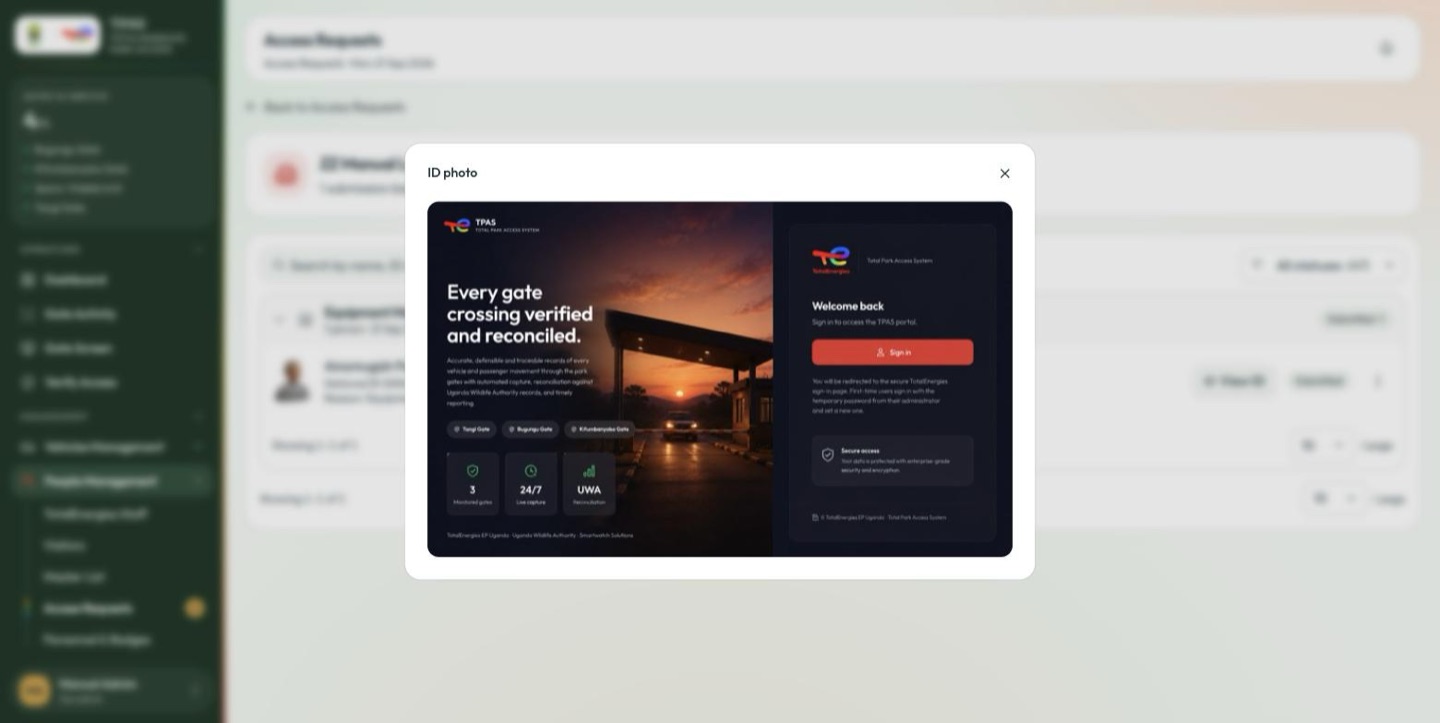
Check three things before deciding:
- The photo is legible and is an identity document.
- The ID number in the form matches the number on the document.
- The person is on that contractor's master list — which, since the picker enforces it, is now a check that the document agrees with the roster rather than that the roster contains them.
Then choose from the ⋮ menu.
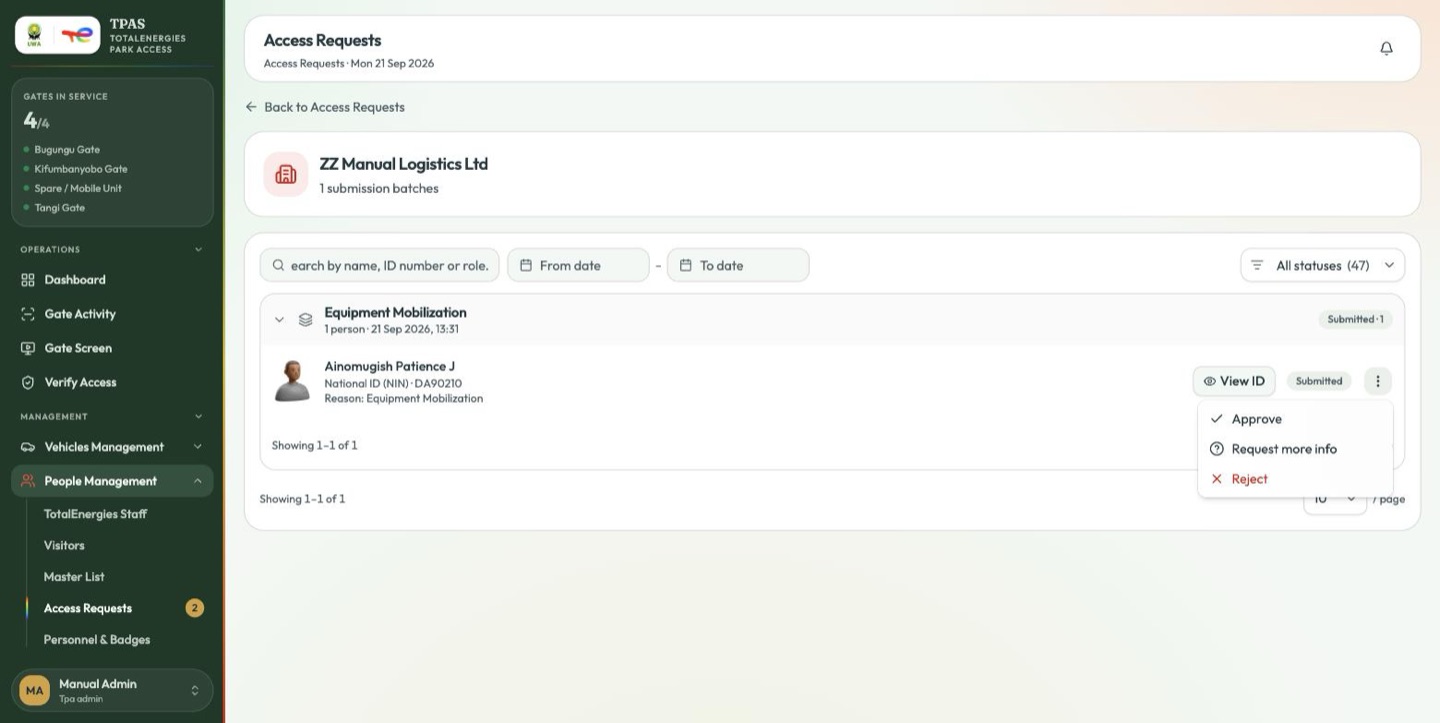
| Decision | Use it when | What happens |
|---|---|---|
| Approve | Everything checks out. | A person record is created in the registry, ready for a badge. |
| Reject | The person should not have access. | The request is closed. The contractor can submit a fresh one. |
| Request more info | The photo is unreadable, or the number does not match the document. | Reveals a message box — say precisely what is wrong. The request goes back to the contractor rather than being refused outright. |
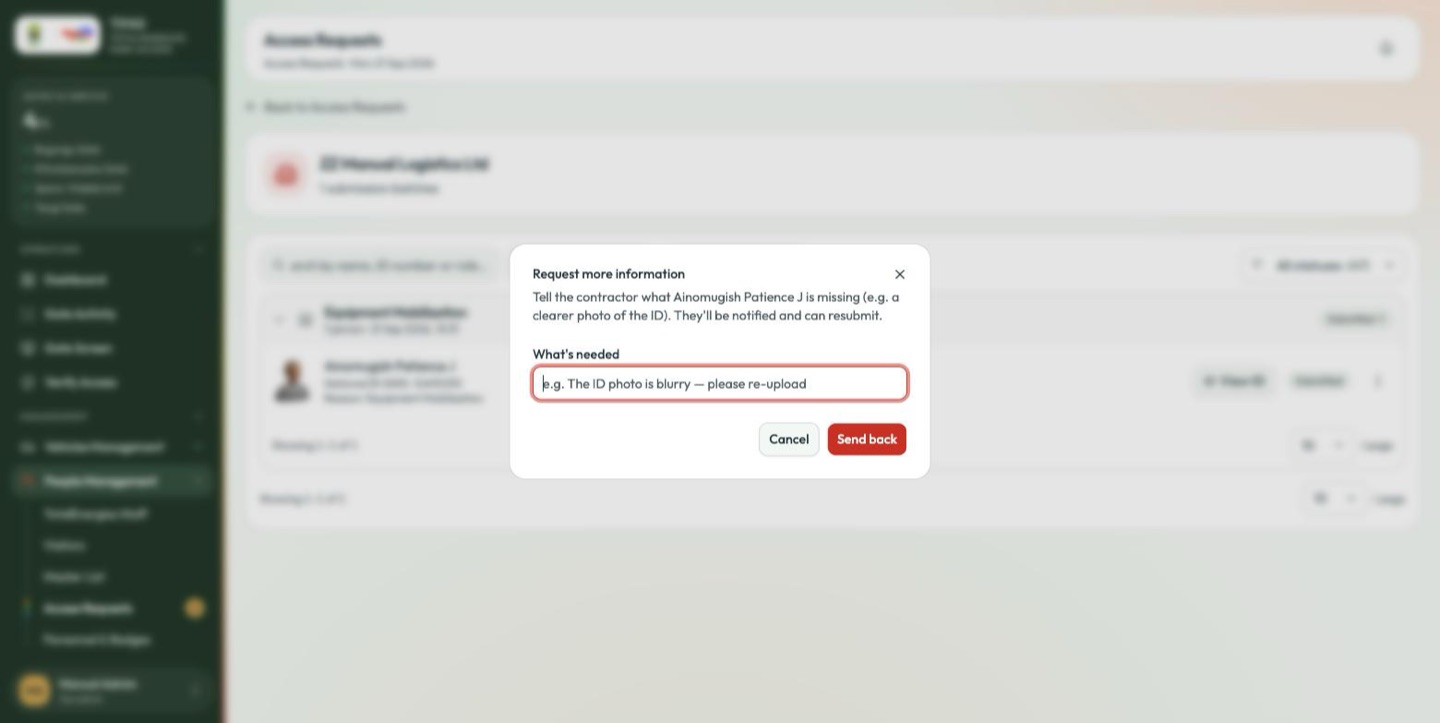
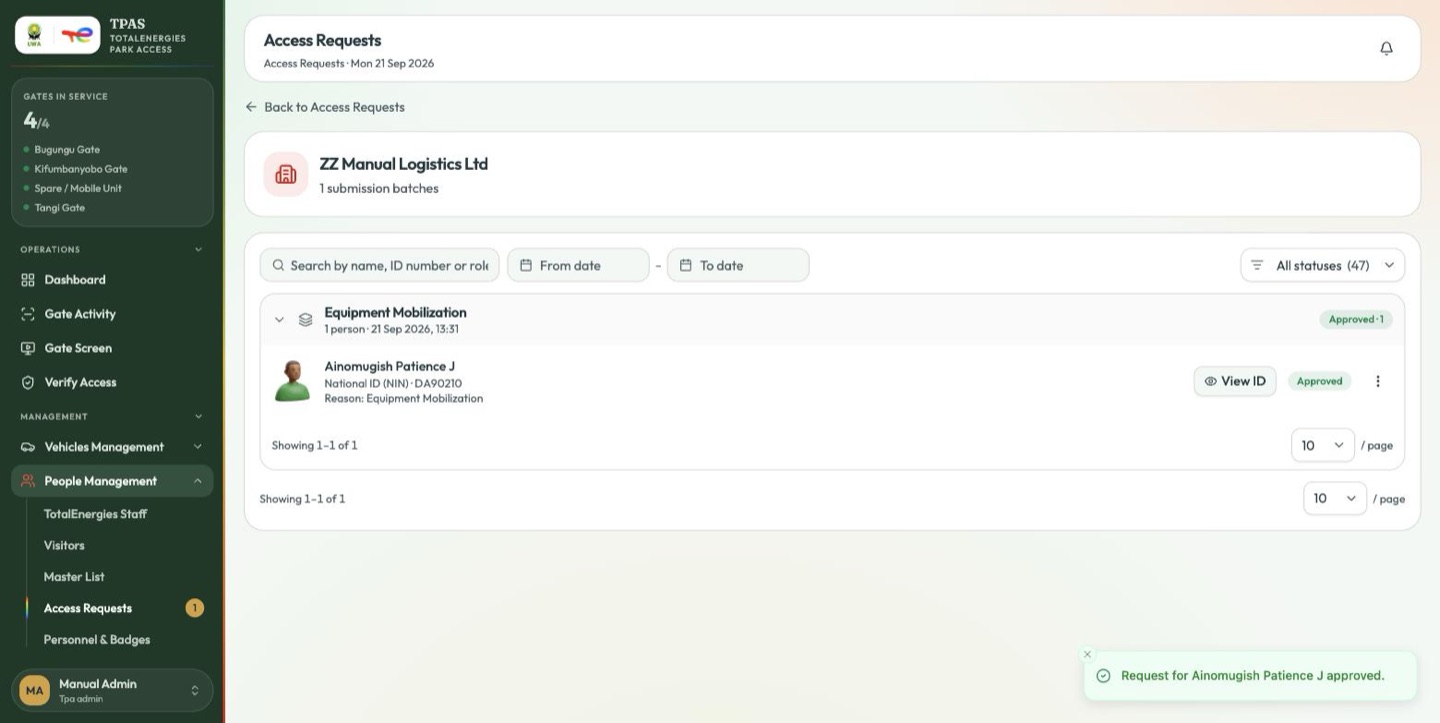
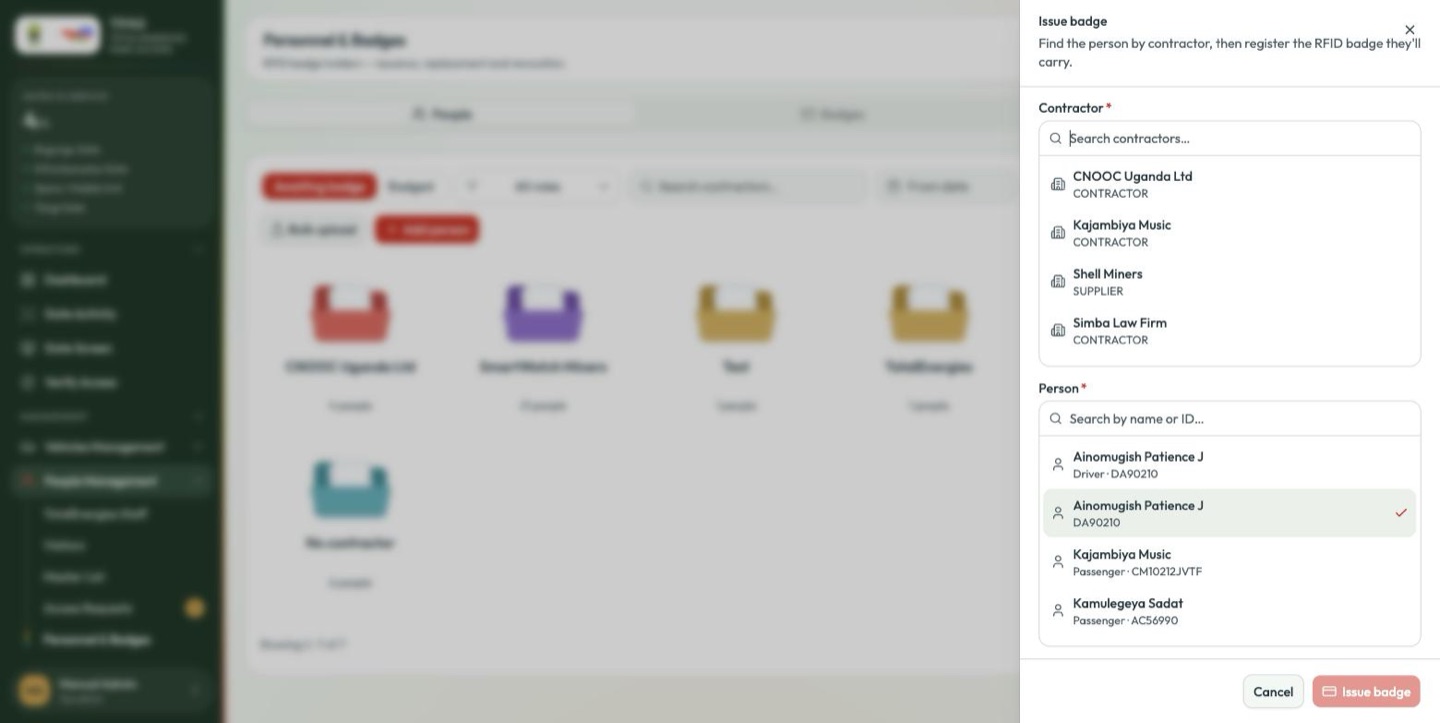
Approving a request creates a new person record. Where the same person already exists in the registry — approved on an earlier request, or added directly — approval does not recognise them, and you end up with two records carrying the same ID number. The issue-badge picker will then list the name twice. If you see a duplicate, badge one record and leave the other unbadged rather than issuing two cards.
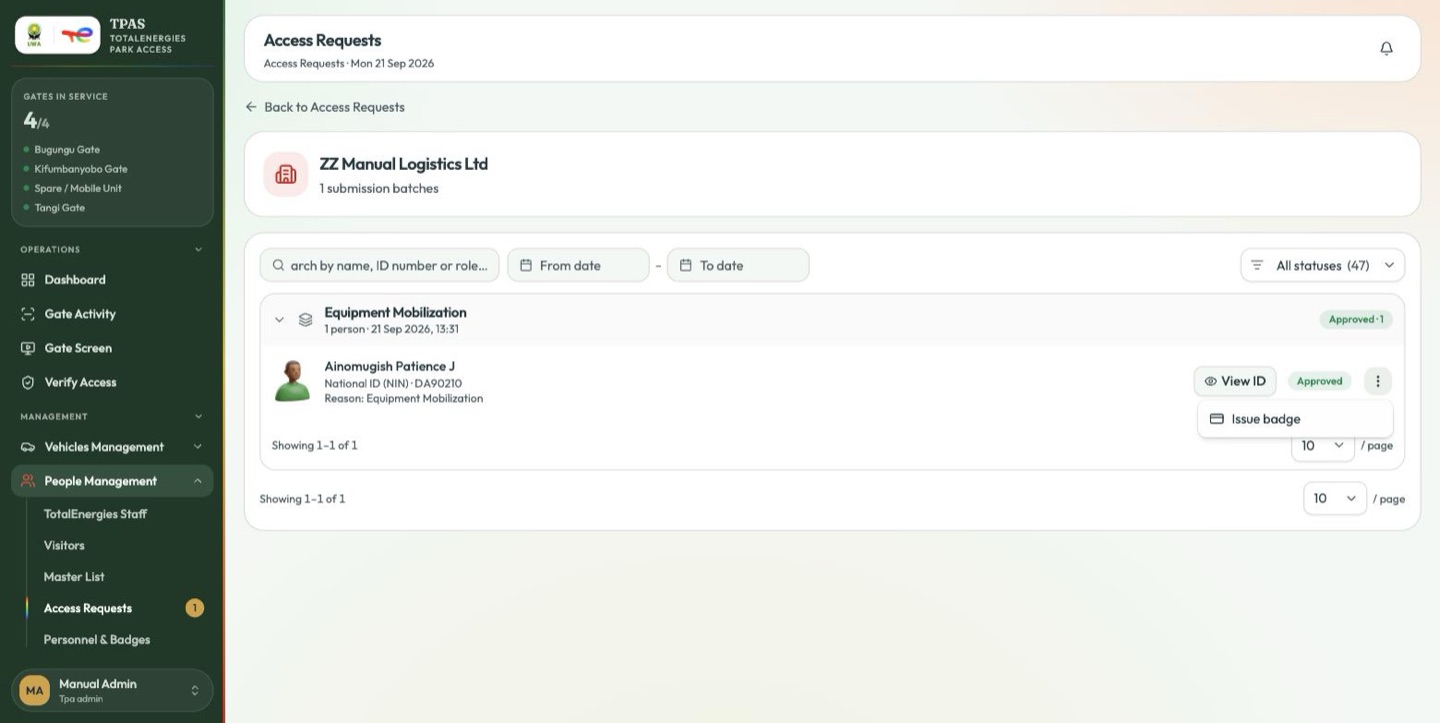
Once approved, Issue badge appears on the person, taking you straight into the badge flow.
Bulk upload
Bulk upload on the Access Requests page takes a spreadsheet of people instead of the form. Use it for a large intake; the review step is unchanged.