Users
Users
user:read to see the list, user:create to add one.
Administration → Users & Roles → Users.
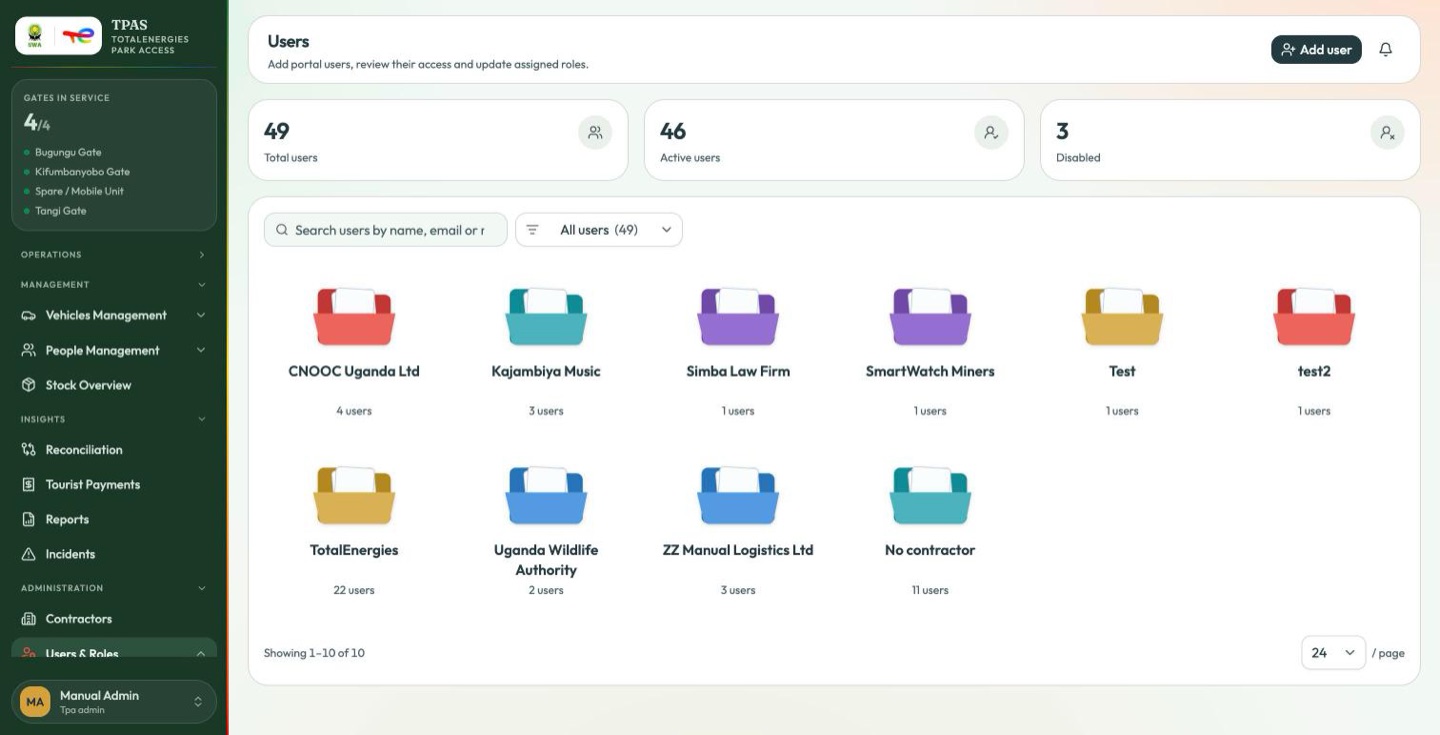
The Users page does not open on a flat list. It opens on one folder per contractor, because in practice you are nearly always looking for "somebody at CNOOC" rather than a name in the abstract. The three counts across the top — total, active, disabled — are for the whole portal; No contractor collects internal accounts that belong to no outside company.
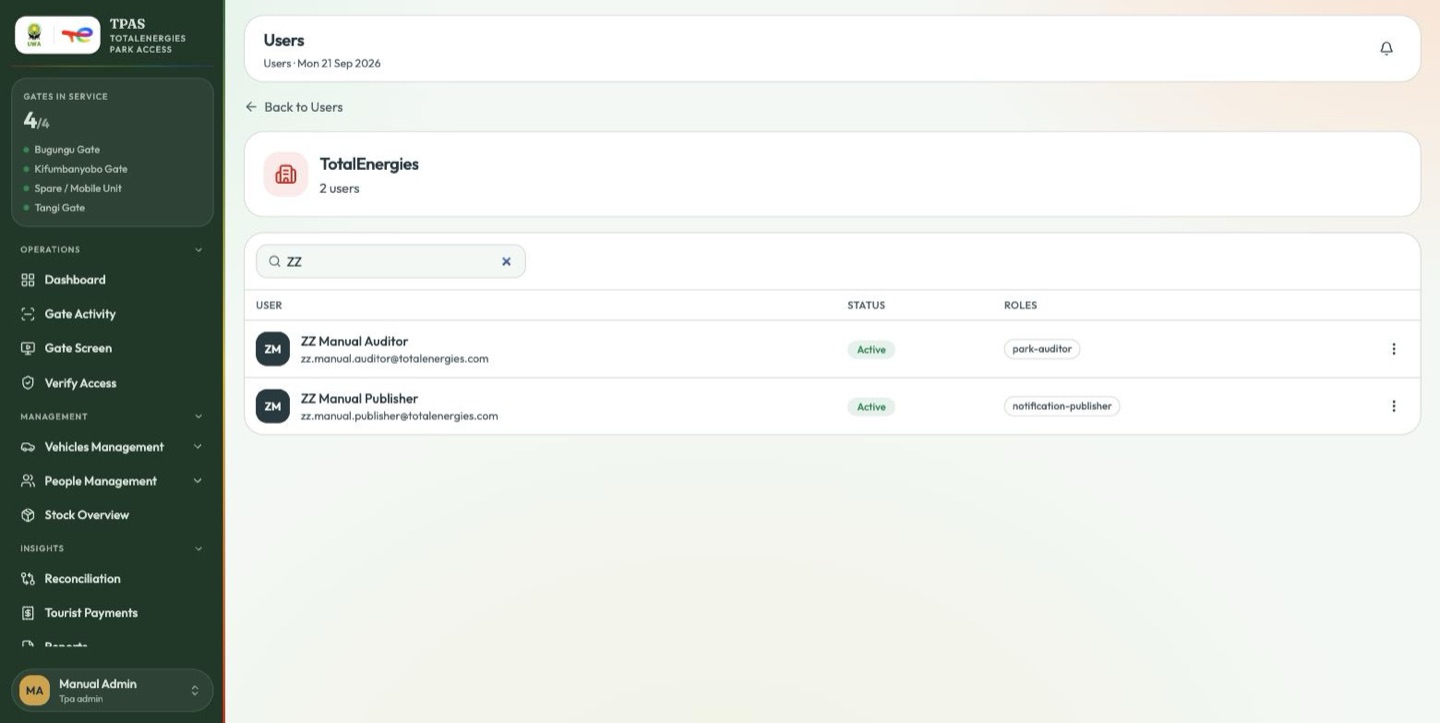
Select a folder to see that organisation's roster.
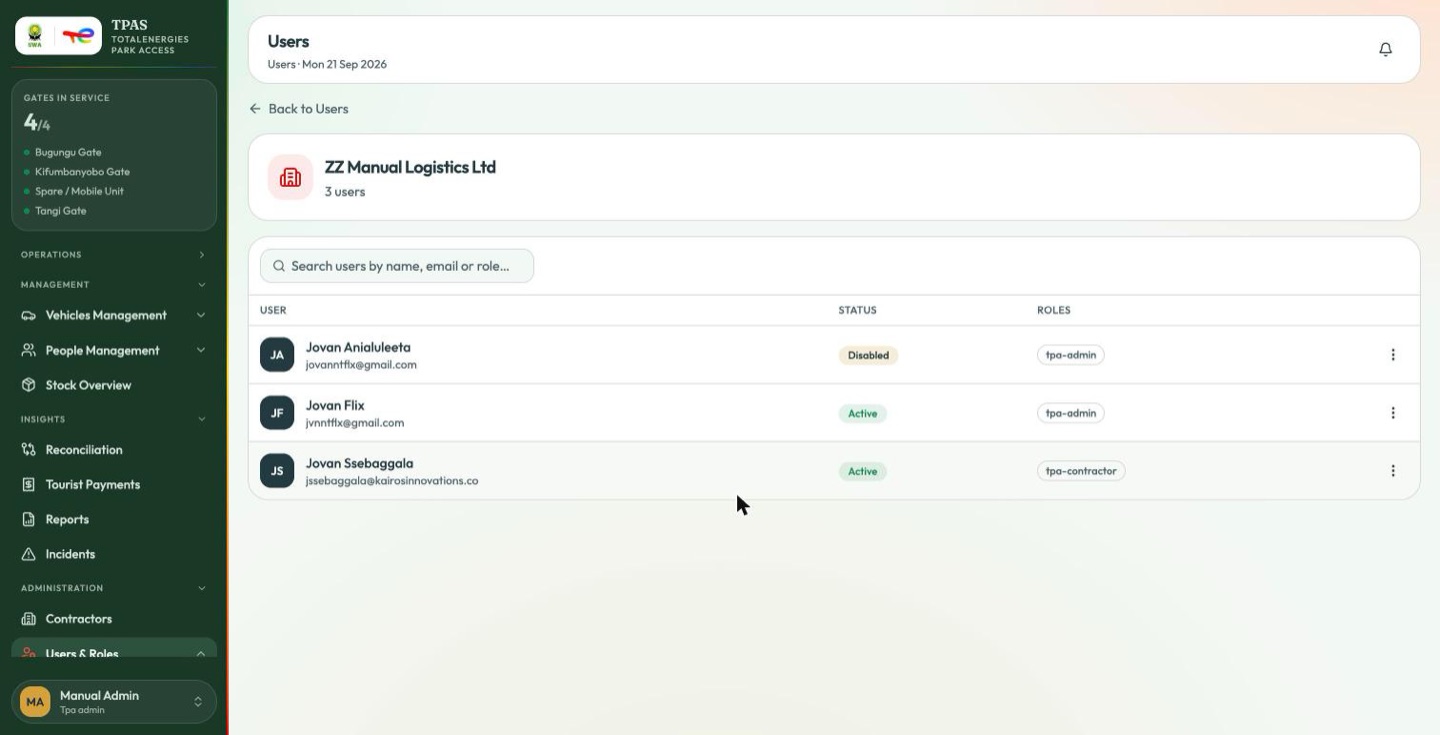
Each row shows the person, their status, and the roles they hold as chips. The search box at the top of the folder grid works across the whole portal, so you can find someone without knowing which folder they are in — and the open roster has a search box of its own for narrowing a single contractor's list.
Hover a folder for the full breakdown of that contractor's accounts by state.
Adding a user
-
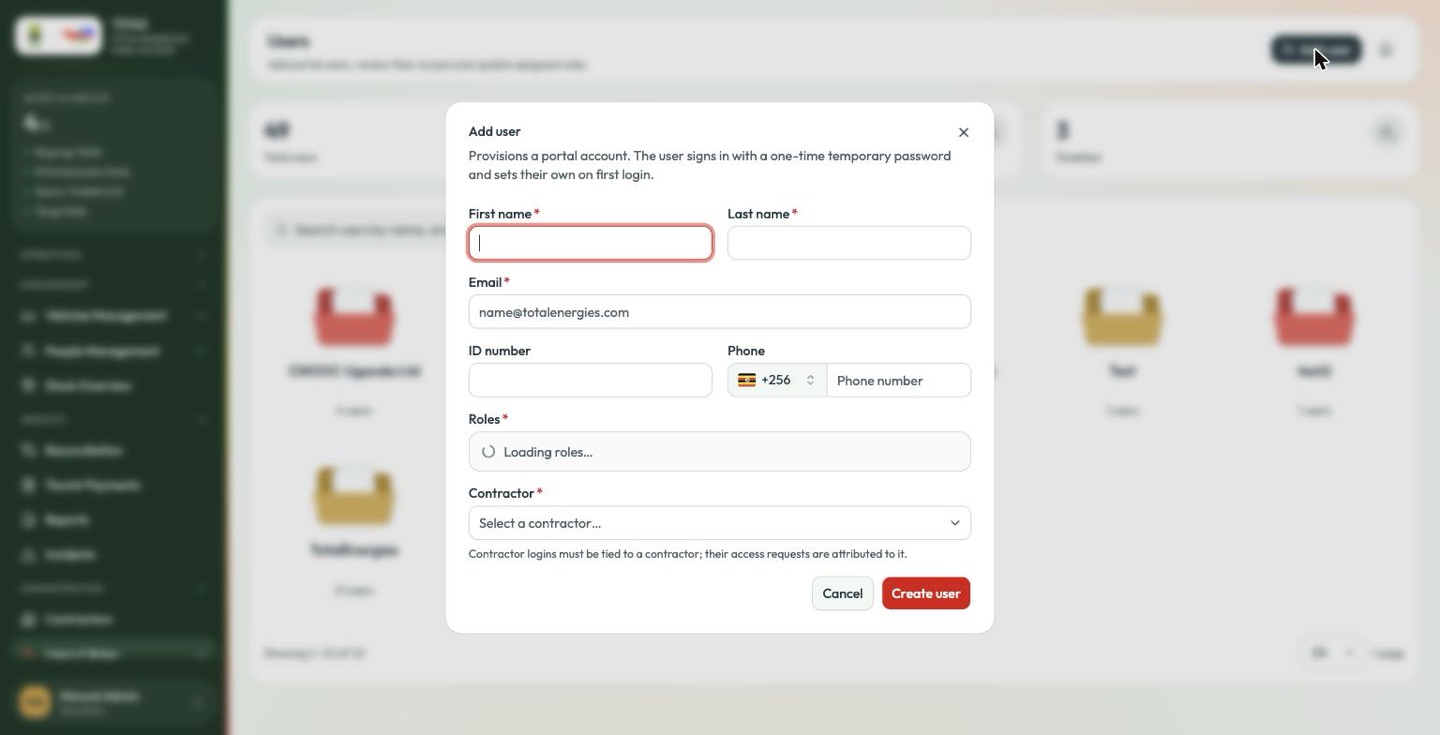
Select Add user.
-
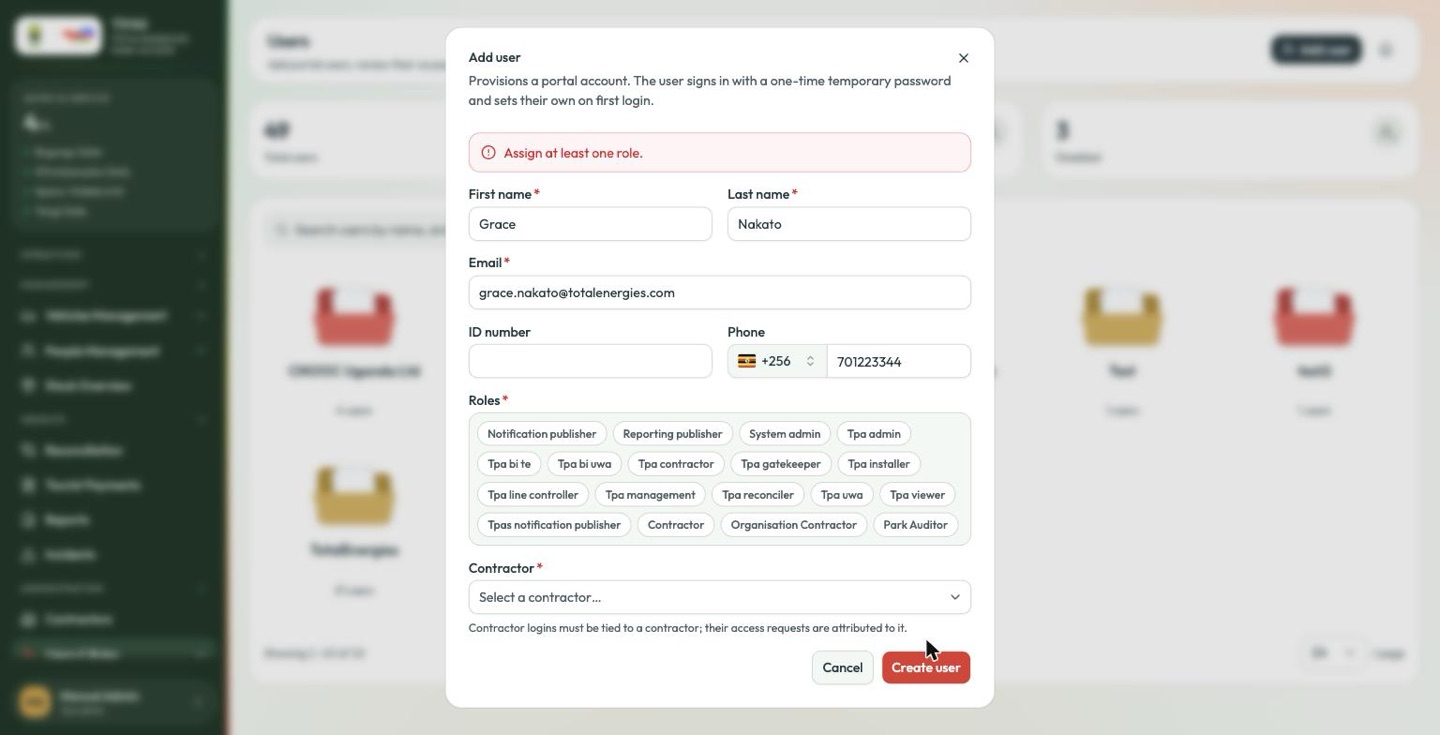
Enter the person's details. First name, last name and email are required. The email is also the sign-in name, so it must be the address the person actually uses. It cannot be changed afterwards.
-
Choose one or more roles, from the roles defined in the realm — eighteen at the time of writing (The role catalogue).
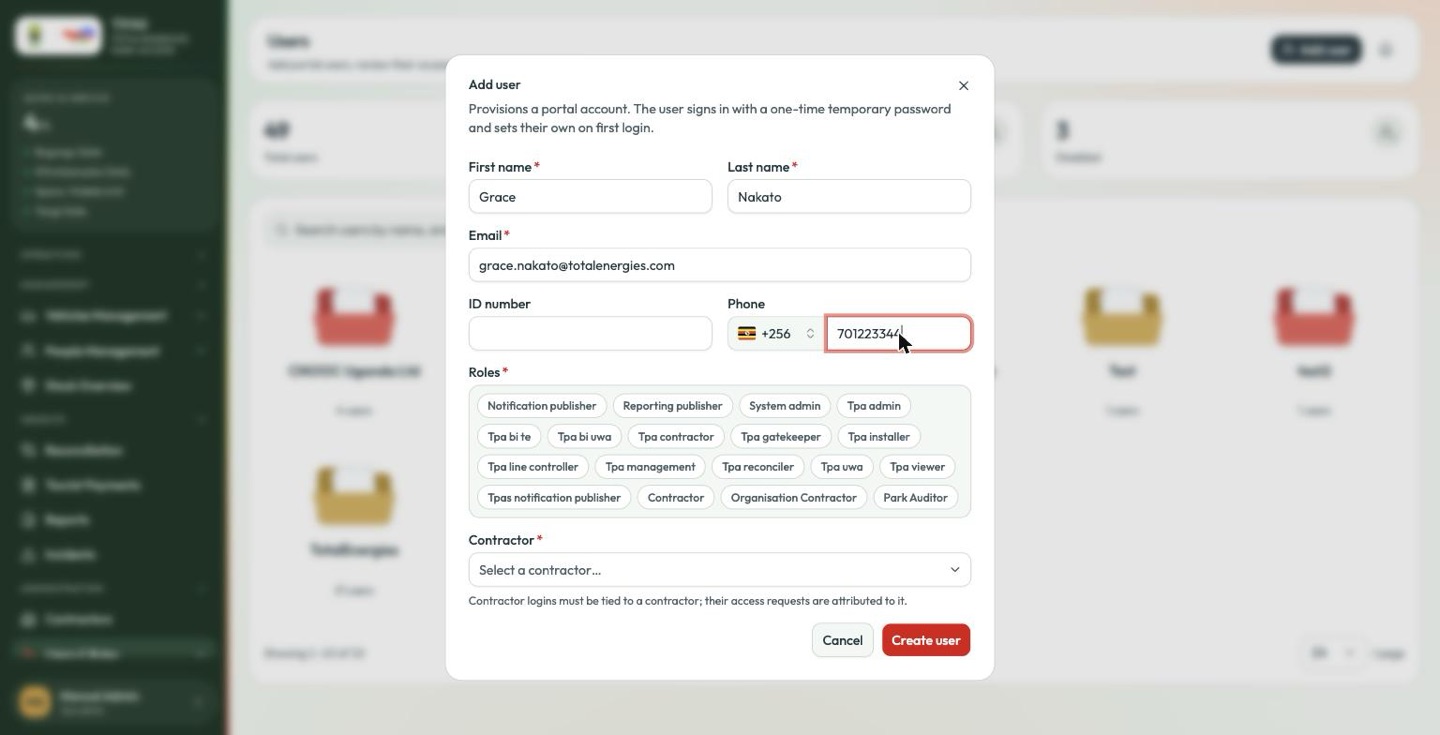
At least one role is required. Submitting without one is refused.
-
Choose the contractor the person belongs to.
-
If you picked a gate role, a Gate field appears beneath the contractor. This is how a gate operator is tied to the barrier they actually work at.
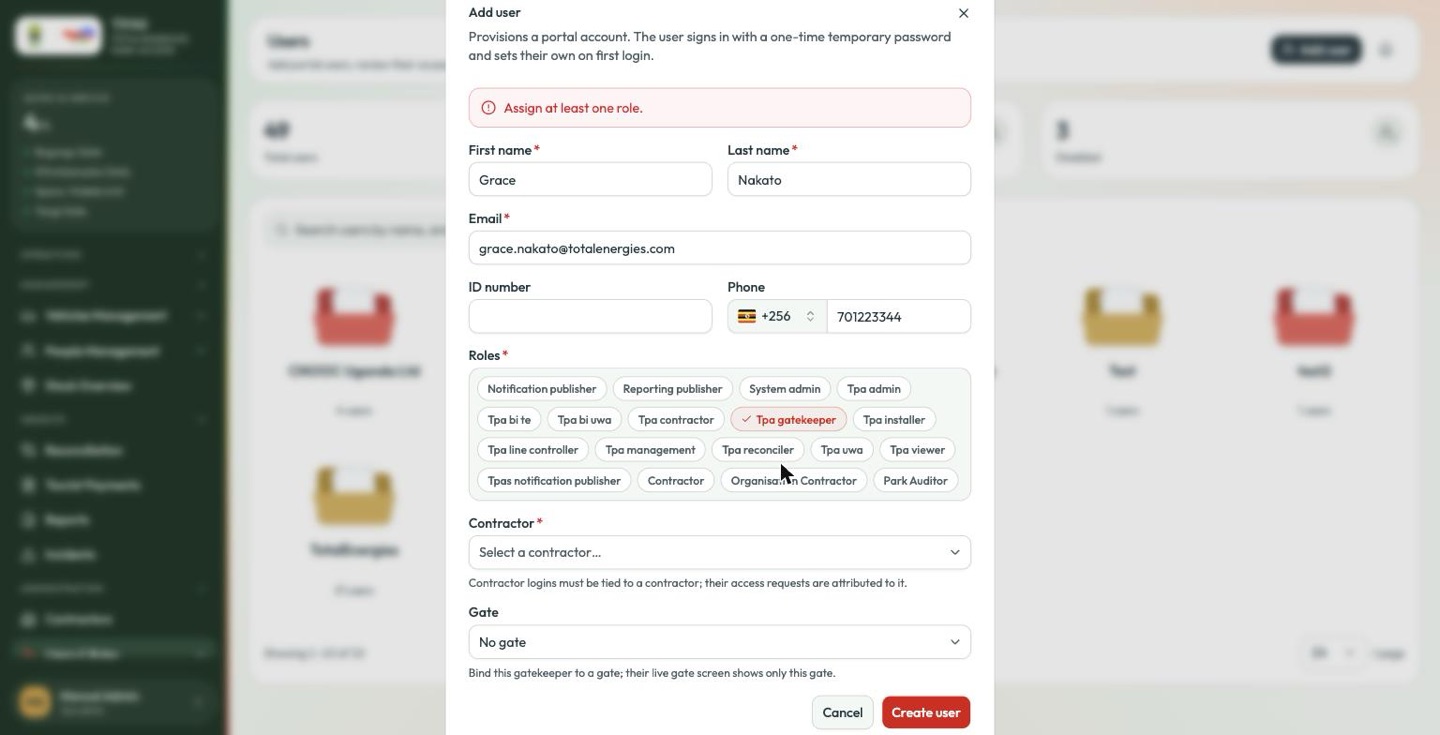
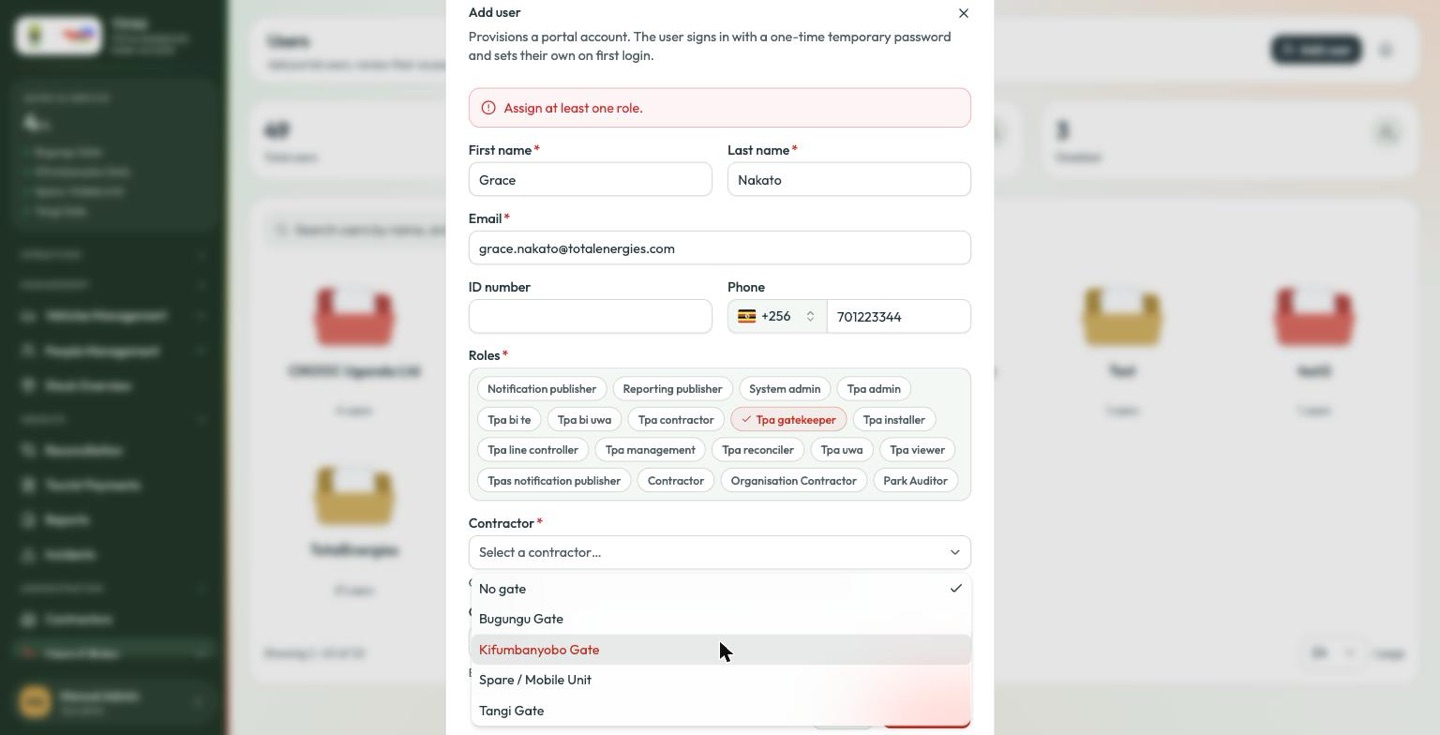
The choices are the three park gates, plus Spare / Mobile Unit for a roving operator and No gate.
-
Select Create user.
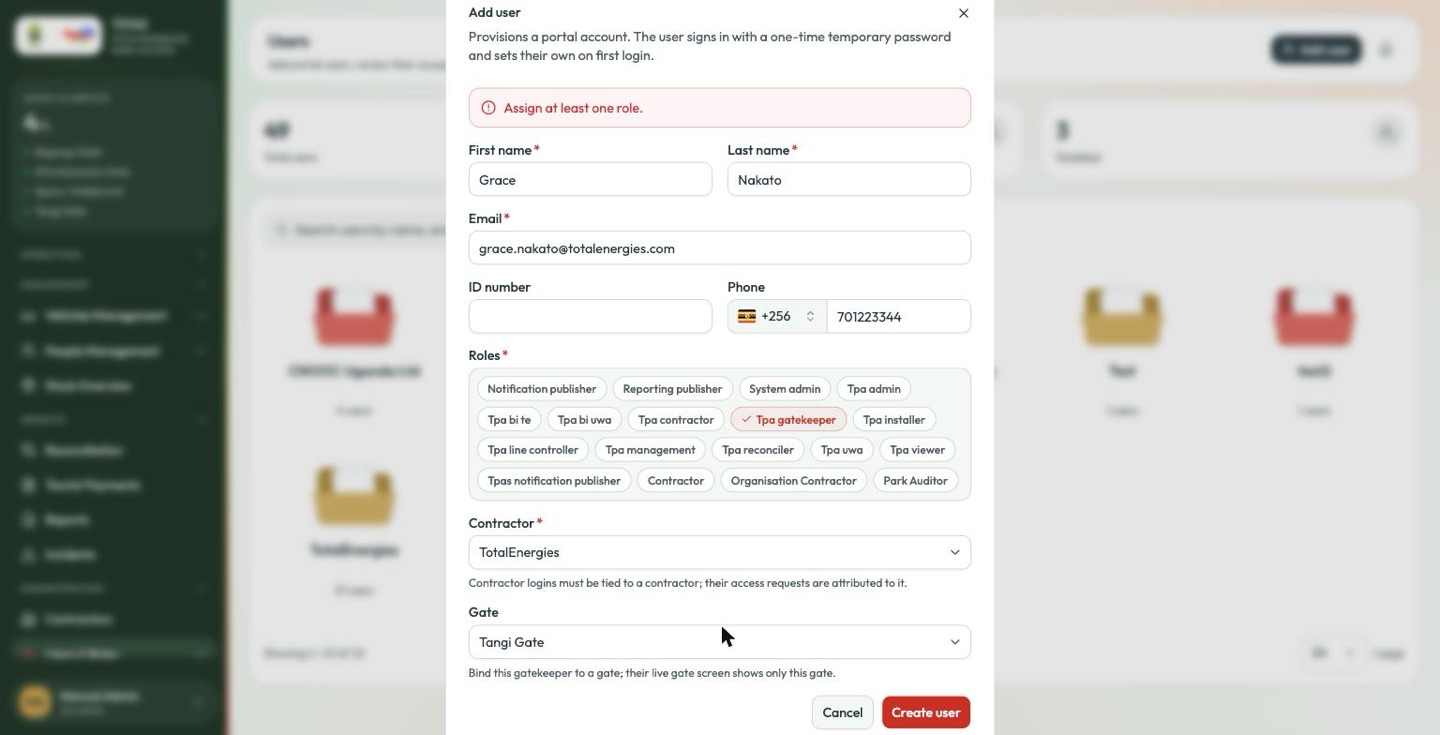
The form requires a contractor for every account, including internal roles that belong to no outside company — a notification publisher, a park auditor. Use TotalEnergies for those. The dialog also remembers the contractor you chose last time, so check it before submitting rather than after.
The credentials dialog
This is the step people miss. On creation TPAS shows a one-time temporary password — once.
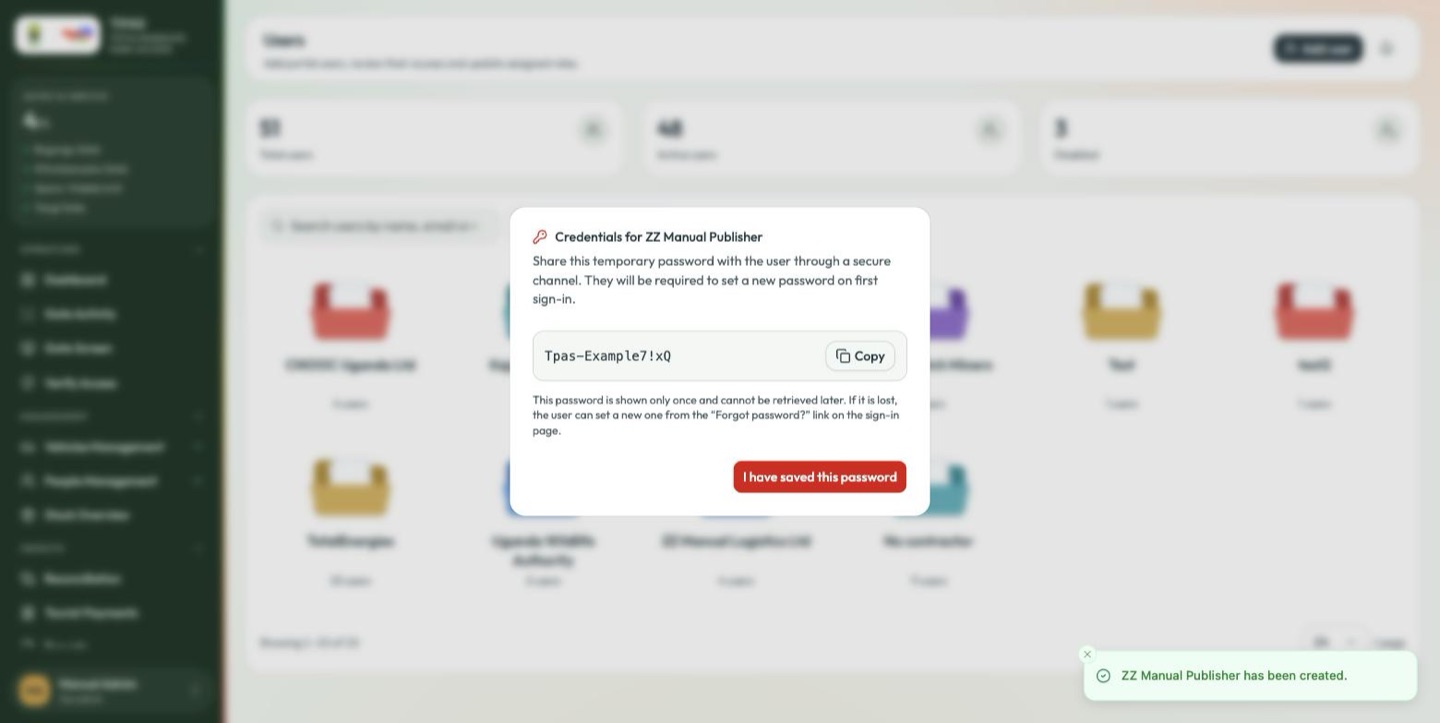
through a secure channel. They will be required to set a new password on first sign-in.
This password is shown only once and cannot be retrieved later. If it is lost, the user can set a new one from the "Forgot password?" link on the sign-in page.
Copy puts it on the clipboard; I have saved this password dismisses the dialog. Pass it on through a secure channel — not an unencrypted email, not a shared spreadsheet.
There is no invitation email. If you dismiss this dialog without copying the password, the account exists and nobody can get into it — but it is not lost work: the person recovers it themselves with Forgot password? (Passwords).
Changing a user
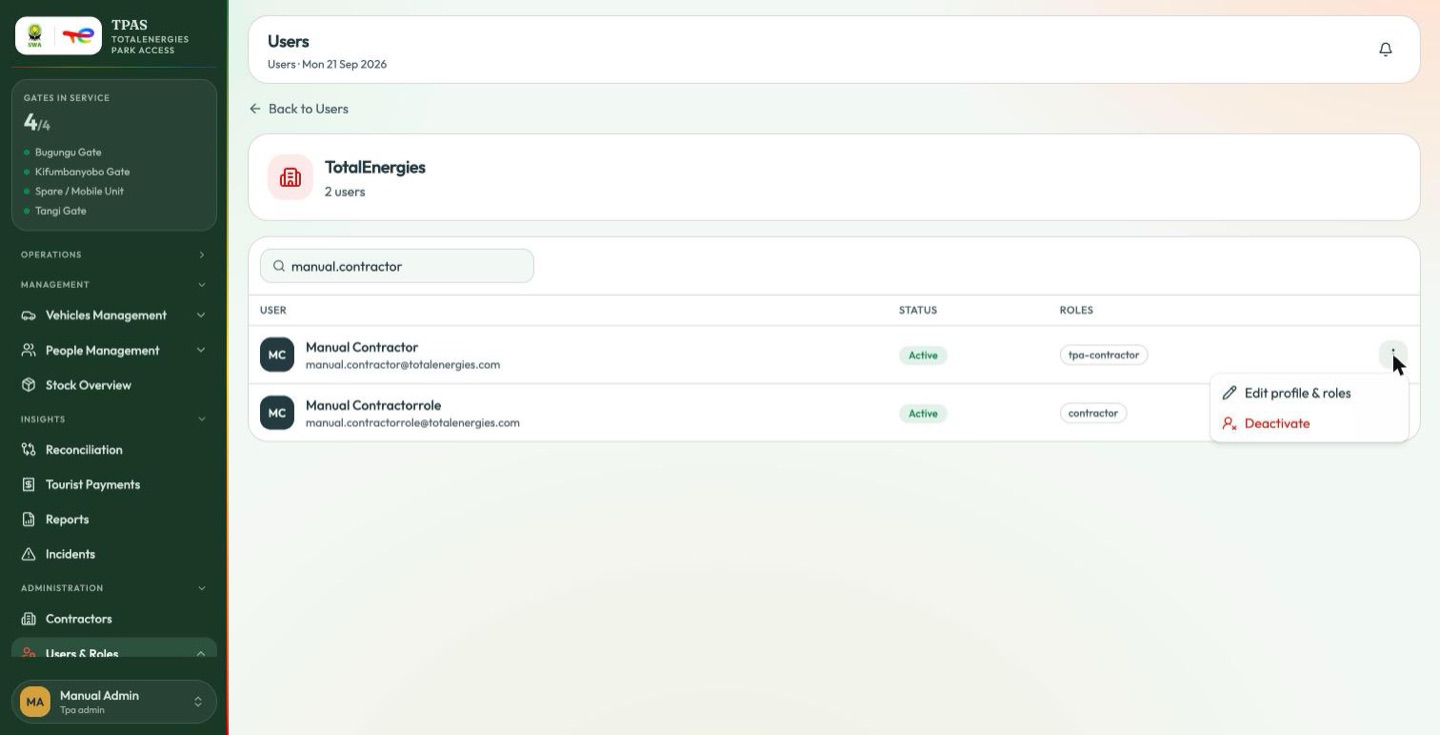
The ⋮ menu at the end of each row carries everything you can do to an account. There are two items, not more.
| Action | Effect |
|---|---|
| Edit profile & roles | Change names, contact details, contractor, gate, and which roles the person holds. Role changes take effect the next time they sign in. |
| Deactivate / Reactivate | Block or restore sign-in, without deleting the account or its history. |
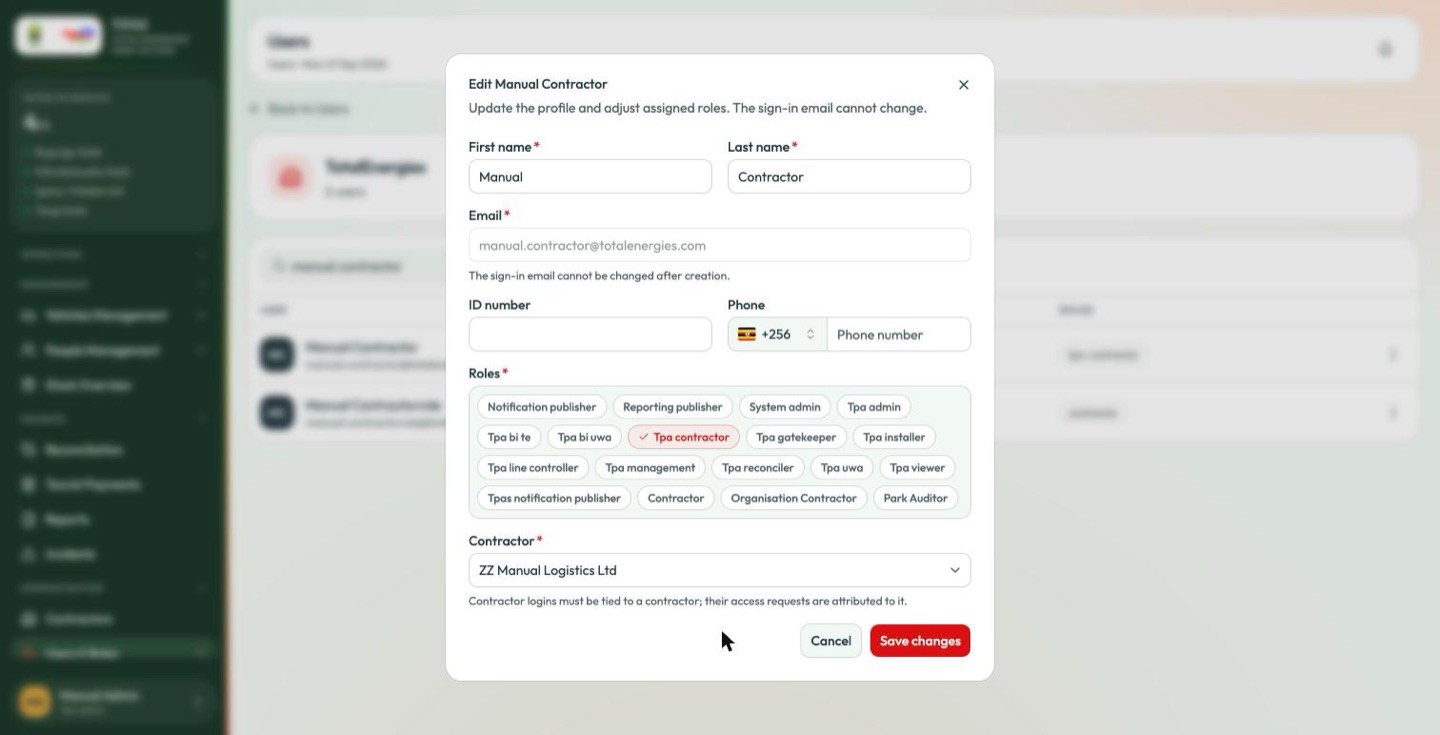
The sign-in email is fixed and shown read-only — an account's identity does not change; if somebody needs a different address, create a new account and deactivate the old one.
Reactivate asks first:
with the roles they held before they were deactivated.
Read that second sentence before confirming. Reactivation does not re-open the role question; whatever the account held when it was switched off is what it gets back. If the person's job has changed since, edit their roles after reactivating.
Deactivating rather than deleting
Deactivate is the correct way to remove someone's access when they leave. The account keeps its history — the crossings they logged, the requests they approved, the incidents they raised — so the audit trail stays intact. Deleting would break it.
Passwords
There is no administrator reset. The user row menu carries no Reset password action, and nobody in TPAS — administrator or otherwise — can see, recover or replace somebody else's password.
A password is set in exactly two ways:
| Situation | What happens |
|---|---|
| A new account | The one-time temporary password from the credentials dialog (The credentials dialog), replaced by the user on first sign-in |
| A forgotten password | Forgot password? on the TotalEnergies sign-in page, which the user drives themselves |
When somebody says "I've lost my password", the answer is "use Forgot password? on the sign-in page", not "I'll reset it for you". The same answer covers a temporary password that was never copied.