Reading a report
report:read to open the catalogue and read a report,
report:export to download one. Two reports need a permission of their own:
the device-stock group needs device-stock:read, and anything scoped by
company needs organisation:read.
Insights → Reports.
View report opens it.
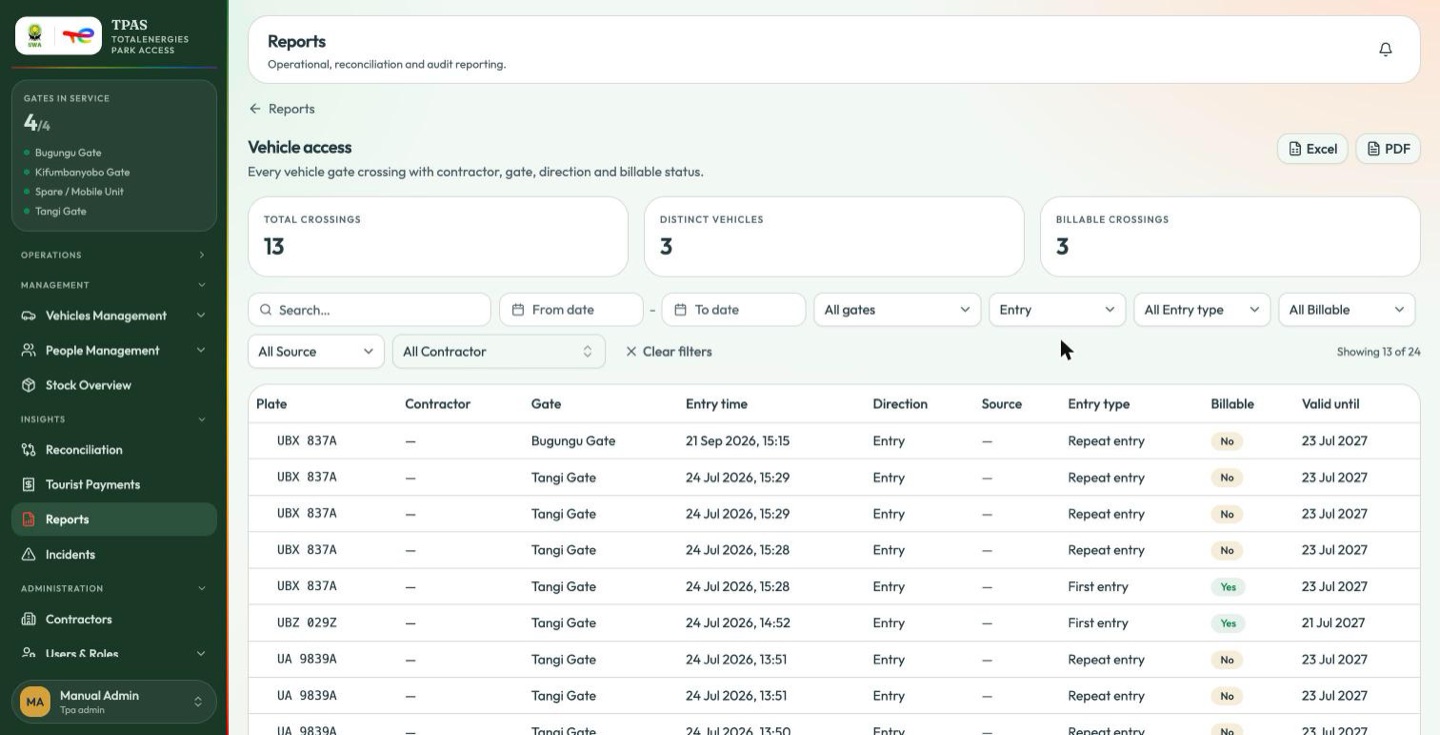
Every report has the same anatomy:
- Reports, top left, to go back.
- Excel and PDF, top right — only for accounts holding
report:export. - Summary tiles — the headline figures for whatever your filters currently match. They recalculate as you filter.
- Filters — a search box, a from / to date range, and selectors
appropriate to the report (gate, direction, entry type, billable, source,
contractor). Clear filters appears as soon as one is set.
Showing 13 of 24on the right tells you how much of the data you are looking at. - The table.
- A chart, on reports where a shape is more use than rows.
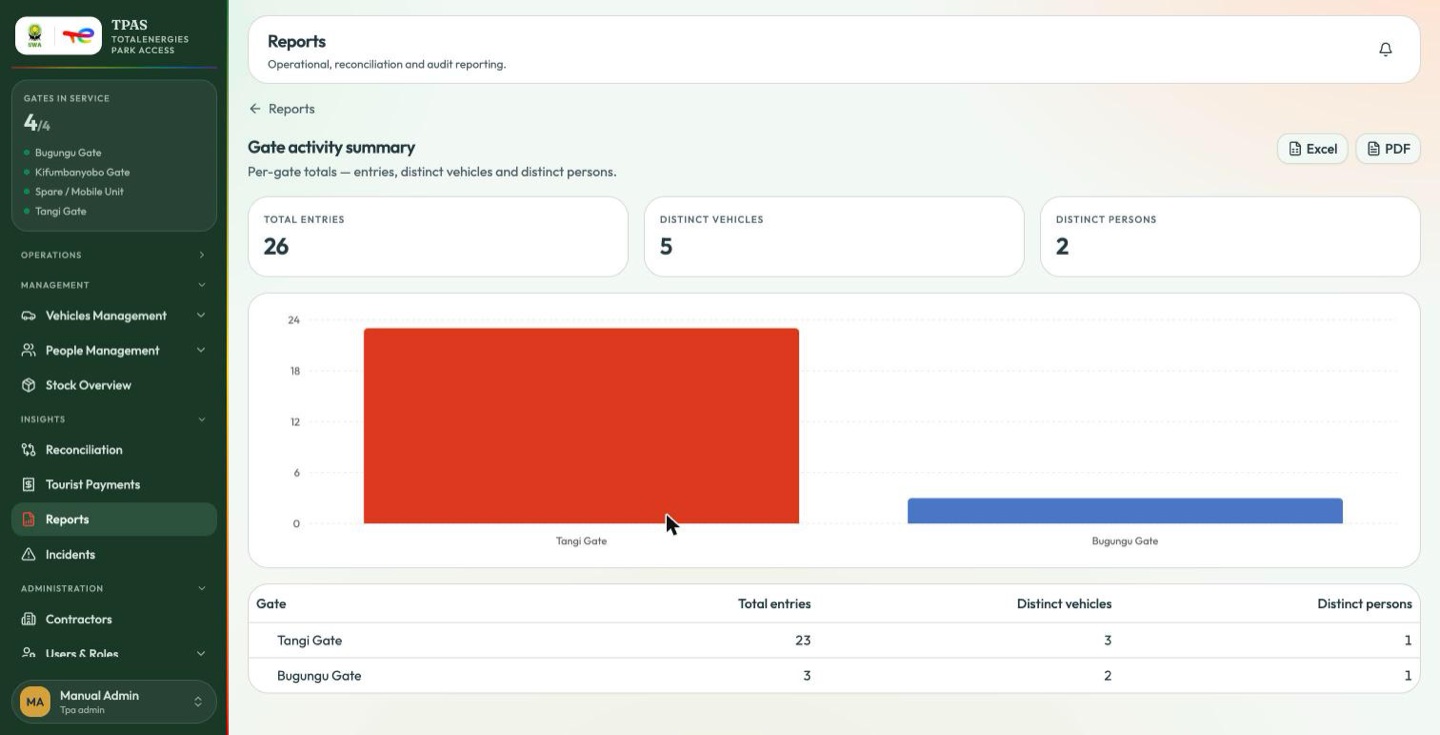
all reflect the filters you have set. Set them before you export, and check
Showing n of m before you send a figure to anyone.
Important — filters carry over between reports Leaving one report and opening another keeps the filters you had set, and Clear filters is the only sign that anything is applied. A report that looks unexpectedly short is usually a filter you set on the previous one. Press Clear filters when a report opens with fewer rows than you expect.
Rows that open
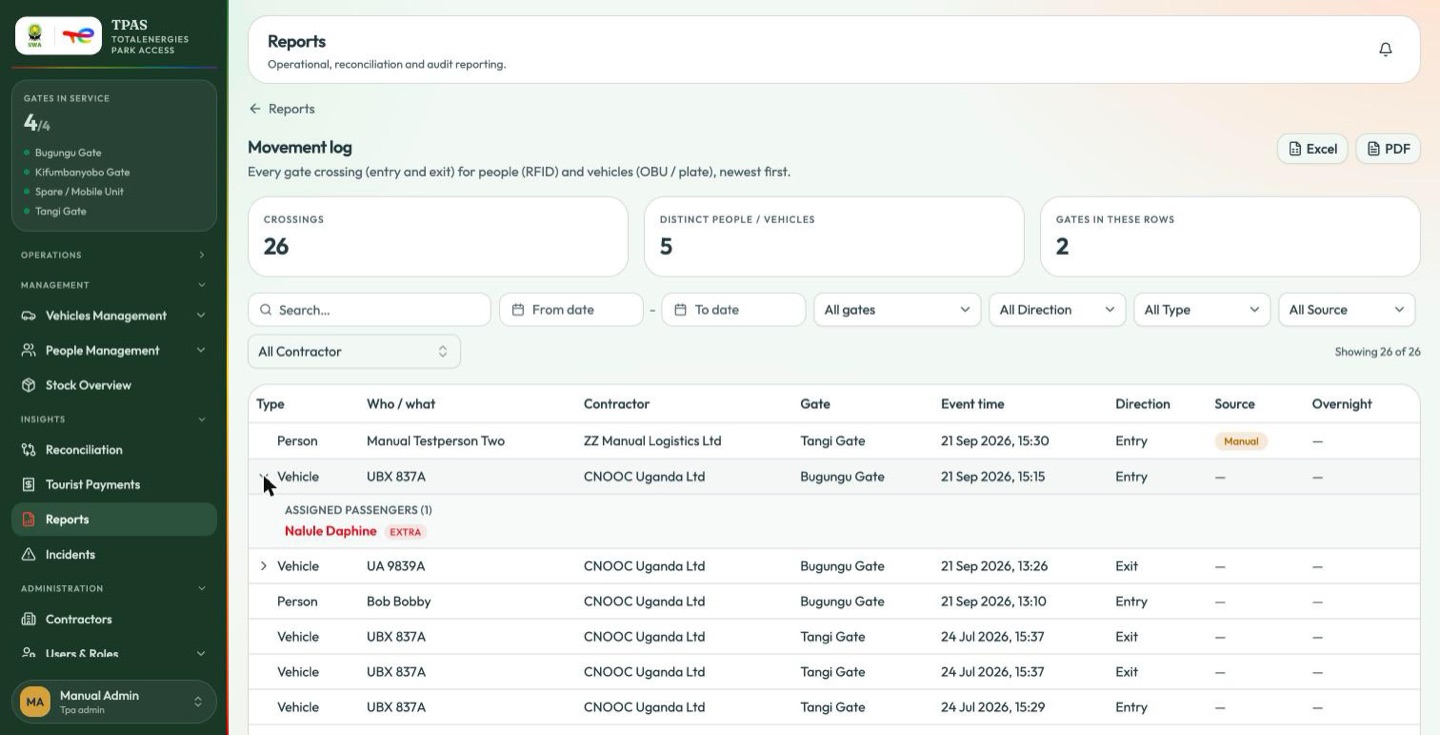
Some reports expand. On the Movement log, a row opens to show the full crossing behind the summary line.
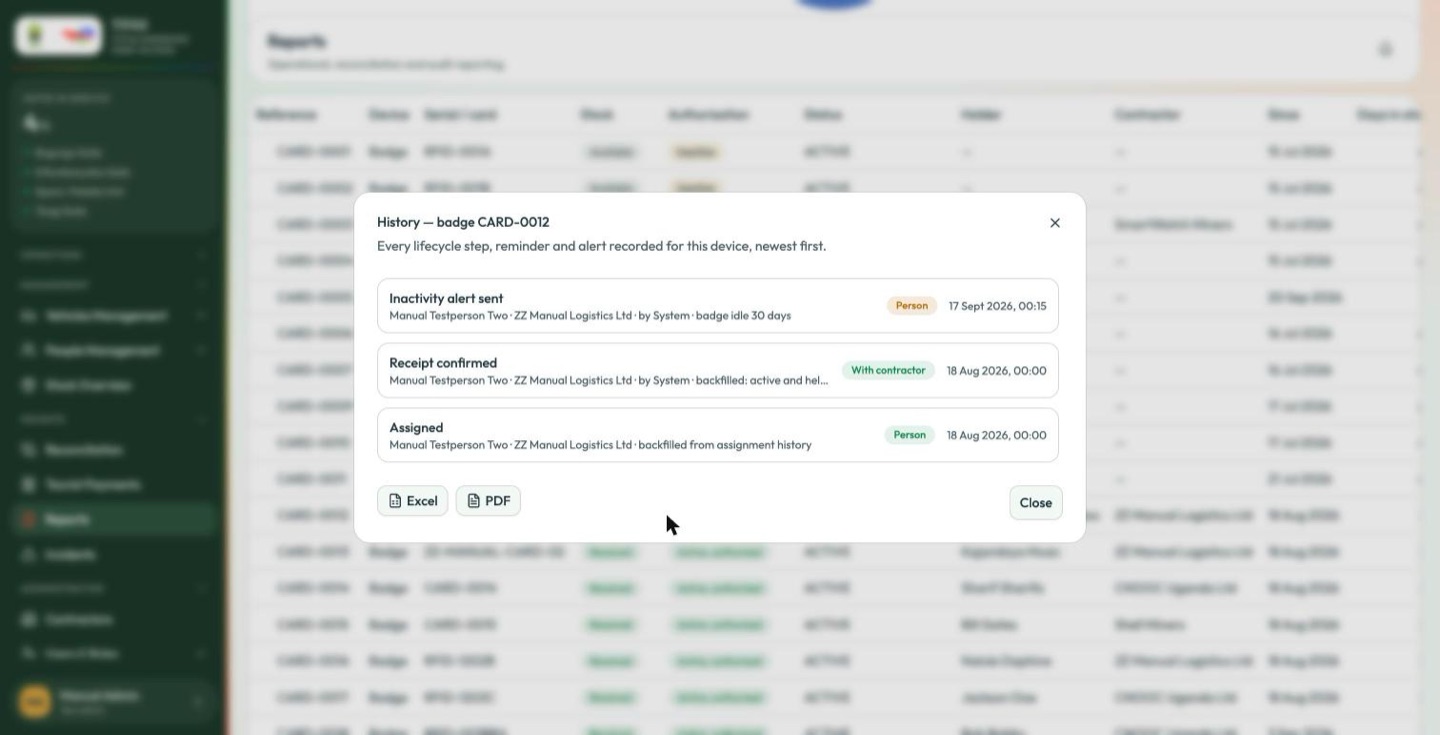
On Device custody, a row is a link into the device's own history — the same trail Where a device has been describes.
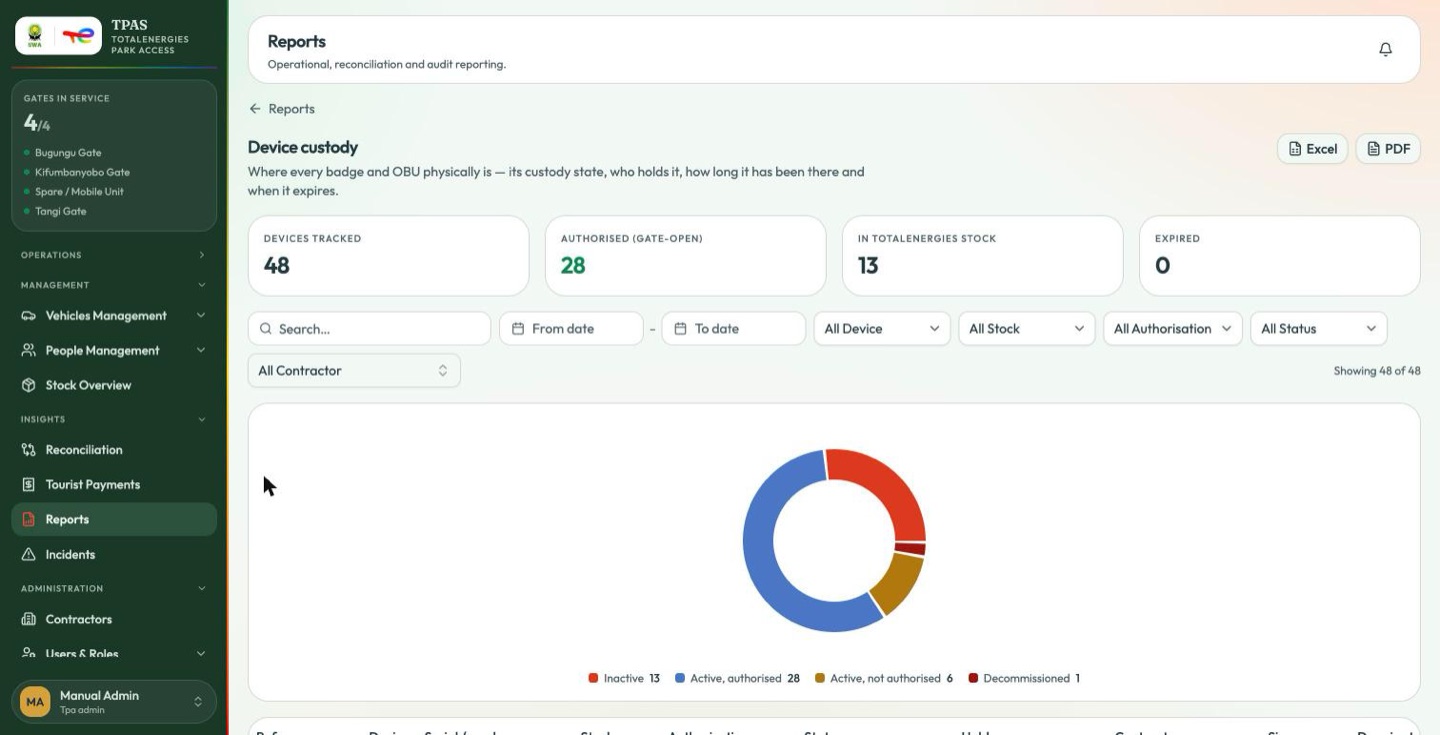
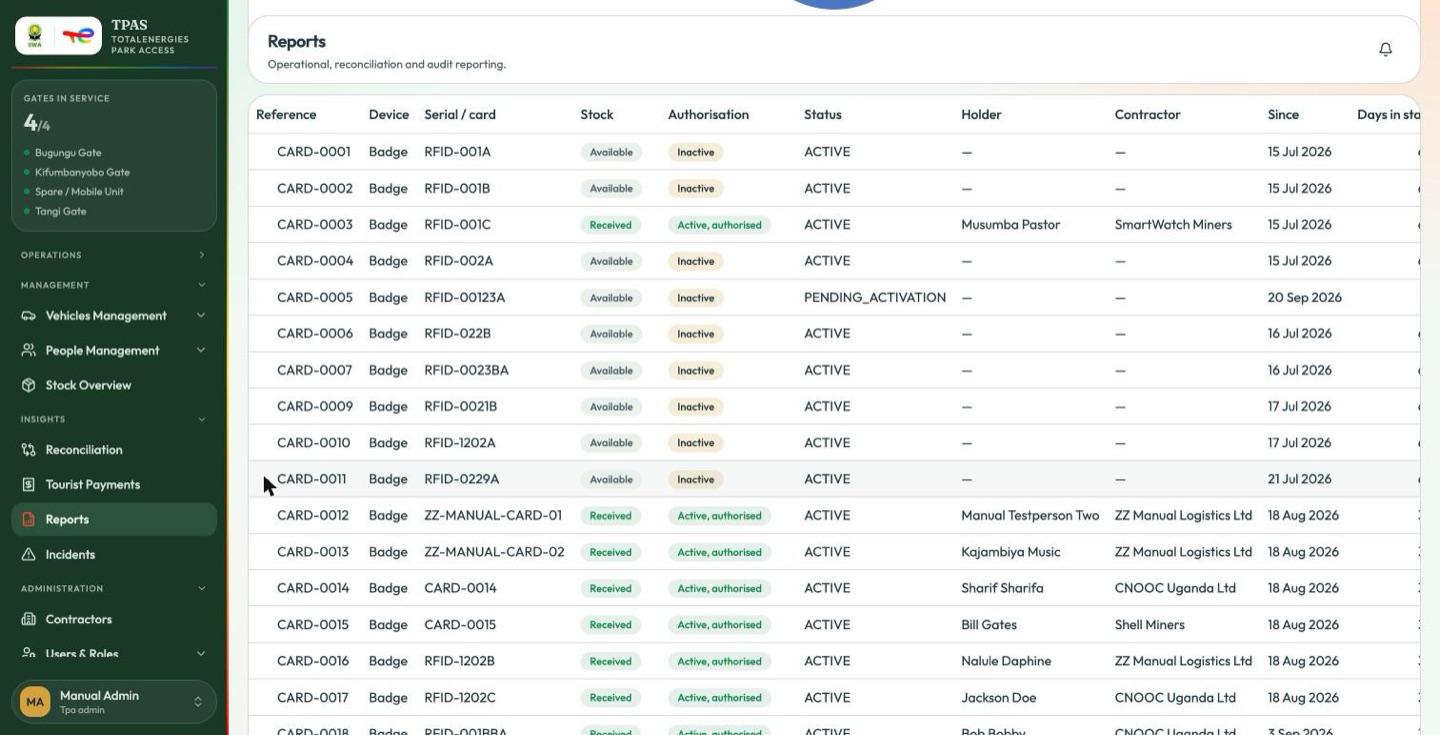
The custody table carries the same three axes the stock module uses — Stock, Authorisation and the device's own status (The three things a device carries) — plus the holder, the contractor, how long it has been in that state and when it expires.
The Status column on this report prints the stored value
(ACTIVE, PENDING_ACTIVATION) rather than the label the rest of the portal
uses. Read the Stock and Authorisation pills beside it, which are
written for people.
Manual entries are marked
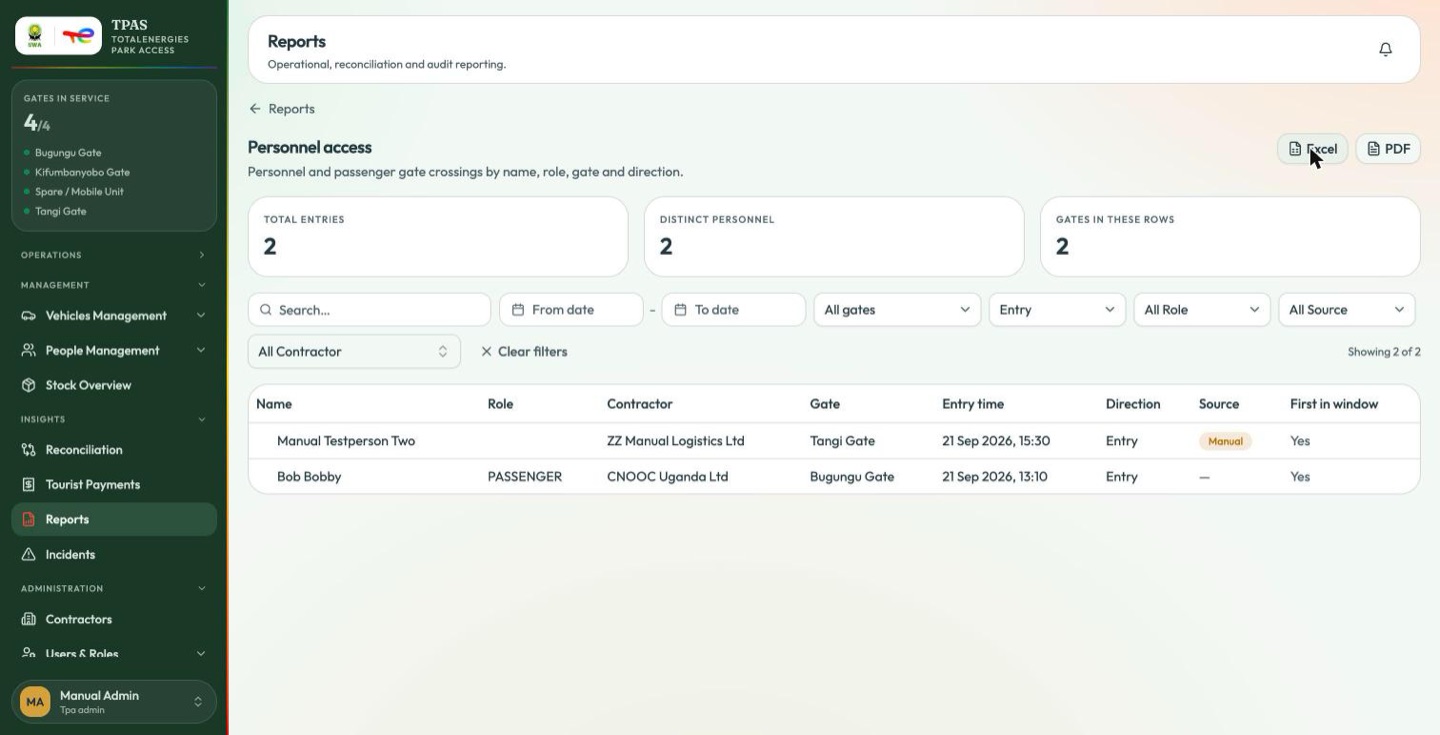
Crossings recorded by hand through Verify Access → Manual entry carry a Manual marker in the Source column of the Vehicle access, Personnel access and Movement log reports, and the Source filter narrows to just those rows.
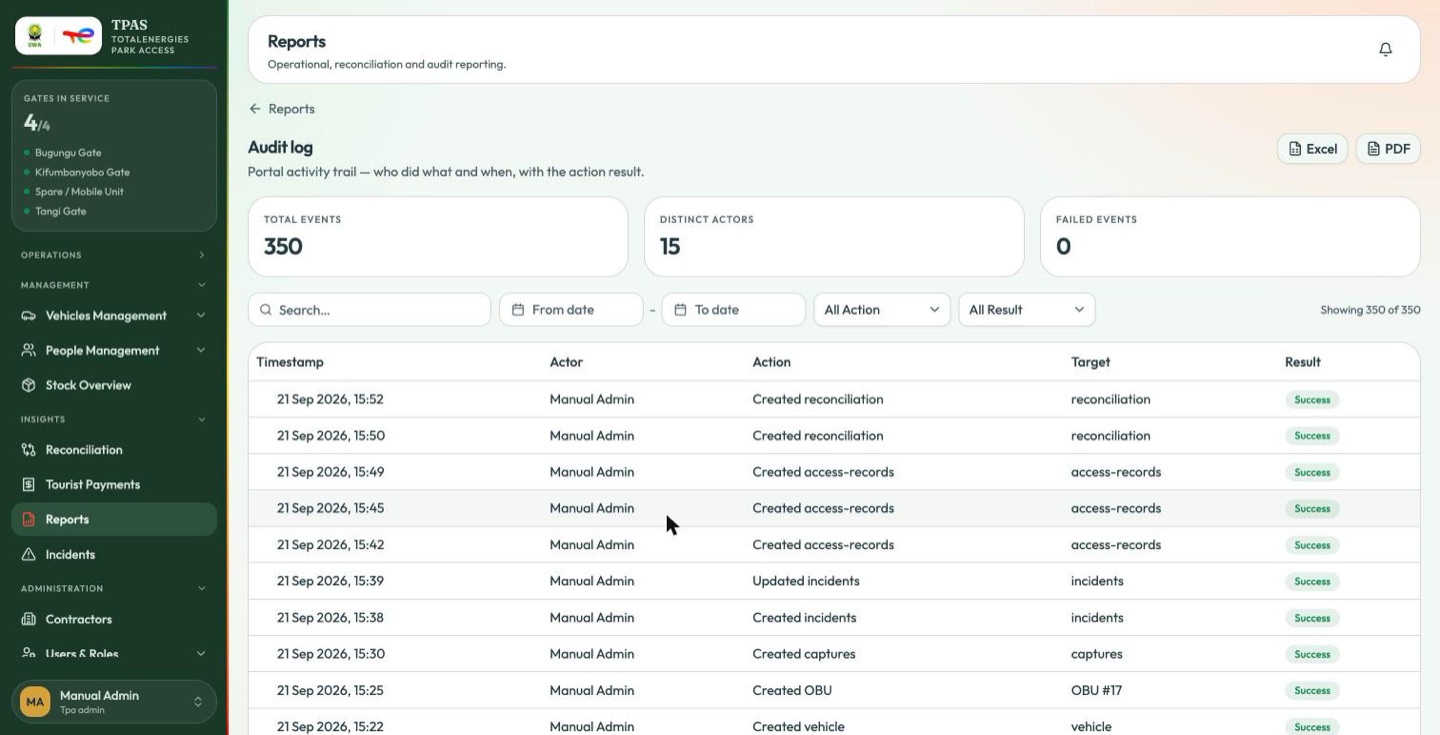
The audit log follows the same pattern, over portal activity rather than crossings.