Identifying the vehicle
A TPAS account with a gate role that an administrator has assigned to a gate (Adding a user). The app has no gate picker: it works at the gate your account is assigned to, and nowhere else.
Selecting Clock in or Clock out opens Identify vehicle. The screen is the same either way; the pill in the top-right corner — green CLOCK IN or red CLOCK OUT — says which one you are recording. Check it before you go further. The arrow at the top left returns to the home screen.
There are two ways to give the plate:
- Enter plate — type the plate as it appears on the vehicle in Number plate (it is capitalised for you) and select Look up vehicle. Spaces do not matter: UAA001M finds UAA 001M.
- Scan plate — point the phone's camera at the plate, line it up inside the frame and select Capture plate. The first time, the phone asks for camera permission (Allow camera access). The plate that is read is written into the Enter plate tab for you to check — you still select Look up vehicle yourself. If the plate cannot be read, you are asked to type it instead.
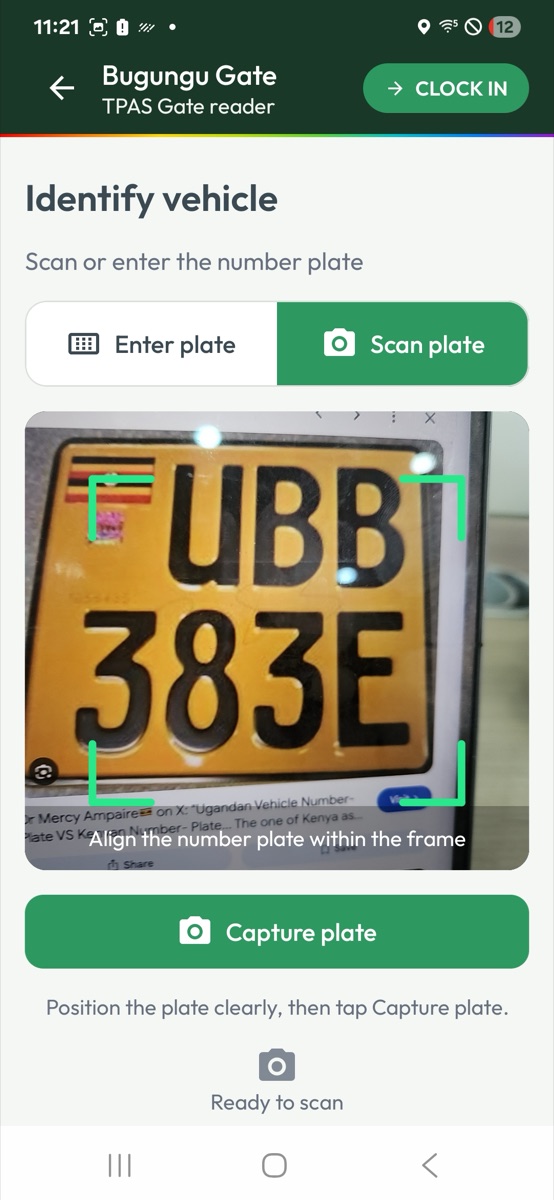
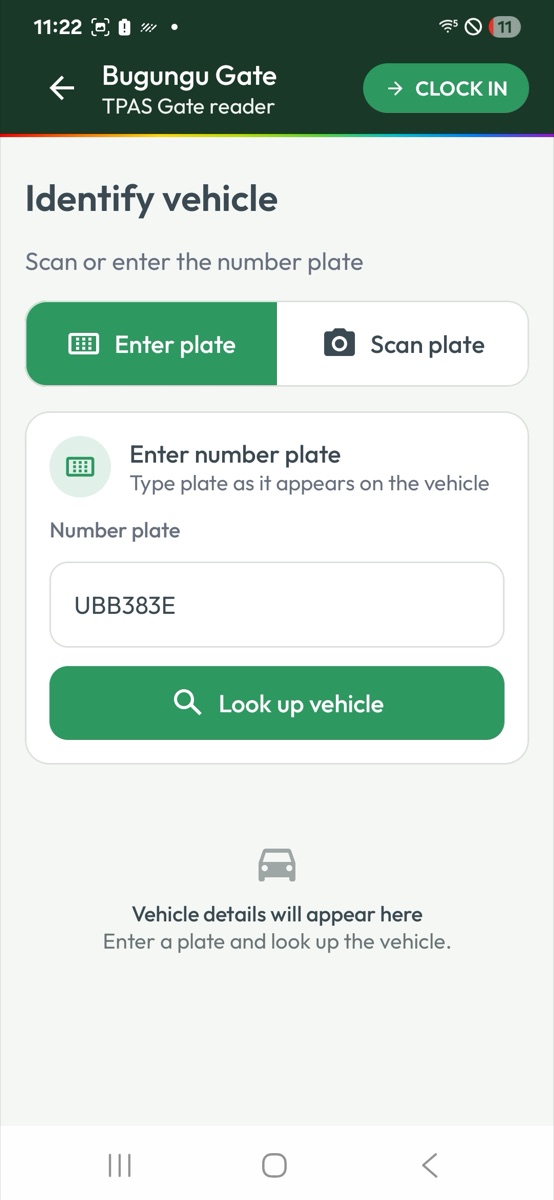
Compare the plate that was read with the vehicle before you look it up. The camera can misread a character; correct it in Number plate if it has.
What the lookup can say
| Result | What happens |
|---|---|
| Authorised | The vehicle is registered, fitted and in date. The app goes straight on to the vehicle session (Clocking in). |
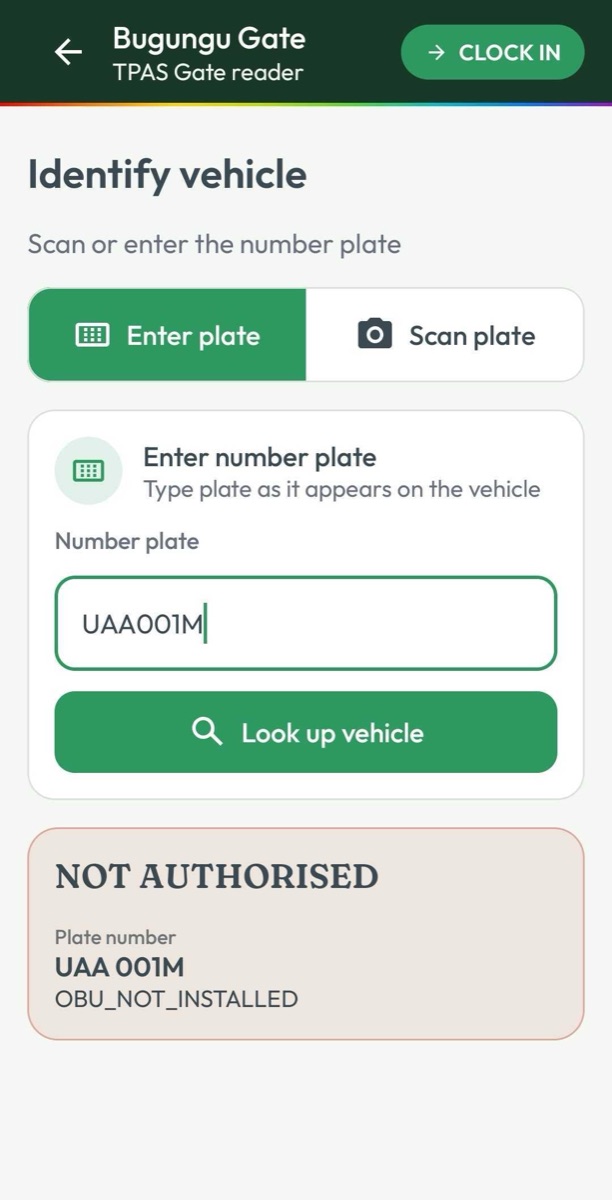
| NOT AUTHORISED | The vehicle is known but may not enter. The reason is shown. You cannot continue. |
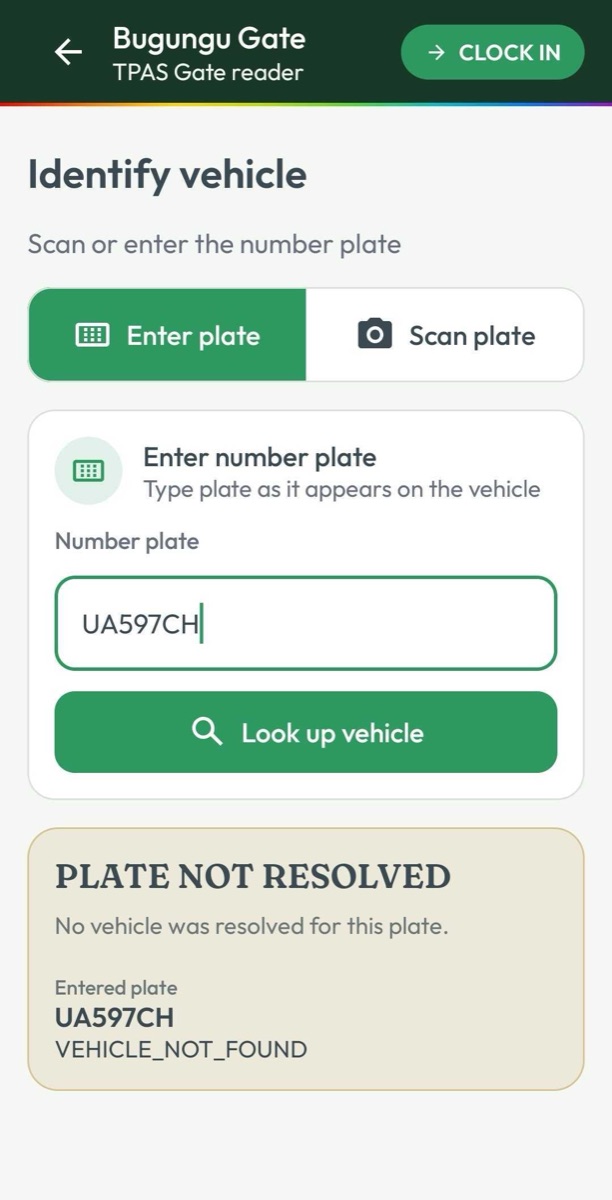
| PLATE NOT RESOLVED | No vehicle in TPAS has that plate. |
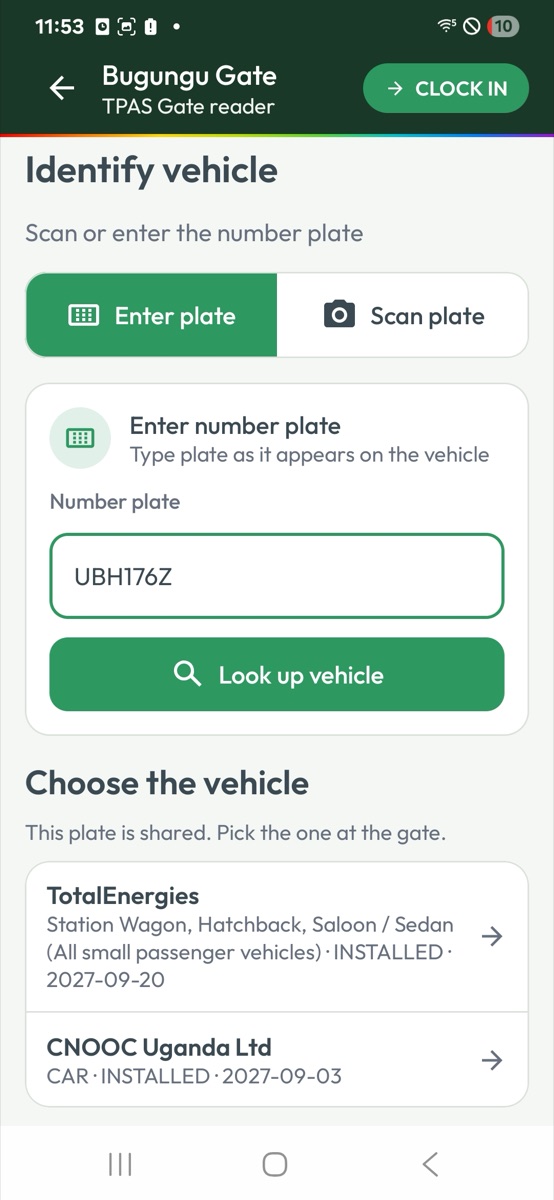
| Choose the vehicle — This plate is shared. Pick the one at the gate. | More than one registered vehicle carries the plate. Each is listed with its contractor, type, OBU state and validity; select the one in front of you. |
A shared plate. When two registered vehicles carry the same plate, the app will not guess. Choose the vehicle lists each one — the contractor that owns it on the first line, then its vehicle type, OBU state and the date its access runs to. Pick the one in front of you by its contractor (ask the driver if you are unsure); the app then looks that vehicle up and carries on as usual.
Under the plate, the card prints the reason exactly as TPAS sends it —
VEHICLE_NOT_FOUND, OBU_NOT_INSTALLED. The short message that flashes up at
the bottom of the screen says the same thing in words, but it disappears
after a few seconds. Use this table to read the card:
| Card shows | Means |
|---|---|
VEHICLE_NOT_FOUND | Vehicle not registered |
PLATE_AMBIGUOUS | This plate matches more than one vehicle |
VEHICLE_SUSPENDED | Vehicle suspended |
VEHICLE_RETIRED | Vehicle retired |
OBU_NOT_INSTALLED | No OBU fitted to the vehicle |
VALIDITY_EXPIRED | Access period expired |
A vehicle that is not authorised is not recorded. The app will not let you add people to it. Deal with it as you would any refusal at the barrier: check the vehicle's paperwork, and if it is let through against the system, log an OBU incident in the portal (Incidents). A plate that is not resolved usually means a mistyped plate — check it against the vehicle and look it up again before treating it as unregistered.