Verify access on the phone
A TPAS account with a gate role that an administrator has assigned to a gate (Adding a user). The app has no gate picker: it works at the gate your account is assigned to, and nowhere else.
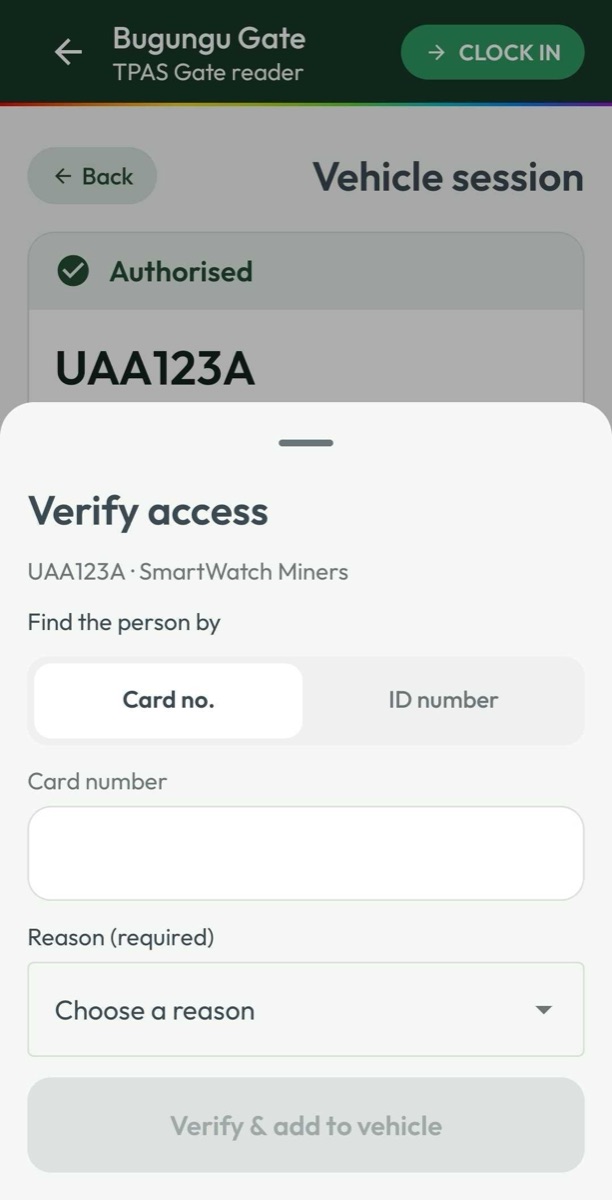
Verify access, at the bottom left of the session, is for the person whose badge is missing, damaged or will not check out by its number. It finds them another way and records why you had to.
-
Under Find the person by, choose Card no. or ID number (their national ID or passport number, as registered in TPAS). Whatever is already typed in Enter card ID is carried across.
-
Type the number.
-
Choose a Reason (required):
Reason Badge not reading Badge damaged Badge left at home Badge lost or stolen Reader not working Other (explain) Other (explain) also asks you to Describe the reason, and cannot be sent without it.
-
Select Verify & add to vehicle.
The sheet closes, and one of two things happens:
- The person is eligible — they are added to the session as Authorised, and TPAS ties them to this vehicle as a manual entry carrying your reason. Send the session as usual.
- The person is not eligible — nobody is added, and the reason flashes up in red. This includes somebody who is out of order: already inside when you are clocking in, or never entered when you are clocking out (Sending, and the receipt).
If the sheet reads Verification reasons haven't loaded. Try again shortly., the reason list did not arrive from TPAS; close the sheet and reopen it once the phone has signal.
Every person admitted this way is recorded as a manual entry with the reason you chose, so that a lost or failing badge can be followed up afterwards. If the badge is lost or stolen, also have it reported lost in the portal (Managing a badge) so it stops working. If you let somebody through against a refusal, that is an incident (Incidents), not a Verify access.