Clocking in
A TPAS account with a gate role that an administrator has assigned to a gate (Adding a user). The app has no gate picker: it works at the gate your account is assigned to, and nowhere else.
An authorised vehicle opens Vehicle session.
At the top is the vehicle card: Authorised, the plate, the contractor that owns it, and its OBU state and validity — Installed · valid to Jul 15, 2027. Beneath it you add the people on board.
Adding people
Type the number from the person's badge into Enter card ID and select Add. The app checks the badge against TPAS and adds the person to the list with a verdict:
| Pill | Means |
|---|---|
| Authorised | The badge is valid and the person may enter. |
| Not authorised | TPAS refuses this badge. The reason flashes up at the bottom of the screen. |
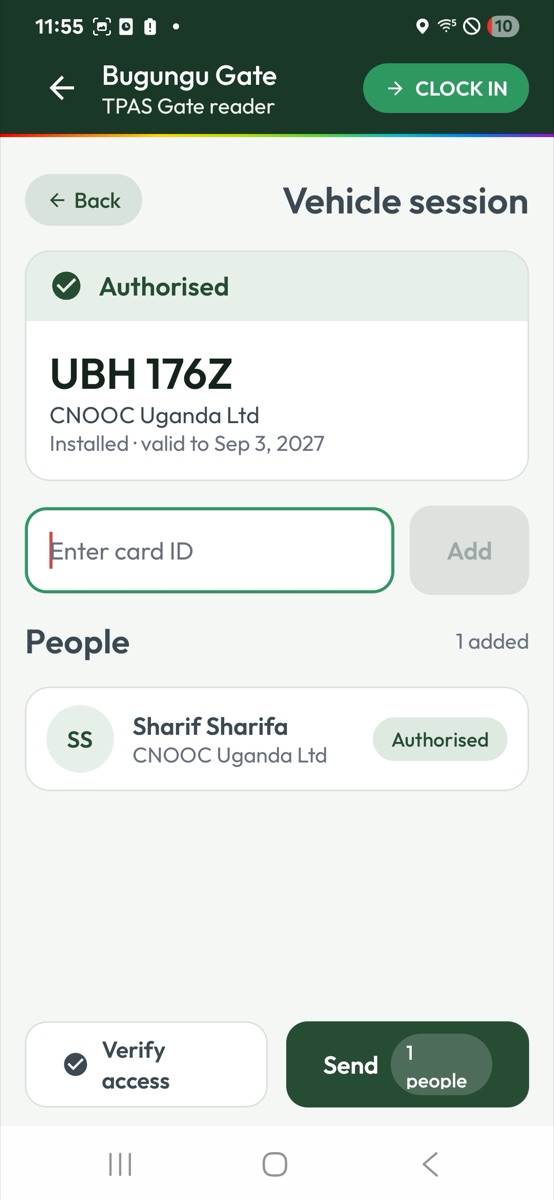
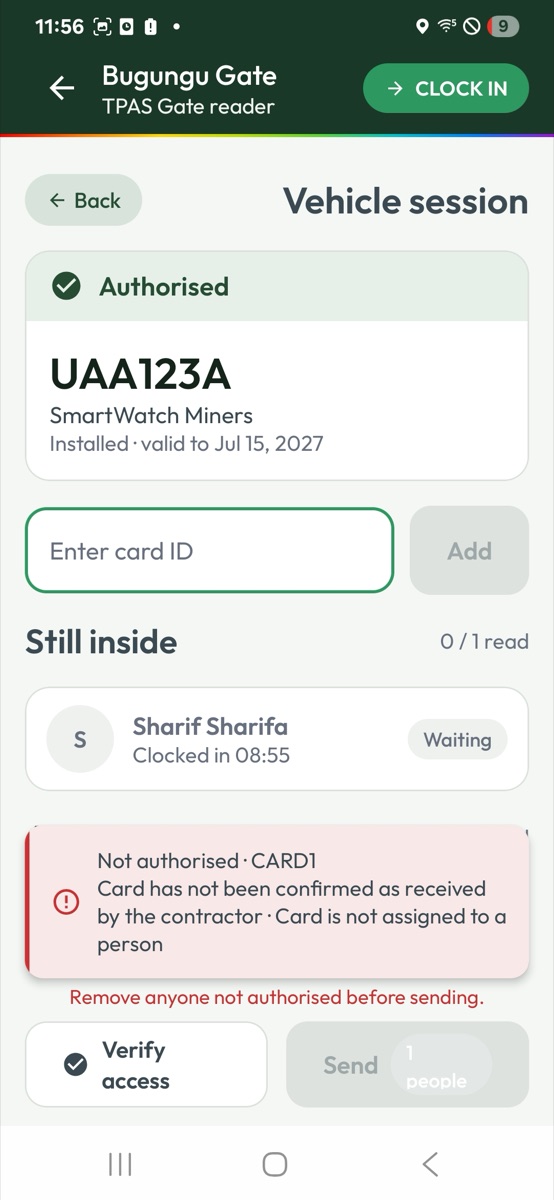
The red message names the badge on its first line (Not authorised · CARD1) and gives every reason TPAS found beneath it, separated by dots — Card has not been confirmed as received by the contractor · Card is not assigned to a person. It disappears after a few seconds, so read it while it is there. The reasons are the same ones the portal's Verify Access gives for that badge, and are fixed in the portal, not at the gate.
The same badge added twice is simply ignored. A badge TPAS cannot check at all (no signal, for instance) is not added — try again.
The app is called RFID Reader, but this version cannot yet read a badge through the handheld's radio reader or its trigger button — that support is still to come. Until it does, type the card number printed on the badge. (If a badge is missing or its number cannot be read, use Verify access.)
When TPAS already knows who is aboard
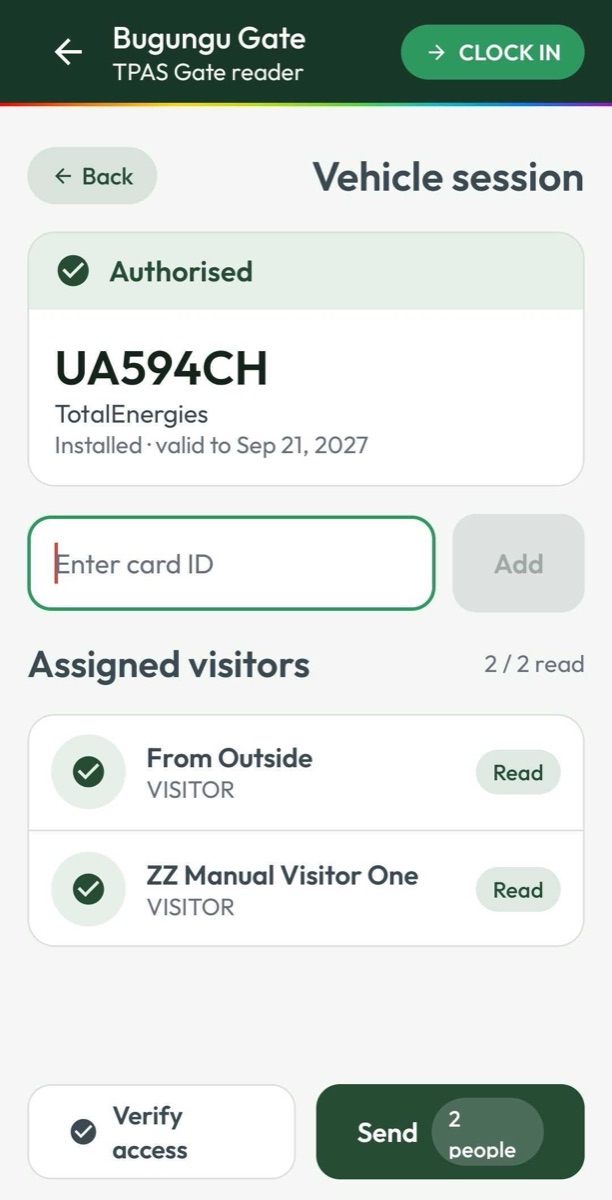
For some vehicles the session opens with a list of names above everything you add. Each badge you add ticks its person off — Waiting becomes Read — and the count beside the heading (0 / 2 read, 2 / 2 read) tells you who is still to come. Anybody whose badge you add but who is not on the list appears below it under Also read. Read only means their badge has been added to this session.
The heading says which list it is:
| Heading | Who is on it |
|---|---|
| Assigned visitors | The vehicle was booked for visitors (Visitors), and these are the visitors expected in it. |
| Still inside | People who came in on this vehicle earlier and, as far as TPAS knows, have not left — each with Clocked in and the time. If even one person is still inside, the whole list takes this heading — expected visitors included, who show their role instead of a time. |
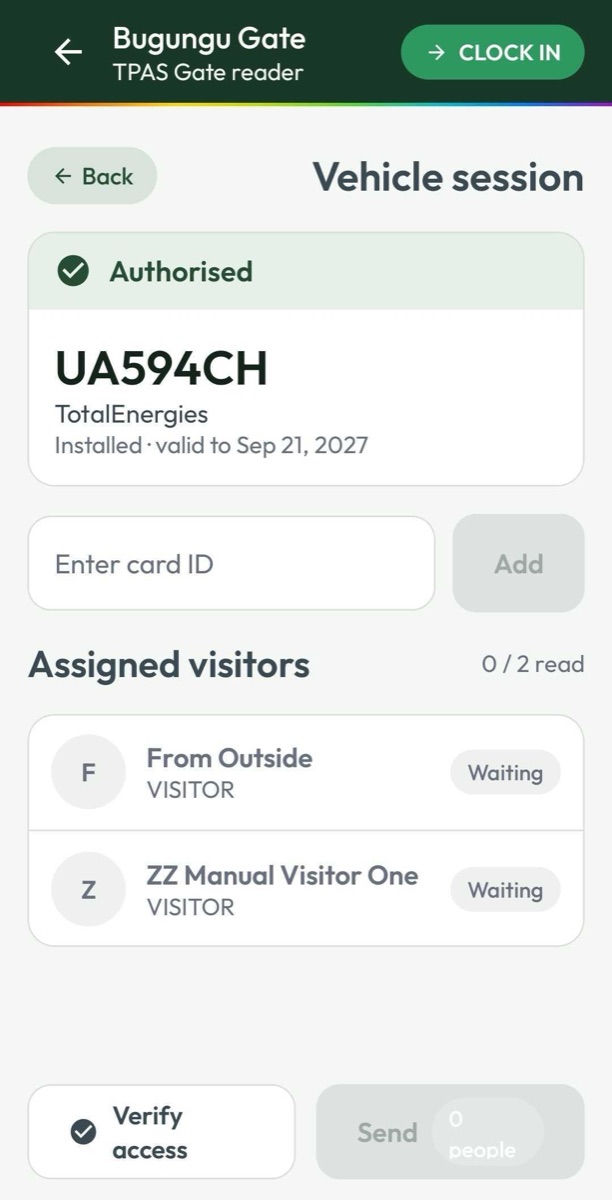
Still inside on a clock-in is a warning, not a roster to work through. TPAS keeps every badge in order, so a person it believes is already inside cannot be clocked in again (Sending, and the receipt). If someone on it is in front of you, they left without being clocked out; the exit has to be recorded first (Clocking out). The Still inside list is shown again, as the list to work through, when you clock the vehicle out.
For a contractor's vehicle with nobody inside, there is no list: everyone you add appears under People, with a count of how many have been added.
Nobody refused may be sent
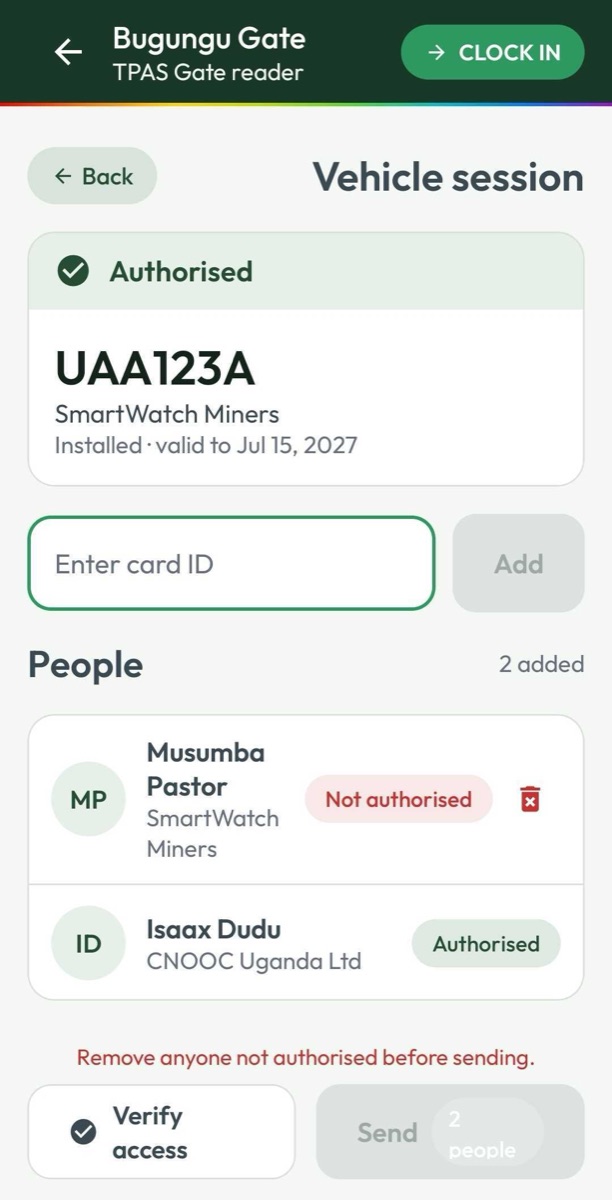
A Not authorised person stays on the list, in red, with a bin icon beside them — and while they are there, the red line Remove anyone not authorised before sending. appears and Send is greyed out. Select the bin to take them off. Only refused people can be removed; an authorised person, once added, stays.
Send is available once there is at least one person on the list and nobody refused. Its label counts who will be sent — Send · 2 people.
Back, the arrow at the top left, or looking up a different vehicle all start again without asking. Anyone you added and did not send is lost. Send first.